Table of Contents
1. Error: Authentication failed
$ git clone https://gitlab.com/rw-courses/semester-projects/facebase_2026-01_spring2026.git
Cloning into 'REPOSITORY'...
Username for 'https://gitlab.com': USERNAME
Password for 'https://USERNAME@gitlab.com': PASSWORD
remote: HTTP Basic: Access denied. If a password was provided for Git authentication, the password was incorrect or you're required to use a token instead of a password. If a token was provided, it was either incorrect, expired, or improperly scoped. See https://gitlab.com/help/topics/git/troubleshooting_git.md#error-on-git-fetch-http-basic-access-denied
fatal: Authentication failed for 'https://gitlab.com/REPOSITORY.git/'
This seems to happen on Linux and Mac computers in the shared project repository. To get around this, you will need ot make an access token.
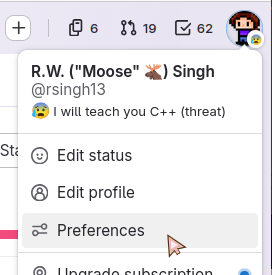
Go to the GitLab webpage, click your profile image in the upper-right, and select Preferences.
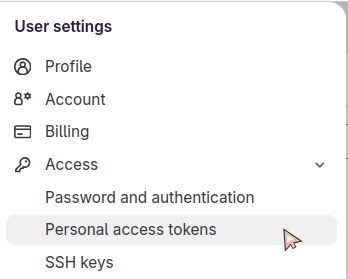
In the left navigation, select Access then Personal access tokens.
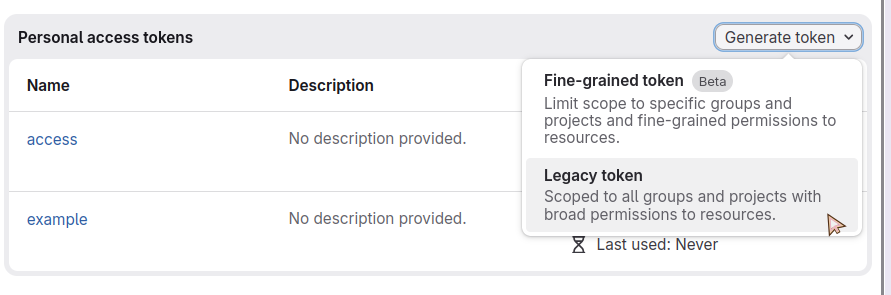
Select the Generate token button, and choose Legacy token.
- Give the token a name and select api as the option, then click the Generate token button at the bottom.
A hidden token will be generated. Press the COPY button on it, then use it as your HTTPS login password when cloning the repository.
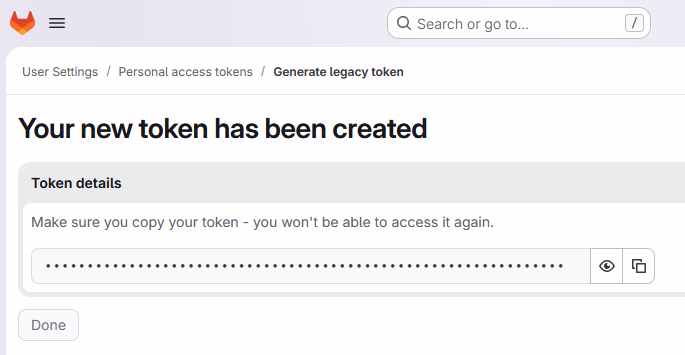
You might want to save the token in a text file on your computer somewhere TEMPORARILY in case you need to access it again. Once you close this page, you won't have access to this token again and you'd have to generate another one.
2. Error: "Attempting to check in one or more blobs which exceed the limit"
Particularly with CS 250, this might occur for your CSV data file. You will want to make sure you don't commit the CSV file to your repository.
If you need to, you can undo some commits until you find the one where you committed the large file:
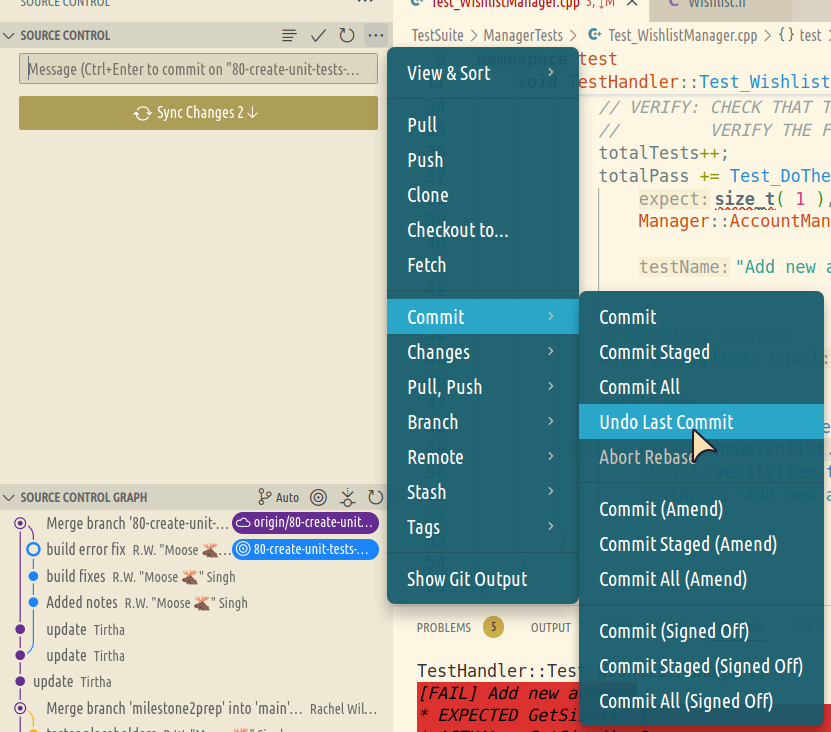
Click on the "…" menu in the source control header, then go to the Commit submenu and select Undo Last Commit. You can do this several times.