Table of Contents
1. Getting Git set up
1.1. Installing the Git software
You can download the Git installer for Windows at https://git-scm.com/. Run the installer. You can use the default settings for most things, but I would suggest looking out for this screen:
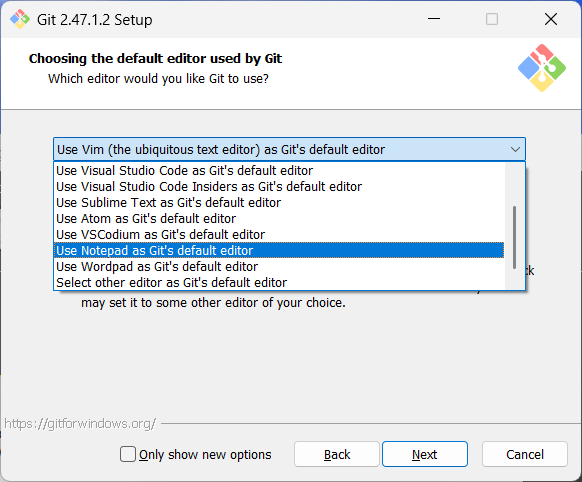
Set the default editor to "Notepad" to keep it easiest. You probably won't want vim… unless you want vim. But you'd know if you wanted vim.
1.2. Configuring your username and email
Once Git is installed, go to the Start menu in Windows and search for "Git Bash". (If you're on Mac or Linux, just open the Terminal).
You'll need to config the following, but just the first time:
git config --global user.name "YOURNAME"
git config --global user.email "YOUREMAIL"
git config --global pull.rebase false
1.3. Cloning your repository to your computer
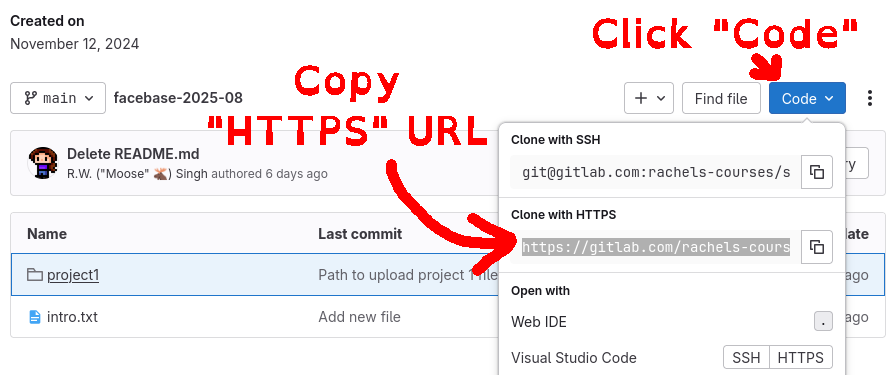
Go to your GitLab repo page (e.g., https://gitlab.com/rsingh13/rsingh13-cs200) and click on the blue "Code" button. It will open up a modal. Click the Copy button next to the "Clone with HTTPS" link.
- On your computer, open up File Explorer (Windows) or Finder (Mac) and
locate a directory where you want to store your class files.
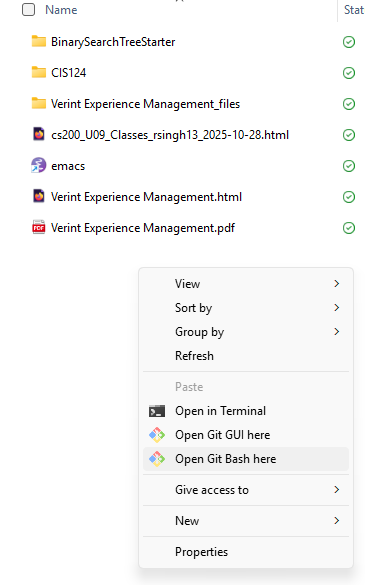
In Windows, right-click in the empty space, click "Show more options", then click "Open Git Bash here".
- In Mac open your Terminal program. By default, it opens in your HOME
directory. Enter the command
cd Desktopto go to the desktop, which might be the easiest location to keep your course files.
Within Git Bash / Terminal, type in
git clone <URL>, instead of<URL>, right-click the window and use Paste to paste in your repository URL. Then press ENTER. It will bring down your files.- NOTE: It might ask you to log in (look for a window that pops up behind all your other windows.)
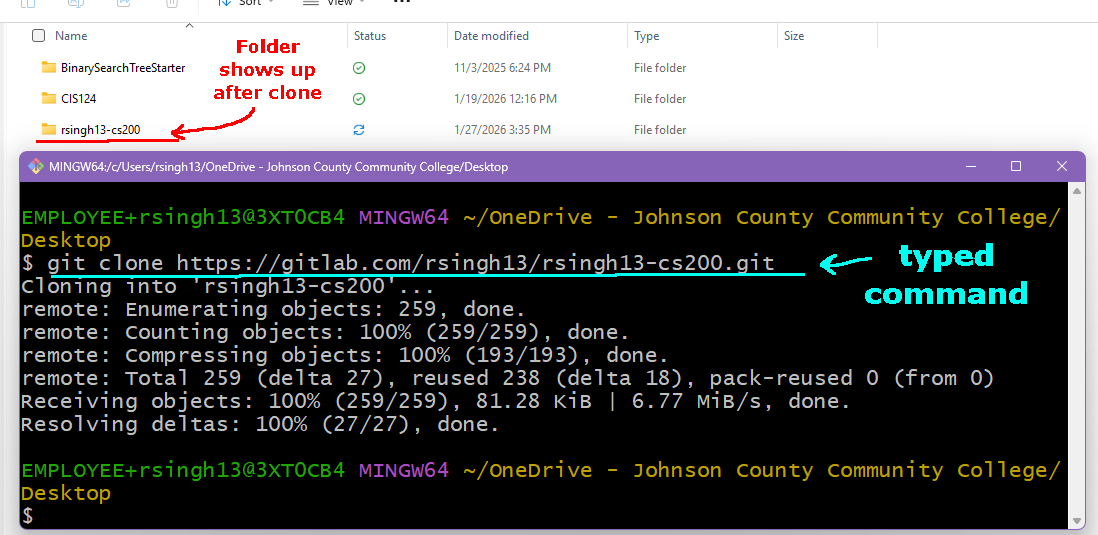
- When you look at File Explorer or Finder, you will see the folder in the location chosen.
- Afterward, the folder should be on your computer!