🛠️ Setup: Gitlab
This will step you through:
- Creating a GitLab account
- Creating a repository for this class
- Adding "maintainer" access for the instructor
Introduction
What is GitLab?
GitLab is a source code hosting web service. You may have also heard of GitHub, which is a similar service, but GitHub is owned by Microsoft (ew).
We are going to be using GitLab throughout this semester to store code. This also gives us an easy way to share code, so if you get stuck on an assignment you can save your changes to the server and I can look at them on my computer with one click.
What is Git?
Git is a piece of software that allows you to interact with Git servers easily.
What is a repository?
Each project (or software program) usually has its own repository. For our class, each student will have 1 repository for all their coding assignments, with assignments separated into folders. The instructor creates the repository and folders with starter code for you, and you will need to use the Git software to download it to your computer.
Set up a GitLab account
(If you already have a GitLab account you can skip this step. Note - Git LAB not GitHub.)
Start at the GitLab sign up page: https://gitlab.com/users/sign_up.
- It will let you sign in with a Google account (below), but if you do this you will need to do a password reset from the GitLab Edit Profile page so that you know the password - which you will enter in on your computer later.
- Sign up with a name and username. You can use your student email if you'd like - you can always change it later on.
- If the sign up process asks what you're using GitLab for, you can mark "Education" or "Other".
- You do not need to pay anything; just navigate from any pages that ask for payment.
(Optional) Reset password (if you registered via other account)
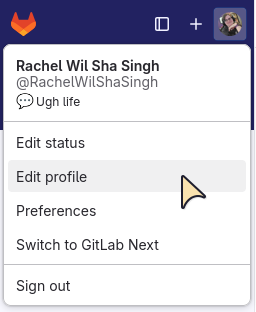
If you registered with an existing Google account then GitLab won't know your password, but you'll need a password to use Git on the desktop. You will have to reset your password in GitLab.
Once you're logged in click on your profile picture circle and select "Edit profile".
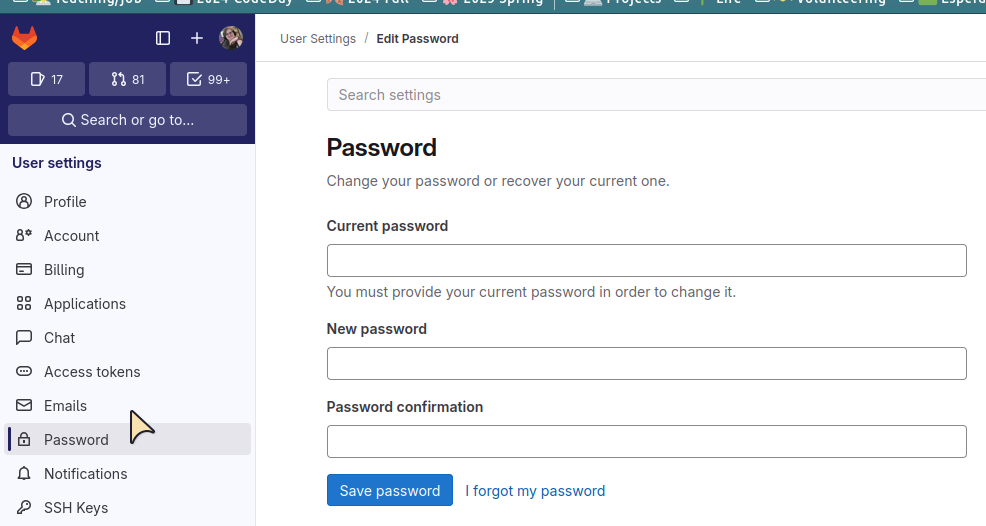
Then go to the "Password" section. You'll probably have to do the "I forgot my password" link in order to set up an actual password.
What's your GitLab profile?
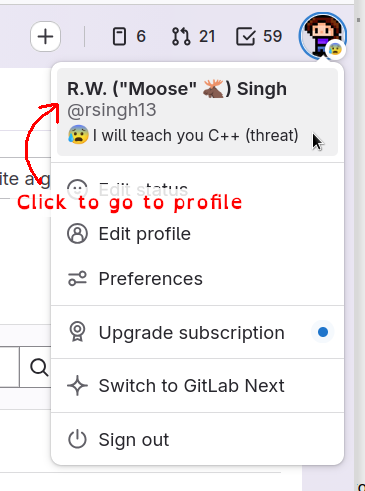
Once you're done registering you should be able to get to your GitLab profile page. Click on the profile picture circle and select your username at the top.
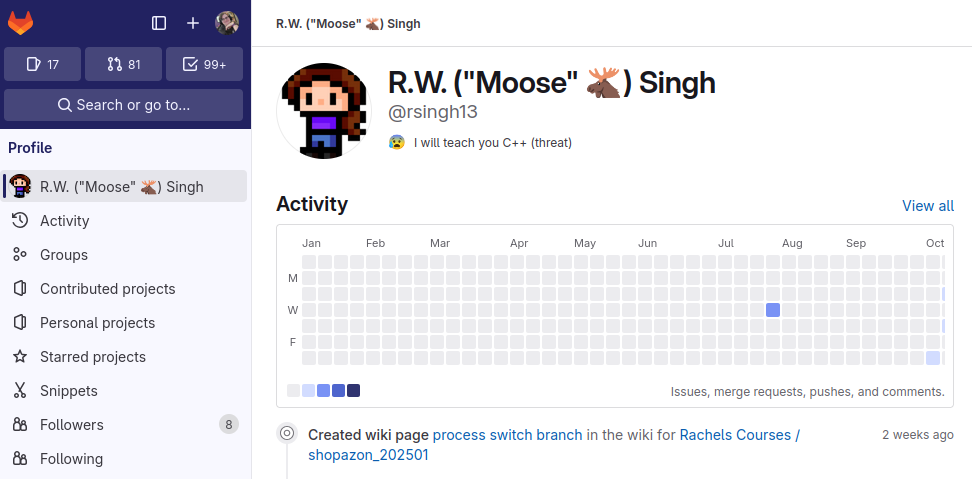
This should take you to your GitLab homepage, which will be gitlab.com plus your username, similar to https://gitlab.com/rsingh13 .
Paste your GitLab profile page URL into the Canvas assignment.
Create a GitLab project repository
Click on the "+" button at the top of the GitLab page and click "New project/repository".
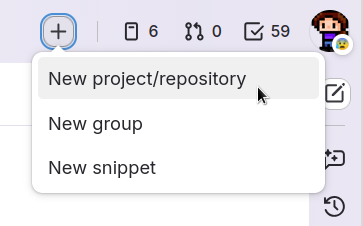
On the next screen, click "Create blank project". Then set up your repository.
- Project name: Use your school SSO and "-cpp" for C++ (e.g. "rsingh13-cpp"). (Note: If you take more of my C++ classes you'll be reusing this repository!)
- Project URL: gitlab.com/YOURUSERNAME/YOURSSO-cpp (this gets auto-generated).
- Don't select a deployment target.
- Visibility Level: Private
- Project Configuration: Initialize repository with a README
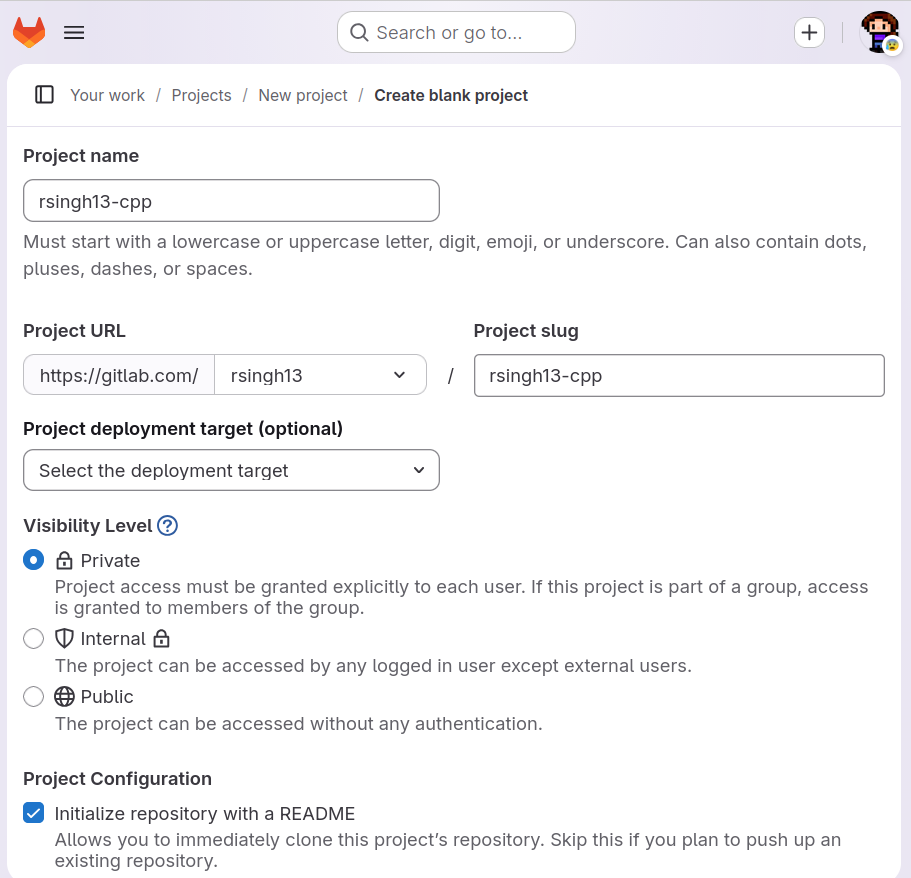
Then click the blue "Create Project" button.
Make sure to bookmark this repository page!
Copy/paste the URL to the Canvas assignment.
Configure repo to give instructor access
From your repository page, there's a left navigation bar (you might have to expand it). Go to Manage and then Members.
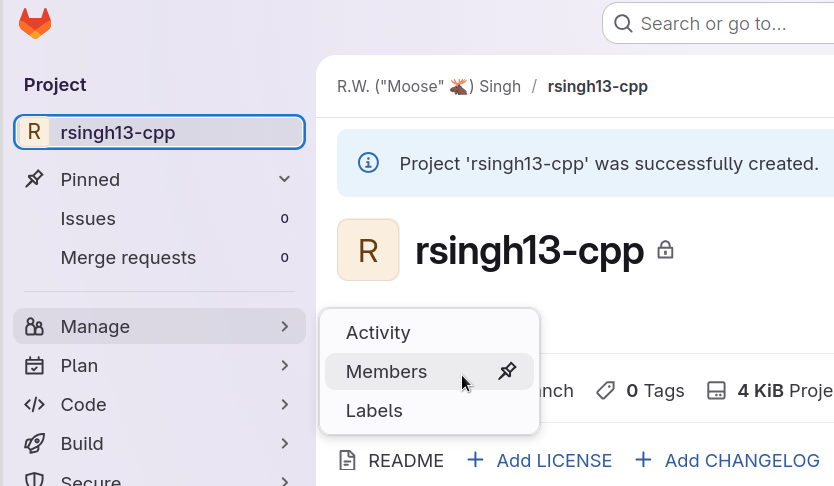
From the next page, click the blue "Invite members" button.
- Username: rsingh13
- Select a role: Maintaner
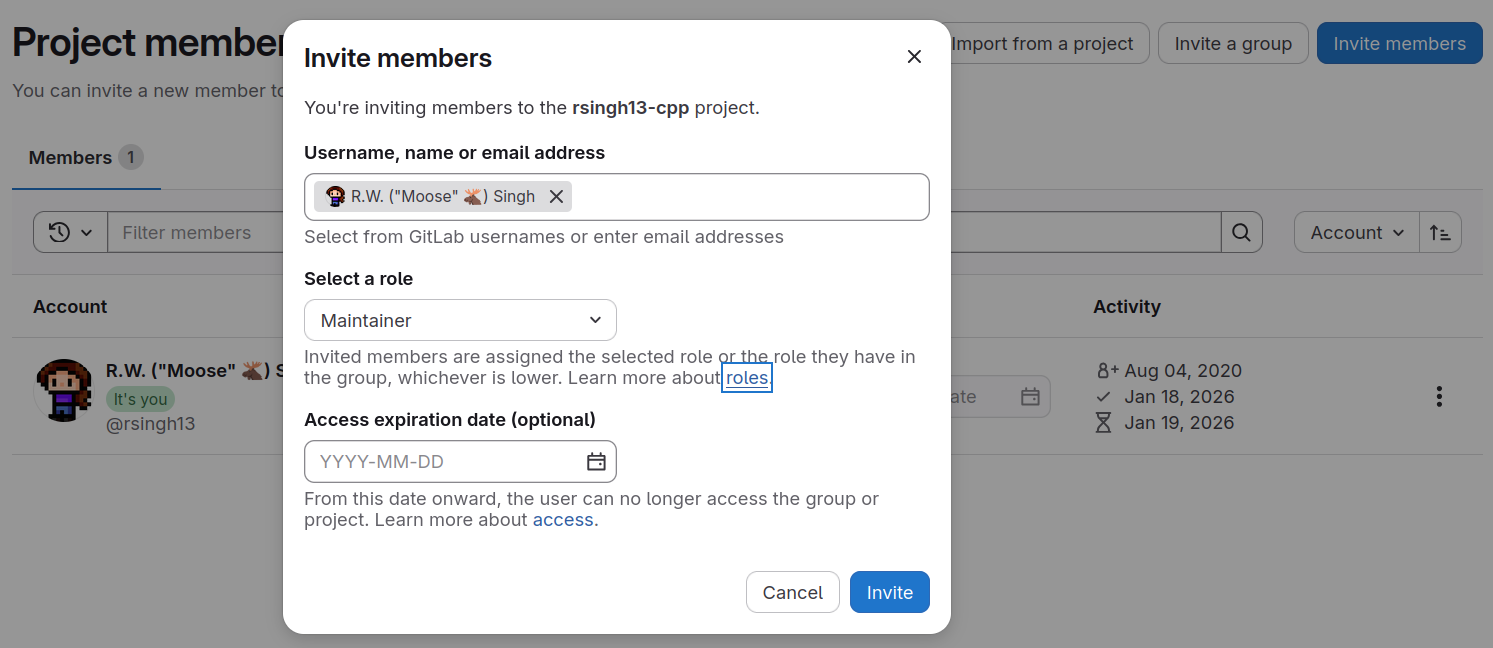
Then click the blue "Invite" button.
I should now have access to your repository. I can then upload the starter code for labs as the semester goes on, or while grading I may add * comments * to your code on what didn't work out.