Table of Contents
1. Lesson 09: GAME RECIPE - Click-a-mole
1.1. Getting set up
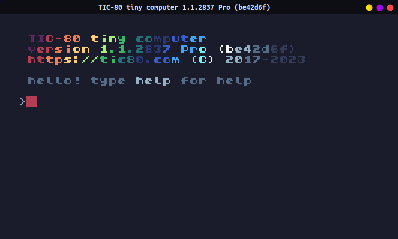
You can either edit over your existing code, or start a new program. If you want to start a new program, press ESCAPE until you get to the main prompt:
Then type in new lua, hit ENTER, then save GAMENAME.LUA, hit
ENTER. (Replace "GAMENAME" with whatever you want.)
> new lua
new cart has been created

> save GAMENAME.lua
cart GAMENAME.lua saved!
–
1.2. Draw your sprites
Draw at least three sprites. You don't have to make yours a mole, it can be something else to click on. There should be (1) Hidden, (2) Popped up, (3) Clicked!
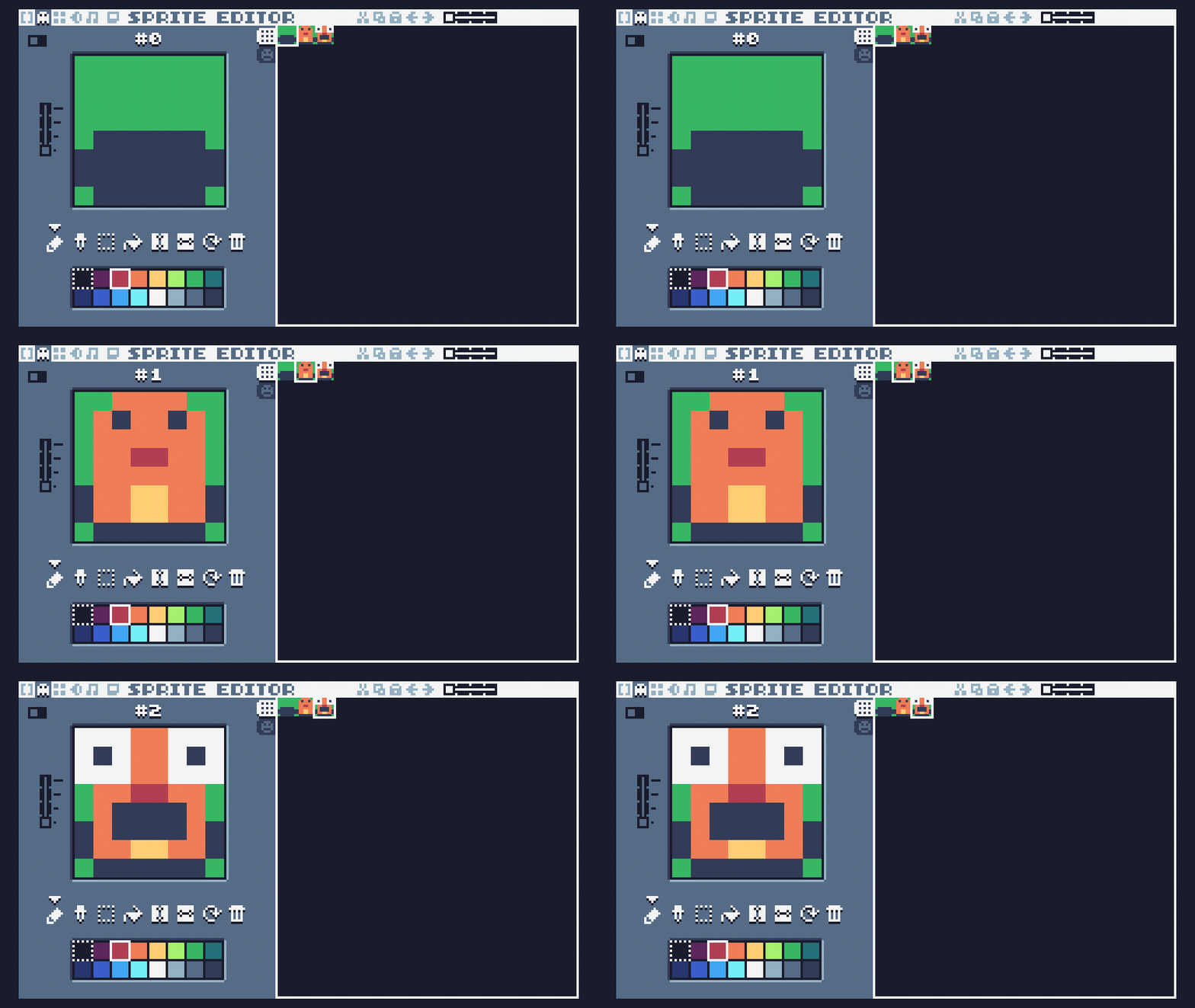
Other ideas could be…
- (1) A bush! (2) A bird in the bush! (3) A clicked bird!
- (1) A rock! (2) A worm under the rock! (3) A clicked worm!
1.3. Editing the code
Press the F1 key to go to the code editor. Erase the starter code. Let's start with this:
-- Function
function GetDistance(x1,y1,x2,y2)
 return math.sqrt( (x2-x1)^2 + (y2-y1)^2 )
end

-- A. Game setup


-- Game loop
function TIC()
  cls(6)

  -- B. Countdown timer


  -- C. Critter updates


  -- D. Check for mouse click on critter


end
We will implement a little bit at a time and then test - that way, if we make a mistake, it is easier to fix than if we did the entire thing all at once!
1.3.1. Part A: Game setup
We will need the following variables for our game. Create each one and assign its starting value:
| Variable name | Starting value | |
|---|---|---|
| moleX | 116 | |
| moleY | 72 | |
| count | math.random(10,100) | |
| status | "hide" | |
| score | 0 |
Once you've written the assignment statements, test the program by
pressing the RUN button  or by
pressing CTRL+R on the keyboard. The program should run but have a
blank screen - that's good! Otherwise if there is a typo it will
give you an error message.
or by
pressing CTRL+R on the keyboard. The program should run but have a
blank screen - that's good! Otherwise if there is a typo it will
give you an error message.
1.3.2. Part B: Countdown timer
For part B we're going to make a countdown timer. The count
variable starts at a random value and will count down to 0.
The PSEUDOCODE is:
- if count is greater than 0 then
- subtract 1 from count, re-assign to the count variable
- print the count variable to the screen
This code will look like:
-- B. Countdown timer
if count > 0 then
 count = count - 1
end
print("Timer: " .. count, 5, 5)
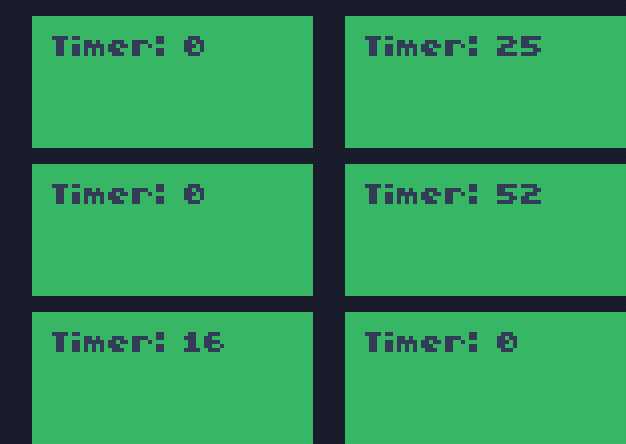
When you run the program you will be able to see the number count down from the random value to 0. You can reset the program by hitting CTRL+R again.
1.3.3. Part C: Critter updates
Next whenever our counter hits 0 we're going to change what our critter is going. If the critter is hiding, we'll change it to showing. If the critter is showing, we'll change it to hiding. We will also reset our counter to a new random number so the critter acts in a cycle.
PSEUDOCODE:
- if count is 0 then
- set count to a random number between 0 and 100
- if status is "hide" then change status to "show"
- else change status to "hide"
- if status is "hide", draw sprite 0
- else if status is "show", draw sprite 1
- else if status is "hit", draw sprite 2.
We haven't implemented logic for the "hit" status yet, but we will in a bit!
-- C. Critter updates
if count == 0 then
 count = math.random(10, 100)
 if status == "hide" then
  status = "show"
 else
  status = "hide"
 end
end

if status == "hide" then
 spr(0, moleX, moleY)
elseif status == "show" then
 spr(1, moleX, moleY)
elseif status == "hit" then
 spr(2, moleX, moleY)
end
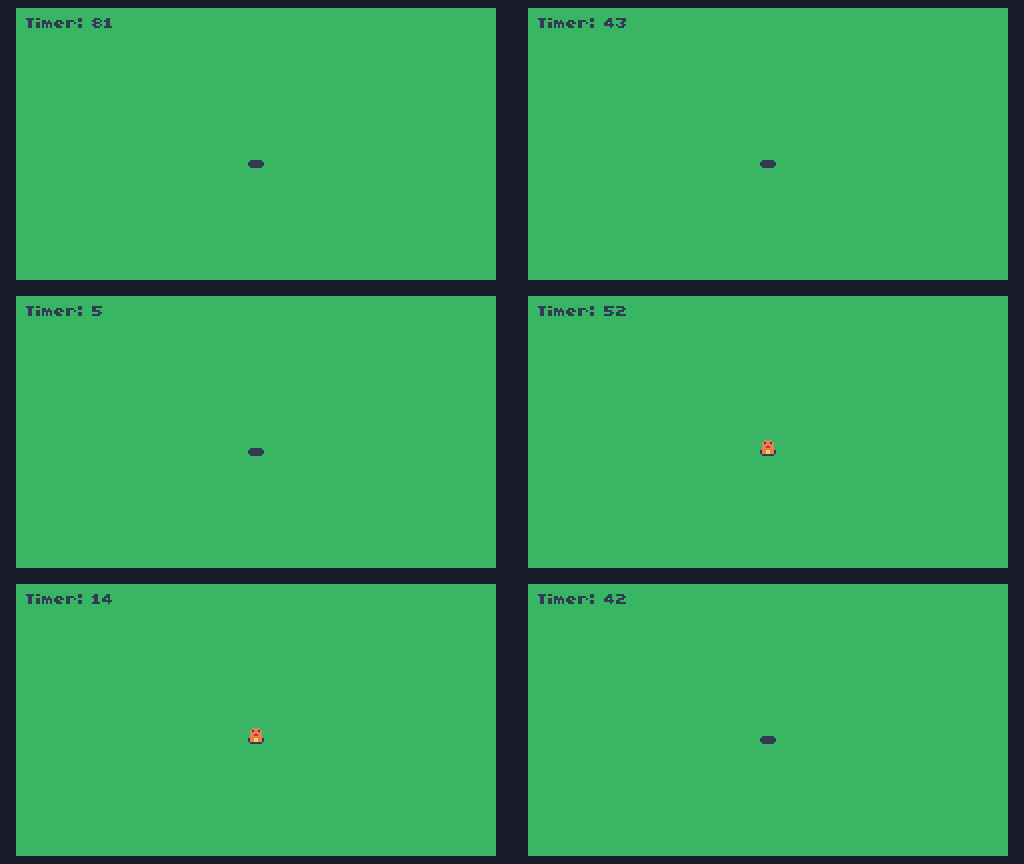
Make sure to run the program and watch to make sure your critter changes from hidden to showing and back again. This should continue forever!
1.3.4. Part D: Check for mouse click on critter
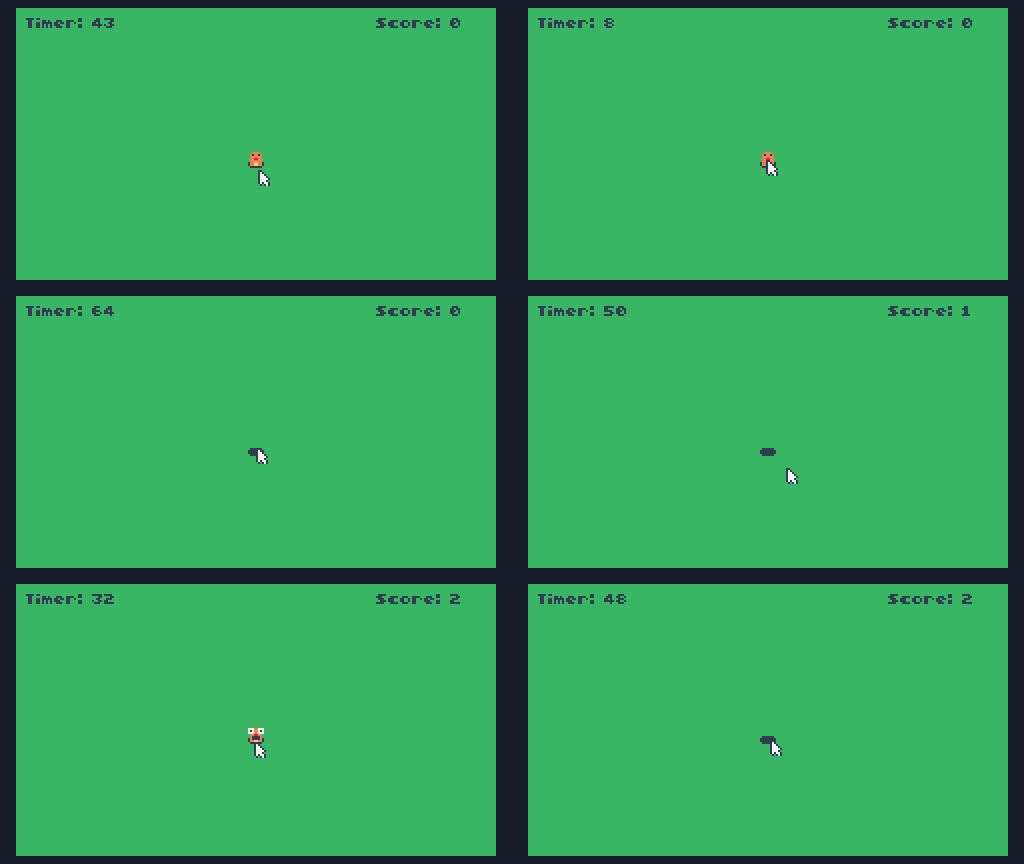
Next we will check to see if the mouse button was clicked, and if it was clicked, if the mouse (x,y) coordinate is above the critter. If it is, the critter shows the "hit" sprite, and we add 1 to the score!
PSEUDOCODE:
- Get the mouse x, y, and button state from the
mouse()function. - Get the distance between (mouseX,mouseY) and (moleX,moleY).
- If mouse button is clicked and the distance is less than 8 and the
status is "show", then…
- set status to "hit".
- add 1 to score
- play a sound effect
- Use print to display the score at the top of the screen
The code looks like this:
-- D. Check for mouse click on critter
mouseX, mouseY, button = mouse()
dist = GetDistance(mouseX,mouseY,moleX,moleY)
if button and dist <= 8 and status == "show" then
 status = "hit"
 score  = score + 1
 sfx(3,"C-4",10)
end
print("Score: " .. score, 180, 5)
1.4. Testing
Now when you play the game you should be able to click on the critter once it's showing, which will cause it to be "hit" and add 1 to your score.
1.5. Challenges
CHALLENGES!
Can you use what you've learned so far to expand the game? Here are some ideas:
- Have the mole move to a random (x,y) position after being clicked
- Add a second critter that the player can click on, maybe for more points
- Make the countdown timer go slower when the mouse is further away, and faster when the mouse is closer
1.6. Save your work and back it up to the gallery!
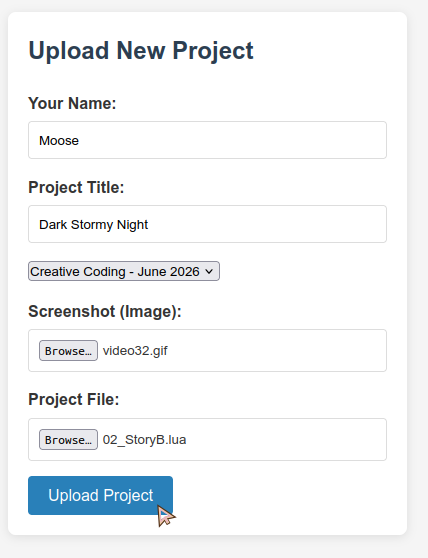
Save and backup your work!
- Use the F8 key to take a SCREENSHOT of your work while the game is running!
- Press the ESCAPE key to open the menu and choose CLOSE GAME to go back to the prompt
- Type
saveor press CTRL+S to save your work! - Type
folderto open up the game location. - Go to the 🖼️ Student Gallery
- Set *Your Name* (first name or nickname only!)
- Set your *Project Title*
- Click-and-drag your gif screenshot to the Screenshot box
- Click-and-drag your lua file to the Project File box
- Press the Upload Project button