Table of Contents
1. Lesson 08: Distance function
1.1. Getting set up
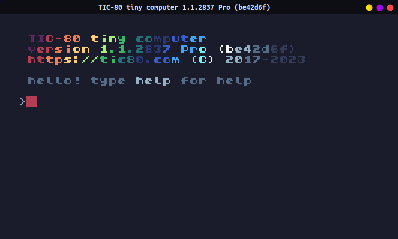
You can either edit over your existing code, or start a new program. If you want to start a new program, press ESCAPE until you get to the main prompt:
Then type in new lua, hit ENTER, then save GAMENAME.LUA, hit
ENTER. (Replace "GAMENAME" with whatever you want.)
> new lua
new cart has been created

> save GAMENAME.lua
cart GAMENAME.lua saved!
–
1.2. Create a sprite
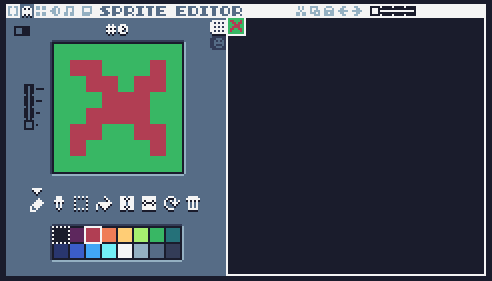
In the Sprite Editor F2, create a sprite we are going to display on the screen.
1.3. Creating the distance function
Depending on where you are in your math classes, you might have seen the distance formula:
\[ d = \sqrt{ (x_2 - x_1)^2 + (y_2 - y_1)^2 } \]
This is how we can tell how far two (x,y) coordinates are from each other.
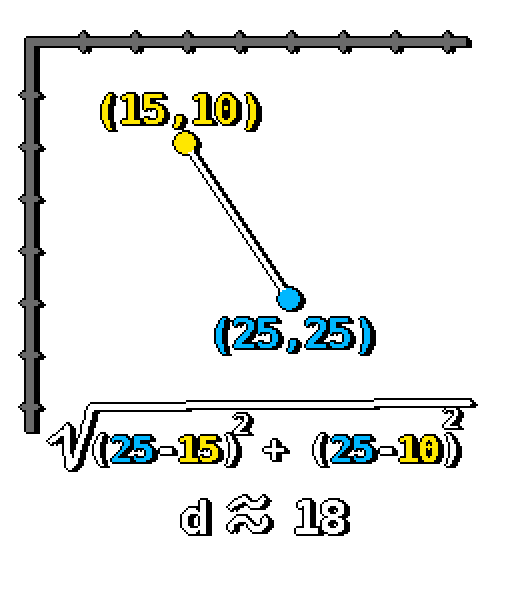
So in our program we're going to keep track of the coordinate of a sprite and of the mouse, figure out the distance, and print it to the screen. Once we have the formula, we can add things to our games like how to check if the player has picked up a coin, or how to check if the opponent has reached the finish line.
1.4. Editing the code
Press the F1 key to go to the code editor. Erase the starter code.
We're going to start by putting the Distance function at the very top of our program, before the TIC() function:
-- Functions
function GetDistance(x1,y1,x2,y2)
  return math.sqrt( (x2-x1)^2 + (y2-y1)^2 )
end

-- Game setup

-- Game loop
function TIC()

end
Next we want to create a position for the sprite we will draw to the screen. Create two variables, such as:
-- Game setup
pointX = 240/2
pointY = 136/2
Within the TIC() function, we'll get the mouse coordinates, then use the distance formula to find out how many pixels apart the mouse is from the sprite.
Afterwards, we'll clear the screen, draw the sprite, and print out text that shows the distance between the mouse and the sprite.
function TIC()
  mouseX, mouseY, button = mouse()
  dist = GetDistance(mouseX,mouseY,pointX,pointY)

  cls(6)
  spr(0, pointX-4, pointY-4)

  print("Distance: " .. dist, 5, 5)
end
1.5. Testing
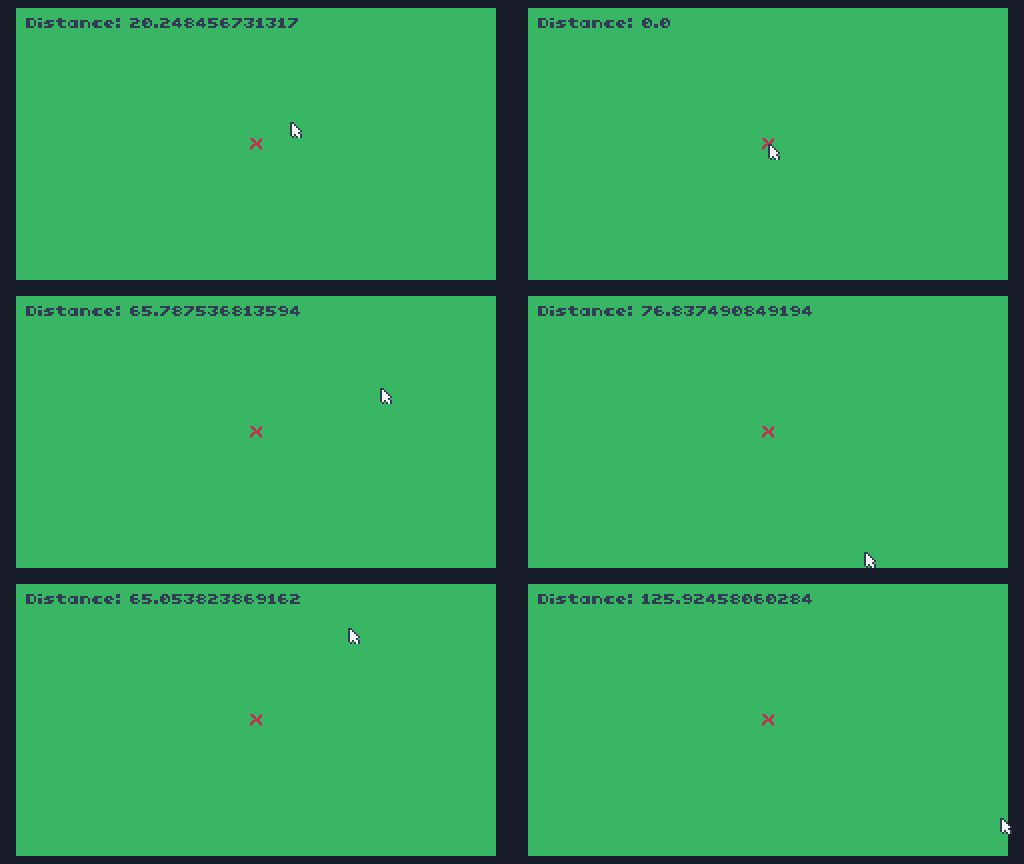
Now you can run the program and move the mouse around, it will show the distance between the two points:
1.6. Save your work
Make sure to press the CTRL+S key, or press ESC to go to the
prompt and type save to save your work! If you want to access the
folder with your code, type folder.