Table of Contents
1. Lesson 03: Drawing with blocks
1.1. Getting set up
You can either edit over your existing code, or start a new program. If you want to start a new program, press ESCAPE until you get to the main prompt:
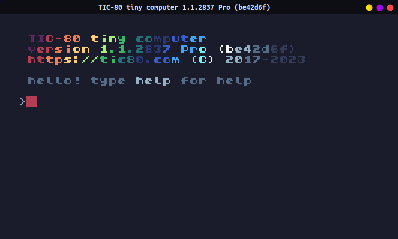
Then type in new lua, hit ENTER, then save NAME2.LUA, hit
ENTER.
> new lua
new cart has been created

> save Moose2.lua
cart Moose2.lua saved!
1.2. Going into the editor
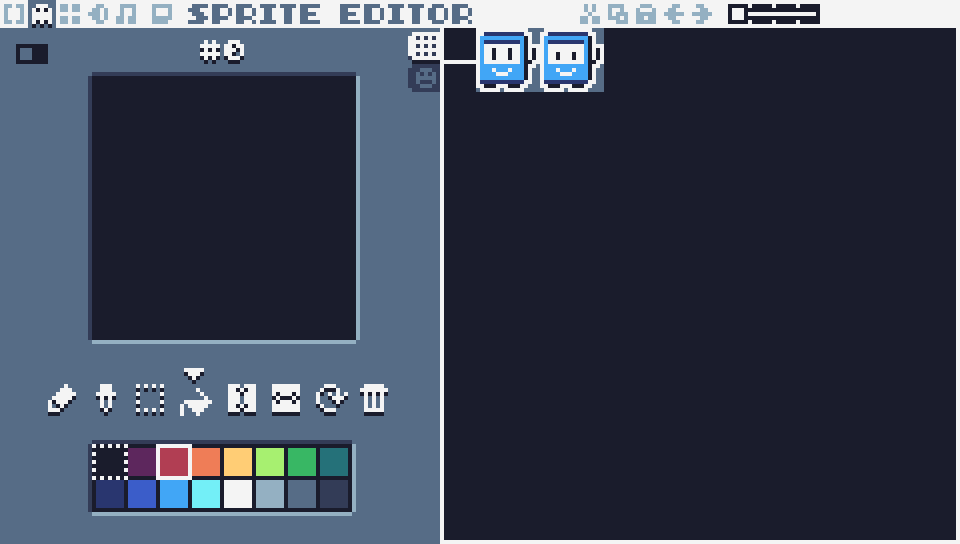
From this screen, press the F2 key on the keyboard. This will take you to the sprite editor.
1.3. Draw your characters!
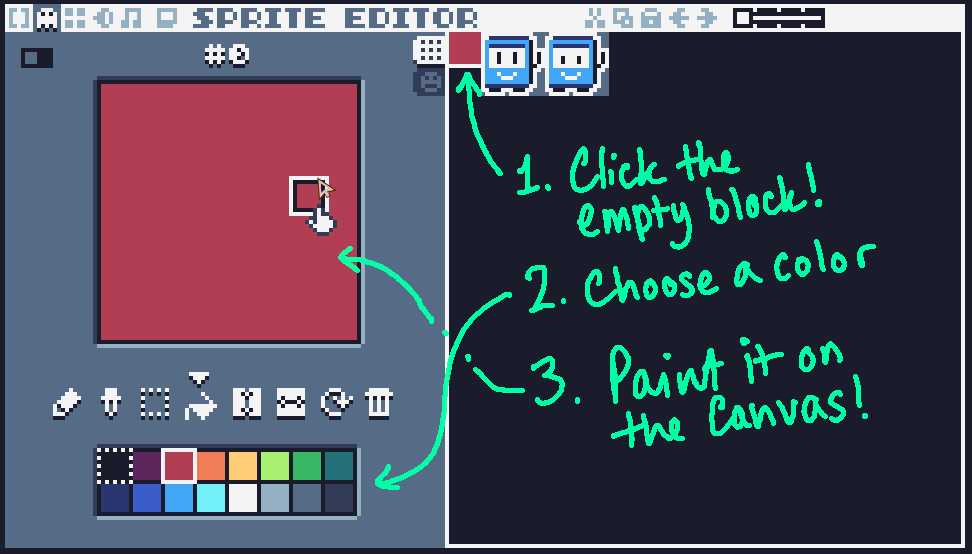
In the image grid on the right side, click on the very first square - it's a blank square.
Next, choose a color from the palette at the bottom.
Finally, draw in the canvas on the left. You can leave it a filled-in color or add a design. This will be your brush for our little paint program!
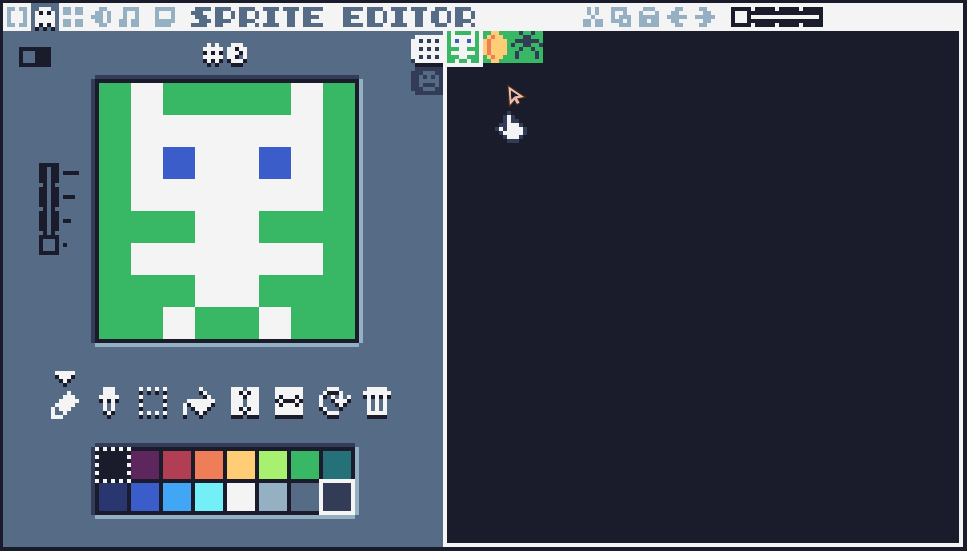
You can choose other squares on the image grid as well. If you want to delete the starter art that's included, select a square and press the DELETE button on your keyboard. Then you can continue drawing!
STUDENTS!
Draw at least three images for the scene we're going to use. You can always add more later on, but we'll keep it simple for now!
1.4. Editing the code
Press the F1 key to go to the code editor. If you started a new project, it's going to have that starter code again. You can erase it and replace it with this instead:
function TIC()
 cls(13)

end
Remember that you can use the cls command to set the background
color, which uses a number code:

Next, we'll draw our sprites to the screen. You'll need to know the ID of each sprite, but if you forget you can press F2, click the image, and look at its ID number.
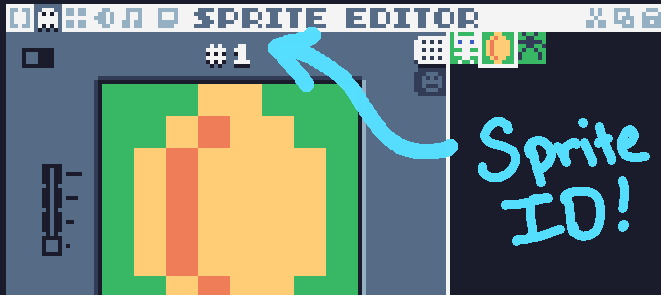
In the code editor we're going to use the spr function to draw
our sprites to the screen.
spr( id, x, y )https://github.com/nesbox/TIC-80/wiki/spr
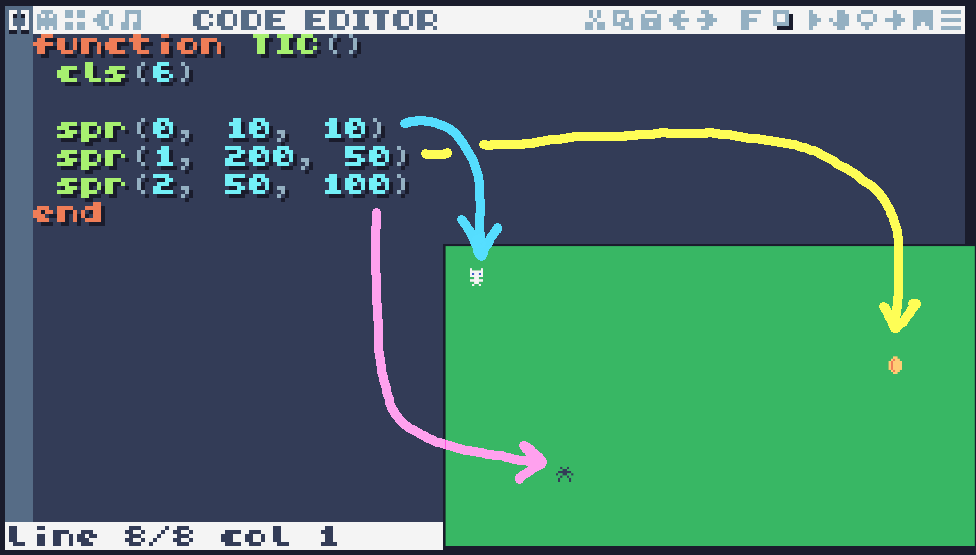
You have 3 sprites so you will need to use this command three time in your code.
For example:
function TIC()
 cls(6)

 spr(0, 10, 10)
 spr(1, 200, 50)
 spr(2, 50, 100)
end
1.5. Testing the program
Once you have your code, you can run the program by pressing the
run button  or pressing CTRL+R.
Once you want to go back to your code, press ESCAPE then use the F1 key to go back to the code, or F2 key to go back to the sprite editor.
1.6. Save your work
Make sure to press the CTRL+S key, or press ESC to go to the
prompt and type save to save your work! If you want to access the
folder with your code, type folder.
If you have a USB flash drive, make sure to copy your file over so you don't lose it when the computer resets!