STUDENTS!
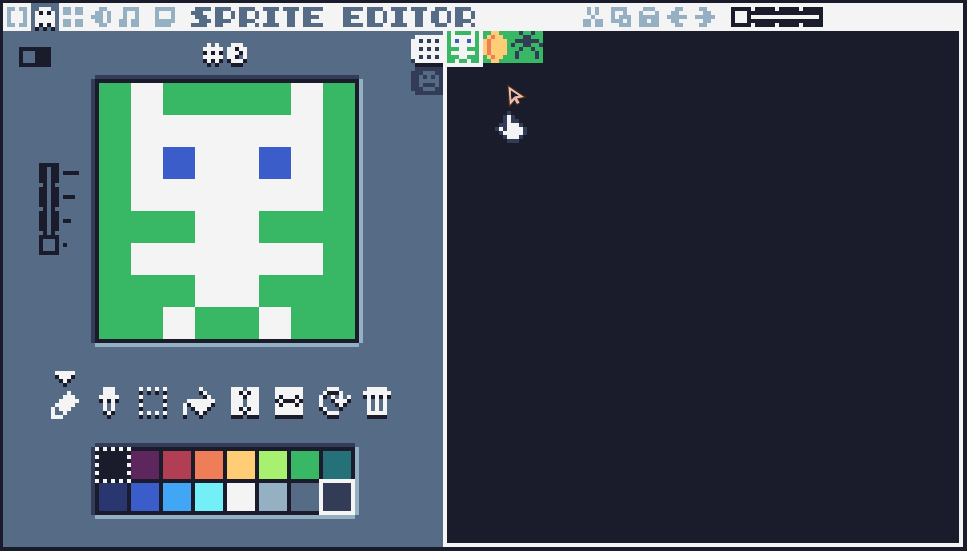
Draw at least three images for the scene we're going to use.
You can always add more later on, but we'll keep it simple
for now!
#+END_EXPORT
** Editing the code
Press the *F1* key to go to the code editor. If you started a new
project, it's going to have that starter code again. You can erase
it and replace it with this instead:
#+BEGIN_SRC lua
function TIC()
cls(13)
end
#+END_SRC
Remember that you can use the =cls= command to set the background
color, which uses a number code:
#+ATTR_LATEX: :width 0.4\textwidth
[[file:images/tic80-colors.png]]
Next, we'll draw our sprites to the screen. You'll need to know the
ID of each sprite, but if you forget you can press *F2*, click the
image, and look at its ID number.
[[file:images/lesson02-spriteid.png]]
In the *code editor* we're going to use the =spr= function to draw
our sprites to the screen.
- =spr( id, x, y )=
[[https://github.com/nesbox/TIC-80/wiki/spr]]
You have 3 sprites so you will need to use this command three time
in your code.
For example:
#+BEGIN_SRC lua
function TIC()
cls(6)
spr(0, 10, 10)
spr(1, 200, 50)
spr(2, 50, 100)
end
#+END_SRC
[[file:images/lesson02-spriteplacement.png]]
** Testing the program
Once you have your code, you can run the program by pressing the
*run* button [[file:images/tic80-run.png]] or pressing *CTRL+R*.
Once you want to go back to your code, press *ESCAPE* then use the
*F1* key to go back to the code, or *F2* key to go back to the
sprite editor.
** Save your work
Make sure to press the *CTRL+S* key, or press *ESC* to go to the
prompt and type =save= to save your work! If you want to access the
folder with your code, type =folder=.
If you have a USB flash drive, make sure to copy your file over so
you don't lose it when the computer resets!
** Back to the course page!
[[../index.org][⬅️ Once you're all done, go back to the course homepage!]]