Table of Contents
1. Lesson 05: Random numbers
1.1. Getting set up
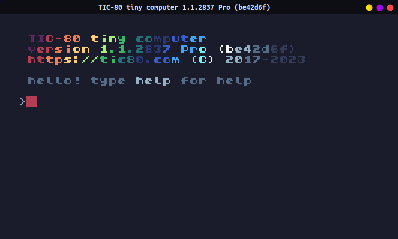
You can either edit over your existing code, or start a new program. If you want to start a new program, press ESCAPE until you get to the main prompt:
Then type in new lua, hit ENTER, then save GAMENAME.LUA, hit
ENTER. (Replace "GAMENAME" with whatever you want.)
> new lua
new cart has been created

> save GAMENAME.lua
cart GAMENAME.lua saved!
–
1.2. Looking at the SFX (Sound Effects) Editor
Press the F4 button to open up the SFX editor.

Along the left side is the sound bank. You can click each one, and then play the piano on the bottom of the screen to hear it (or use keyboard keys Z through M to play!)
There are three default sounds already provided, but you can play around with the other channels and the waveforms. We're only going to do a small amount with sounds, so this will be a place where you can experiment on your own.
1.3. About If statements
With if statements we can ask "yes/no" questions in our code, then execute certain commands only if the result of that question is "yes" (or, more specifically, "true"). This is what we use for checking if a button is pressed while the game is running. In this case, if a button is pressed, play a sound.
If statements take this form: if CONDITION then COMMAND end. They can also take multiple lines as well:
if CONDITION then
COMMAND1
COMMAND2
end
1.4. Editing the code
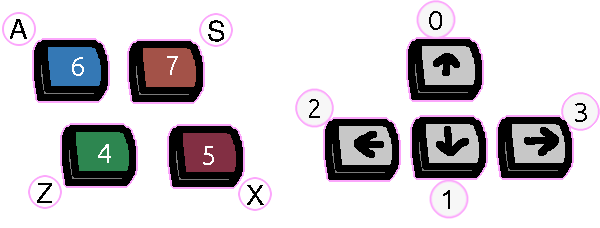
Press the F1 key to go to the code editor. We're going to add if statements to check for each button - there are 8 buttons for one "player" in Tic-80, similar to a game pad on a game console.
function TIC()
  if btn(0) then sfx(1, "C-4", 10) end
  if btn(1) then sfx(1, "D-4", 10) end
  if btn(2) then sfx(1, "E-4", 10) end
  if btn(3) then sfx(1, "F-4", 10) end

  if btn(4) then sfx(1, "G-4", 10) end
  if btn(5) then sfx(1, "A-4", 10) end
  if btn(6) then sfx(1, "B-4", 10) end
  if btn(7) then sfx(1, "C-5", 10) end

  cls(13)
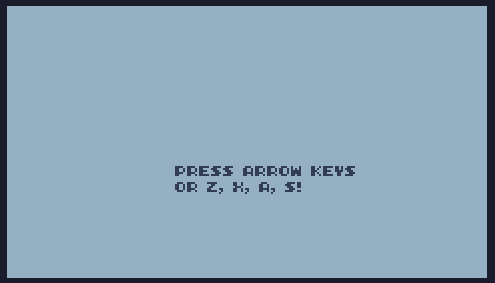
  print("PRESS ARROW KEYS",84,80)
  print("OR Z, X, A, S!",84,88)
end
1.5. Testing
Run the program. The screen doesn't have much interesting to show, but you can press the ARROW KEYS or the Z, X, A, S keys to hear different tones.
1.6. Functions
sfx(id, note, duration, channel, volume, speed)https://github.com/nesbox/TIC-80/wiki/sfx
The
sfxfunction will play a sound effect. Notes will be in the form of "C-4", D-4", "E-4" and so on. You can change the number to get a different octave, or change the-to#to change it to a sharp note. Valid notes areAthroughG.btn(id)https://github.com/nesbox/TIC-80/wiki/btn
Checks to see if a button is pressed, with the player 1 buttons being 0 through 7.
ID Key 0 UP 1 DOWN 2 LEFT 3 RIGHT 4 Z 5 X 6 A 7 S
1.7. Save your work
Make sure to press the CTRL+S key, or press ESC to go to the
prompt and type save to save your work! If you want to access the
folder with your code, type folder.
If you have a USB flash drive, make sure to copy your file over so you don't lose it when the computer resets!