Table of Contents
1. Lesson 10: Keyboard input
1.1. Getting set up
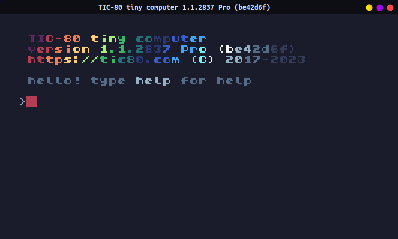
You can either edit over your existing code, or start a new program. If you want to start a new program, press ESCAPE until you get to the main prompt:
Then type in new lua, hit ENTER, then save GAMENAME.LUA, hit
ENTER. (Replace "GAMENAME" with whatever you want.)
> new lua
new cart has been created

> save GAMENAME.lua
cart GAMENAME.lua saved!
–
1.2. Draw two sprites
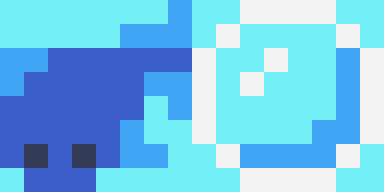
Draw two sprites for this program. I have a fish that the player will control and a bubble that will move automatically.
1.3. Editing the code
In the code editor we're going to write our setup code. We want to
have a player (x,y) so we're creating variables px and py, and a
bubble (x,y) so that's bx and by. You can set the number values
to whatever you'd like.
Within the TIC() function I'm just clearing the screen and displaying the fish and the bubble sprites at their coordinates.
-- Setup
px = 120; py = 70             -- Player coordinates
bx = 80;  by = 136            -- Bubble coordinates

-- Game loop
function TIC()
  cls(11)                     -- Clear screen
  spr(0,px,py)                -- Draw fish
  spr(1,bx,by)                -- Draw bubble
end
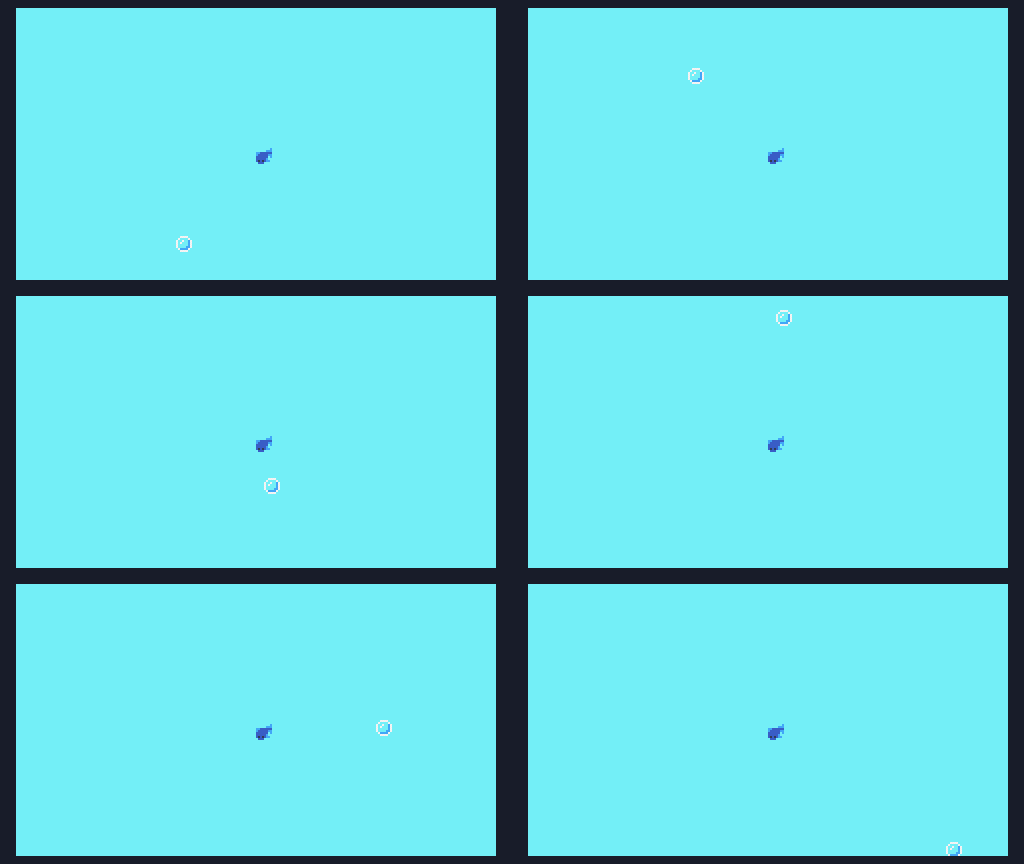
Next, let's update the buble to move automatically. The bubble is not player-controlled, it just moves up each game cycle. Once it is off the screen (at the top), we give it a new random horizontal position and then move it back to the bottom of the screen.
-- Bubble
by=by-1                       -- Move bubble up
if by < -8 then               -- Check if bubble is off-screen
 bx = math.random(0,230)      -- Set random x
 by = 136                     -- Put under screen
end
Next we want to check for button presses. TIC-80 has the following button codes:
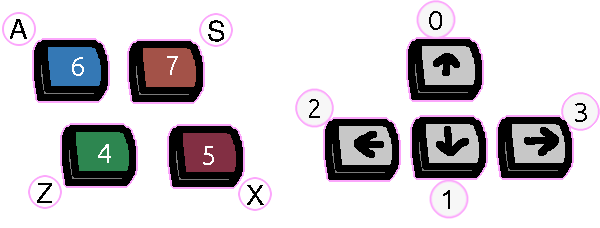
So UP is 0, DOWN is 1, LEFT is 2, and RIGHT is 3.
-- Move player
if btn(0) then py=py-1 end -- UP
if btn(1) then py=py+1 end -- DOWN
if btn(2) then px=px-1 end -- LEFT
if btn(3) then px=px+1 end -- RIGHT
1.4. Testing
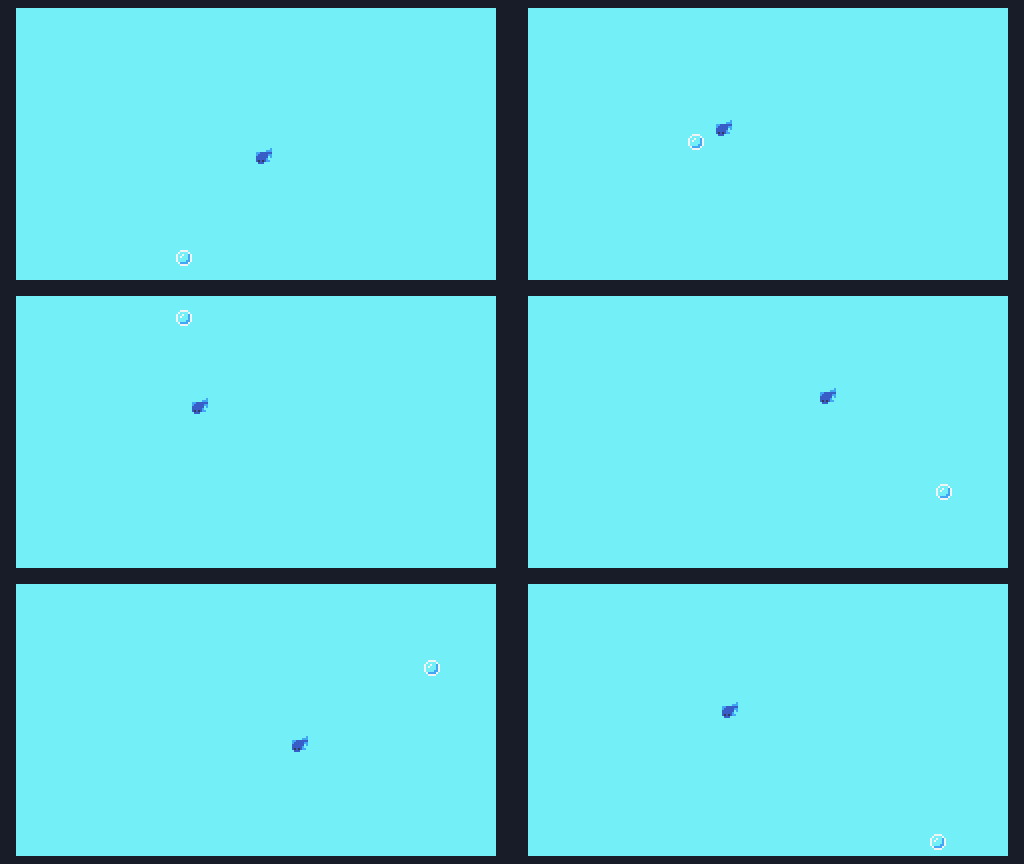
Now when we run the program we can move the fish around, and the bubble moves on its own. They currently don't interact, but that will be for later. We could add the Distance function into the program, and add some logic, but we will put it all together later.
1.5. Save your work
Make sure to press the CTRL+S key, or press ESC to go to the
prompt and type save to save your work! If you want to access the
folder with your code, type folder.
If you have a USB flash drive, make sure to copy your file over so you don't lose it when the computer resets!