Table of Contents
1. Lesson 14: Menus and game states
1.1. Getting set up
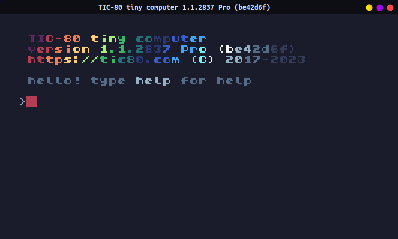
You can either edit over your existing code, or start a new program. If you want to start a new program, press ESCAPE until you get to the main prompt:
Then type in new lua, hit ENTER, then save GAMENAME.LUA, hit
ENTER. (Replace "GAMENAME" with whatever you want.)
> new lua
new cart has been created

> save GAMENAME.lua
cart GAMENAME.lua saved!
–
1.2. Creating color tiles
In the sprite editor we're going to add a series of colors that we can use for creating our menus. I just go through each tile and use the FILL tool to set one for each color:

1.3. Creating the menus from the map editor
In the menu editor you can use the tile blocks to draw a menu.
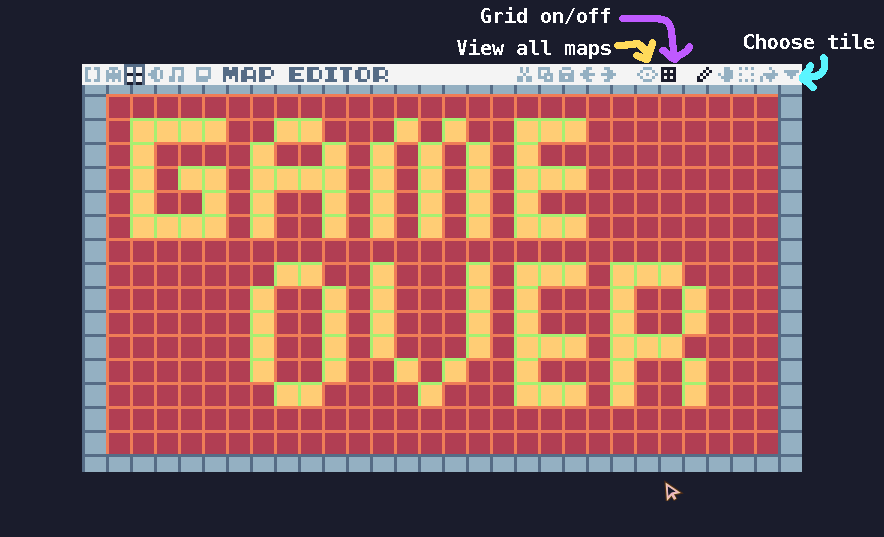
You can also use the ARROW KEYS to move between maps or click the "eye" button to view all the maps in the game.
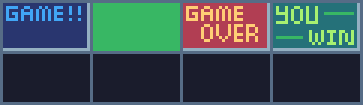
You'll want a TITLE screen, a GAMEPLAY screen, a GAMEOVER screen, and a YOU WIN screen!
1.4. Creating states in the code
We're going to have four states in the game:
| Screen State | State # |
|---|---|
| Title screen | 1 |
| Game screen | 2 |
| Gameover screen | 3 |
| You win screen | 4 |
1.4.1. Setup code
-- Function
function GetDistance(x1,y1,x2,y2)
 return math.sqrt( (x2-x1)^2 + (y2-y1)^2 )
end

-- Setup
screen=1
sx=120
sy=80
For the setup code I'm adding in the distance function and creating
a variable screen for which screen we're on, and an (x,y)
coordinate for a clickable object.
Each screen state will be within the TIC() function, and we'll use
an if statement to see what the value of screen is. (This isn't
the cleanest way to do this, but you're just starting out so we're
keeping it simple! :)
1.4.2. Screen 1
function TIC()
 if     screen == 1 then  -- Title screen ------------------------
  map(0,0)                              -- Draw the background
  print("Press X to start",70,100,4)    -- Print instruction

  if btn(5) then                        -- Check for player button
   screen = 2                           -- Change to screen #2
  end -- end of btn(5)

 end -- End of screen if statement
end -- End of TIC()
- For the title screen we draw the title art with
map(0,0). - We display instructions to move to the next screen:
print("Press X to start",70,100,4) - We check for the player to press the X button:
if btn(5) then - If they press the X button then we move to the game screen:
screen = 2
1.4.3. Screen 2
function TIC()
 if     screen == 1 then  -- Title screen ------------------------
  -- ( ETC. )

 elseif screen == 2 then  -- Game screen -------------------------
  map(30,0)                             -- Draw the background
  print("Click stick!",5,5)             -- Print instruction
  spr(256,sx,sy,0)                      -- Draw stick

  mx, my, mb = mouse()                  -- Get mouse info
  dist=GetDistance(sx,sy,mx,my)         -- Check mouse distance to stick

  if mb and dist <= 8 then              -- Did the player click the stick?
   screen = 4                           -- Go to you win screen

  elseif mb and dist > 8 then           -- Did the player NOT click the stick?
   screen = 3                           -- Go to the game over screen
  end

 end -- End of screen if statement
end -- End of TIC()
State 2 is the game screen. I've kept the game pretty simple for this example - the player has to click the stick. If they click the stick, it goes to the YOU WIN screen. If they click but it's not close enough to the stick, then they get the GAME OVER screen.
- Screen 2 starts at (30, 0) on the map (30 tiles over).
- Display the "Click stick!" instruction.
- Draw the stick to the screen.
- Get the mouse coordinates and button click.
- Check the distance between the mouse and the stick.
- If the mouse button is clicked and the distance is within 8 pixels
- then change to the YOU WIN screen
- Otherwise if the mouse button is clicked and the distance is
greater than 8 pixels away
- then change to the GAME OVER screen
1.4.4. Screen 3 and Screen 4
function TIC()
 if     screen == 1 then  -- Title screen ------------------------
  -- ( ETC. )

 elseif screen == 2 then  -- Game screen -------------------------
  -- ( ETC. )

 elseif screen == 3 then  -- Game over screen ---------------------
  map(60,0)

 elseif screen == 4 then  -- You win screen -----------------------
  map(90,0)

 end -- End of screen if statement
end -- End of TIC()
For screen 3 and 4, these are just the end of the game, so we can just set the background and that's it.
1.5. Testing
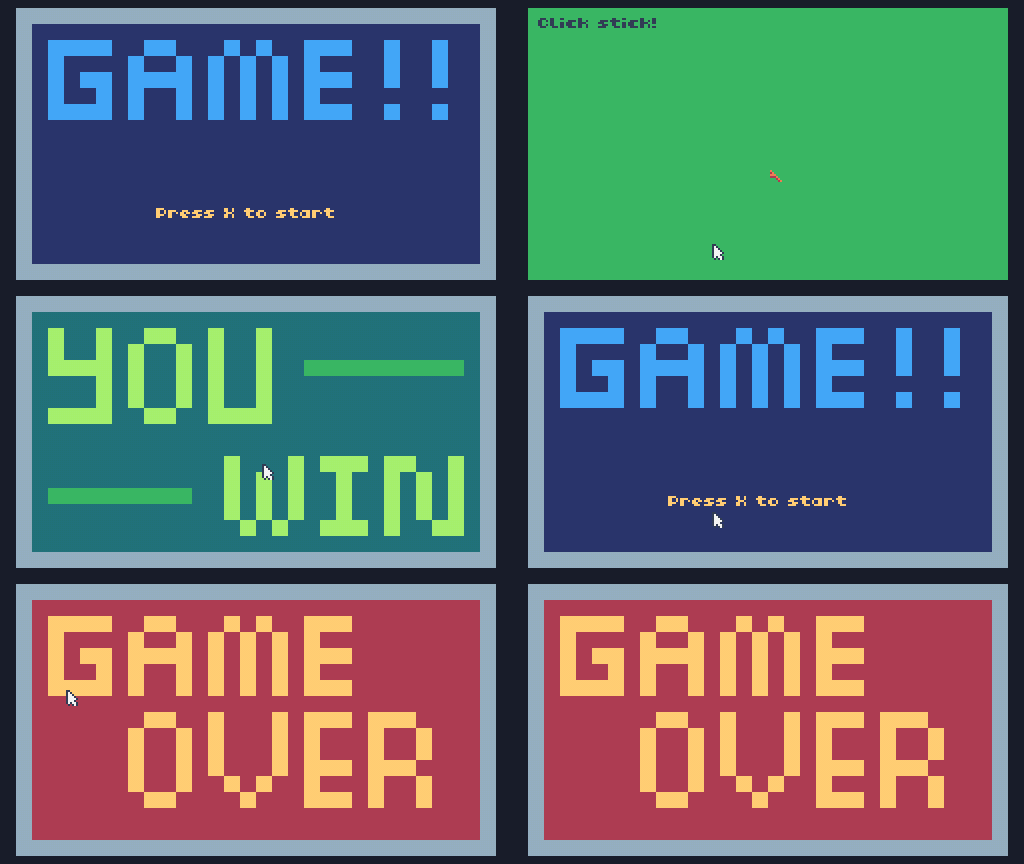
Now we can go through the basic game states, which will be useful when we want to build out a full game!
1.6. Save your work
Make sure to press the CTRL+S key, or press ESC to go to the
prompt and type save to save your work! If you want to access the
folder with your code, type folder.
If you have a USB flash drive, make sure to copy your file over so you don't lose it when the computer resets!