Table of Contents
1. Lesson 15: GAME RECIPE - Pickin' Sticks
1.1. Getting set up
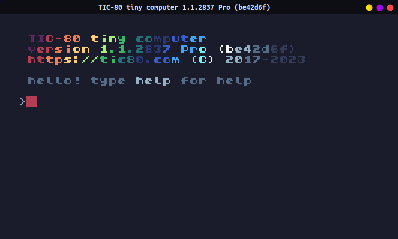
You can either edit over your existing code, or start a new program. If you want to start a new program, press ESCAPE until you get to the main prompt:
Then type in new lua, hit ENTER, then save GAMENAME.LUA, hit
ENTER. (Replace "GAMENAME" with whatever you want.)
> new lua
new cart has been created

> save GAMENAME.lua
cart GAMENAME.lua saved!
–
1.2. Draw your sprites
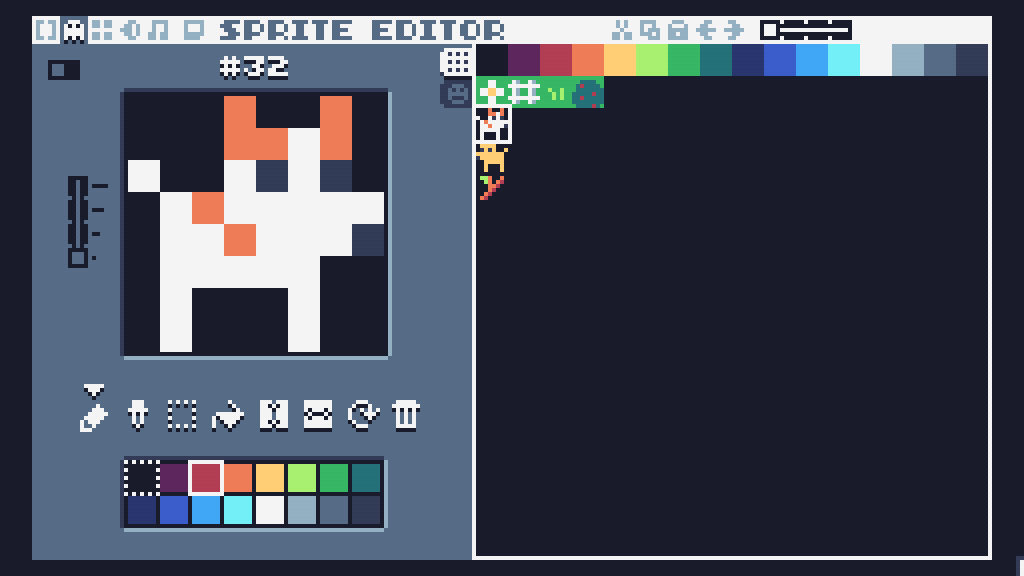
For the game I have my various color blocks (for the menus), as well as some background decorations and my player character, enemy character, and a stick.
1.3. Editing the code
We're going to write A LOT of code! Make sure you only add a few things at a time and test often!
1.3.1. Setup code
We need the GetDistance function and we need to set up some variables!
  -- Function
  function GetDistance(x1,y1,x2,y2)
   return math.sqrt( (x2-x1)^2 + (y2-y1)^2 )
  end

  -- Game setup
screen=1
px=16;  py=16;  pimg=32; pscr=0  -- Player info
ex=216; ey=112; eimg=48; escr=0  -- Enemy info
sx=120; sy=80;  simg=64          -- Stick info


  -- Game loop
  function TIC()

  end
The player and enemy each have (x,y) coordinates, an image, and a score. The stick just has an (x,y) coordinate and an image.
We also need a variable to store which screen we're on!
1.3.2. Title screen, game over screen, and you win screen
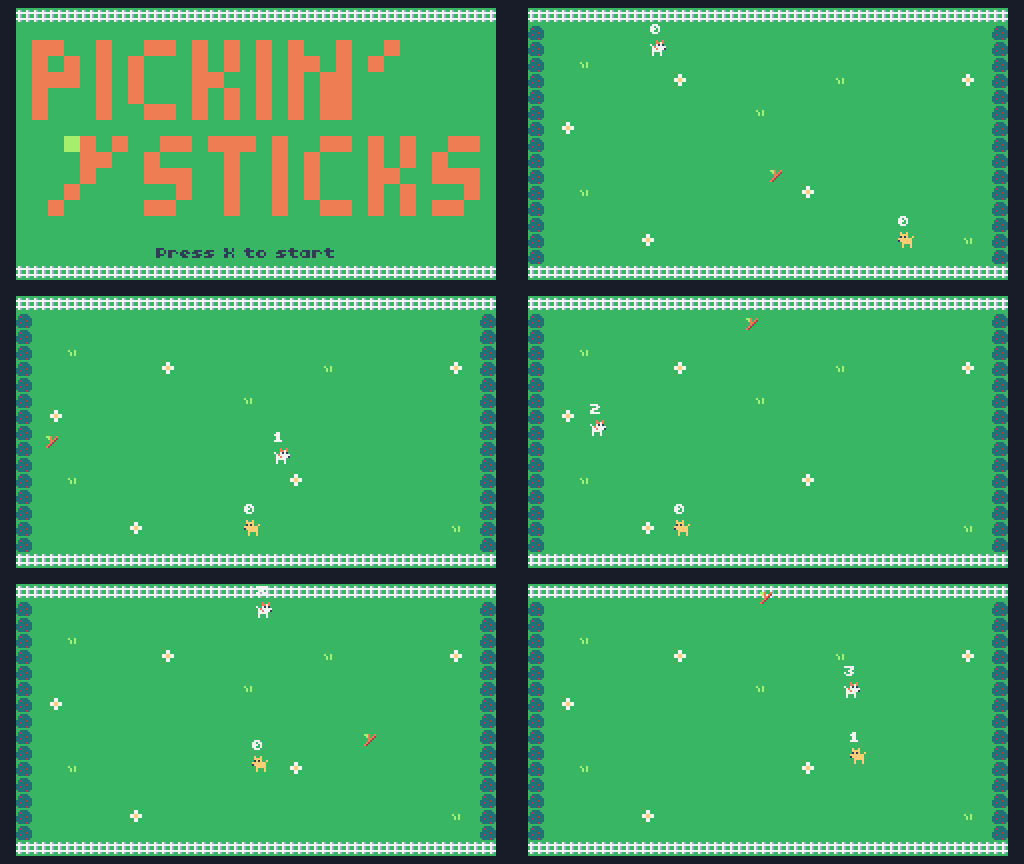
These are the easy ones. For the game over screen and you win screen you just display the map. For the title screen, we display the map, have to display an instruction ("Press X to start") and listen for the button press.
function TIC()
 if     screen == 1 then  -- Title screen ------------------------
  map(0,0)                              -- Draw the background
  print("Press X to start",70,120,15)   -- Print instruction

  if btn(5) then                        -- Check for player button
   screen = 2                           -- Change to screen #2
  end -- end of btn(5)


 elseif screen == 3 then  -- Game over screen ---------------------
   map(60,0)


 elseif screen == 4 then  -- You win screen -----------------------
   map(90,0)


 elseif screen == 2 then   -- Game screen -------------------------

 end -- end of screen check
end -- end of TIC()
1.3.3. Game screen overview
For the game screen we need the following parts:
- Player movement (checking button presses)
- Enemy movement (comparing enemy coordinates to stick coordinates)
- Collision detection (player grab stick? enemy grab stick?)
- Check for player win or enemy win
- Drawing everything to the screen
1.3.4. Game screen: Player movement
-- Player movement
if     btn(0) then py=py-1            -- Player move up
elseif btn(1) then py=py+1            -- Player move down
elseif btn(2) then px=px-1            -- Player move left
elseif btn(3) then px=px+1            -- Player move right
end
Here we check the buttons and move around our player's (x,y) coordinates appropriately. If you want the player to move faster, use a number larger than 1 (such as 1.5, 2). This is the amount of pixels they move each game cycle.
1.3.5. Game screen: Enemy movement
-- Enemy movement
if     sx < ex then ex=ex-0.5         -- Enemy move up
elseif sx > ex then ex=ex+0.5         -- Enemy move down
elseif sy < ey then ey=ey-0.5         -- Enemy move left
elseif sy > ey then ey=ey+0.5         -- Enemy move right
end
Here we compare the stick's (x,y) to the enemy's (x,y) for the enemy to make a decision about where to go. I set the enemy's speed to 0.5, which is half of the player's speed.
1.3.6. Game screen: Collision detection
-- Check for collision
dist = GetDistance(sx,sy,px,py)
if dist <= 8 then                     -- Player collects stick
 pscr = pscr + 1                      -- Add to player score
 sx = math.random(0,232)              -- Random stick move
 sy = math.random(0,128)              -- Random stick move
 sfx(0,"C-4",10)
end

-- And you implement the same for the enemy!
Here I'm getting the distance between the player and the stick. If the player is within 8 pixels then we add 1 to the player's score and move the stick to a random location and play a sound.
The code will be the same for the enemy, but with ex, ey, escr.
1.3.7. Game screen: Player/enemy win
-- Check for game end
if     escr == 5 then                 -- Enemy has 5 points
 screen = 3                           -- Game over screen
elseif pscr == 5 then                 -- Player has 5 points
 screen = 4                           -- You win screen
end
Here we're checking to see if the enemy has gotten 5 points - if so, go to the GAME OVER screen. Otherwise, check if the player has gotten 5 points - in that case, go to the YOU WIN screen.
1.3.8. Game screen: Drawing
-- Draw
map(30,0)                             -- Draw the background
spr(simg,sx,sy,0)                     -- Draw stick
spr(eimg,ex,ey,0)                     -- Draw enemy
print(escr,ex,ey-8,12)                -- Enemy score
spr(pimg,px,py,0)                     -- Draw player
print(pscr,px,py-8,12)                -- Player score
It will be hard to play the game if we don't draw any graphics! :)
1.4. Testing
Now when you play the game you should be able to click on the critter once it's showing, which will cause it to be "hit" and add 1 to your score.
1.5. Challenges
CHALLENGES!
Can you use what you've learned so far to expand the game? Here are some ideas:
- Add music to the game? Maybe a different song for the title screen and the game screen?
- What if you store the player and enemy's speed in a variable, then added a "powerup" item that increases speed when collected?
- What if you changed the stick into a bunny and made it run around randomly?
1.6. Save your work and back it up to the gallery!
Save and backup your work!
- Use the F8 key to take a SCREENSHOT of your work while the game is running!
- Press the ESCAPE key to open the menu and choose CLOSE GAME to go back to the prompt
- Type
saveor press CTRL+S to save your work! - Type
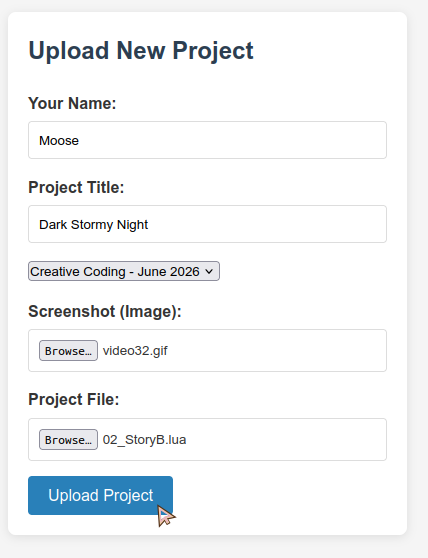
folderto open up the game location. - Go to the 🖼️ Student Gallery
- Set *Your Name* (first name or nickname only!)
- Set your *Project Title*
- Click-and-drag your gif screenshot to the Screenshot box
- Click-and-drag your lua file to the Project File box
- Press the Upload Project button