Table of Contents
1. Lesson 05: Random numbers
1.1. Getting set up
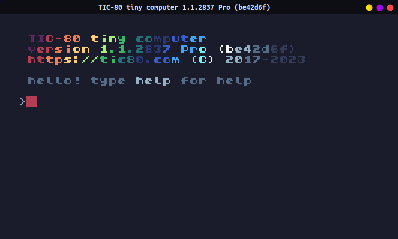
You can either edit over your existing code, or start a new program. If you want to start a new program, press ESCAPE until you get to the main prompt:
Then type in new lua, hit ENTER, then save GAMENAME.LUA, hit
ENTER. (Replace "GAMENAME" with whatever you want.)
> new lua
new cart has been created

> save GAMENAME.lua
cart GAMENAME.lua saved!
–
1.2. Draw two sprites
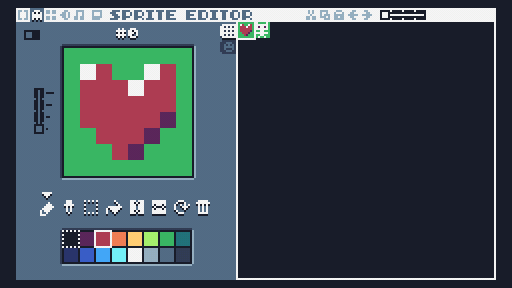
From this screen, press the F2 key on the keyboard. This will take you to the sprite editor.
Draw two sprites to use.
1.3. Editing the code
Press the F1 key to go to the code editor. If you started a new project, it's going to have that starter code again. You can erase it and replace it with this instead:
-- Game setup
x1 = math.random(0, 232)
y1 = math.random(0, 128)

x2 = math.random(0, 232)
y2 = math.random(0, 128)

rand1 = math.random(0,100)
rand2 = 0

-- Game loop
function TIC()

end
Here we are creating six variables. x1 and y1 are for one
sprite's coordinate, x2 and y2 are for another sprite's
coordinate, and we will also generate a couple of random numbers
rand1 and rand2.
Anything we set in the "– Game setup" area only gets set once. If
we do any actions within the "– Game loop" (the function TIC)
area), it will be executed over and over every game loop.
Within the TIC() function, we'll add this:
function TIC()
  rand2 = math.random(0, 100)
end
So one random number is set before the game loop, and the other is set inside the game loop. Now let's draw our sprites and text to the screen.
This will also go within the TIC() function, after our rand2
assignment:
cls(6)
spr(0, x1, y1)
spr(1, x2, y2)
print(rand1, 120, 80)
print(rand2, 120, 80)
1.4. Testing
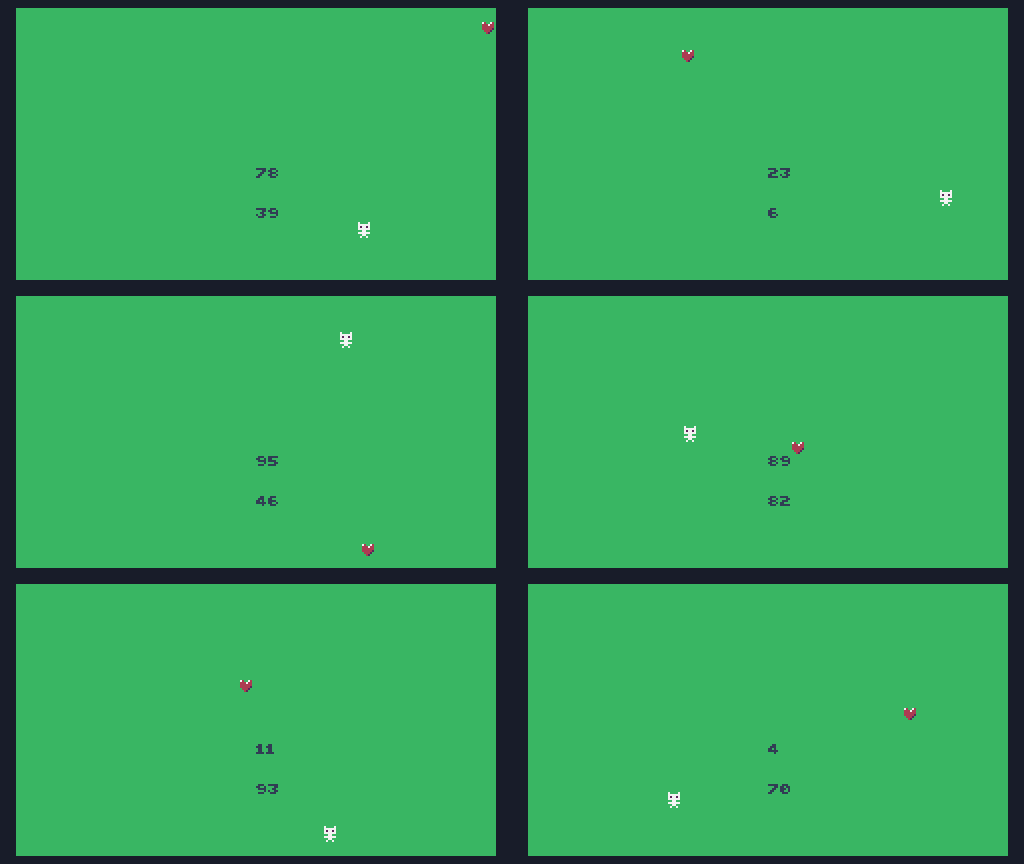
Now you can hit CTRL+R to run the program. Each time you press CTRL+R the game will restart, and each item will get a new random value. The second number, however, will continually change. This is because it is being updated inside the TIC() function, so it gets a new value each game cycle.
1.5. Functions
math.random(MIN, MAX)With the random number function, you can give it a minimum number and a maximum number. These have to be whole numbers, but it can be positive, negative, or 0.
1.6. Save your work
Make sure to press the CTRL+S key, or press ESC to go to the
prompt and type save to save your work! If you want to access the
folder with your code, type folder.
If you have a USB flash drive, make sure to copy your file over so you don't lose it when the computer resets!