Table of Contents
1. 💾 Lab: Programs and variables
Last updated: 2026-08-29
1.1. Academic Honesty
Academic honesty: Labs are meant to be solo-effort, done by you without human or LLM/AI assistance. The exception here is getting help from the instructor or the Academic Achievement Center tutors. I’ve written each lab to help you build a “scaffolding” as you learn new topics, in a way that will help you put everything together later in the projects.
1.2. Reference
Answer these questions to help you complete the lab! (Keep your answers in your notes! You don't need to turn these in.)
- How do you open the TERMINAL? (Git Bash, or a Terminal)
- How do you build your SOURCE FILE using g++?
- How do you RUN your executable file?
- How do you RUN your executable file with ARGUMENTS?
- What is the syntax for a VARIABLE DECLARATION?
- How do you assign a VALUE to a VARIABLE?
- How do you use cout to display text OUTPUT to the screen?
- How do you use cout to display a variable's value?
- How do you write a MATH EXPRESSION and store the result in a variable?
- How do you use cin to get INPUT from the keyboard and store it in a variable?
- How do you use getline to get a whole LINE of INPUT from the keyboard and store it in a string variable?
1.3. Part 1 - Recipe version 1
1.3.1. Example output
g++ *.cpp -o recipe.exe
./recipe.exe

EASY COOKIE RECIPE

-- Ingredients --
 * 2 cups Peanut Butter
 * 1 cup White Sugar
 * 1 whole Egg
1.3.2. Starter code
#include <iostream>
#include <string>
using namespace std;


int main()
{
    // Write out a recipe here.


    return 0;
}
1.3.3. Instructions
For this first version of the program we're just going to use cout statements to display a recipe. We will add variables in the next version.
Find a simple recipe with only a few ingredients and write it out to the screen. Make sure to use enough spacing so that the recipe is easy to read, such as putting an extra space between the recipe name and the ingredients header like in the example program output above.
1.3.4. Build and run
g++ recipe1.cpp -o Recipe.exe
./Recipe.exe
- You can begin typing filenames (cpp file, exe file) and hit TAB to auto-complete.
- You can press the UP and DOWN arrow keys to go back to your previous command history.
- Note that to build the program you'll use the g++ program and pass in the source file, or *.cpp to mean "all cpp files".
- Option 1: g++ recipe1.cpp -o recipe.exe
- Option 2: g++ *.cpp -o recipe.exe
- If you don't put -o recipe.exe at the end, then g++ will default the program name to a.exe (on Windows) or a.out (on Linux/Mac).
- After building, use ./ and the program name to run the program. (If you’re in Windows Command Prompt (not powershell), you will need to use .\ instead.)
1.4. Part 2 - Recipe version 2
The output looks the same as before but we're going to add in variables in this version.
1.4.1. Step 1: Creating variables
At the top of main(), create variables for each ingredient. There are 3 pieces of information each ingredient needs: The name of the ingredient (e.g., sugar, butter), the unit of measurement (e.g., cups, tsps), and the amount of that measurement (e.g., 1, 3.5). So you will want to create variables such as:
ing1Amount(float)ing1Unit(string)ing1Name(string)
And initialize them to values from your recipe.
1.4.2. Step 2: Displaying variable values
Now we're going to modify all the cout statements to use the variables instead of hard-coding the ingredient data.
For example, we can replace
cout << " * 2 cups Peanut Butter" << endl;
with
cout << " * " << ing1Amount << " " << ing1Unit << " " << ing1Name << endl;
Note that we have to manually add in spaces (" "). If we don't put spaces in-between, then our output will look like "2cupsPeanut Butter".
Update all the listed ingredients to use the variables now instead.
1.4.3. Build and run
g++ recipe1.cpp -o Recipe.exe
./Recipe.exe
1.5. Part 3 - Recipe version 3
1.5.1. Example output
g++ *.cpp -o recipe.exe
./recipe.exe

1 = normal batch, 0.5 = half batch,2 = double batch, etc.
How many batches? 2

EASY COOKIE RECIPE
2 batches

-- Ingredients --
 * 4 cup(s) Peanut Butter
 * 2 cup(s) White Sugar
 * 2 Whole Egg(s)
1.5.2. Instructions
You may want to copy-paste your v2 program into v3 to get started with.
This time we're adding in a batches variable. The user might want to make a half-batch, double-batch, or any other ratio of the original recipe.
Create a float batches; variable somewhere near the top of main().
After setting up the ingredients, display a message to the user to enter "How many batches?". Get their input using a cin statement and store the input in the batches variable.
After the user enters the batches, modify the ingredient amounts by multiplying them by the batches and storing the updated value back in the same ingredient amount variable. For example:
ing1Amount = ing1Amount * batches;
Afterwards the rest should display correctly as long as you have variables being output in the ingredients list.
1.6. Turning in the assignment
1.6.1. Uploading your code via the web interface
We will work with git on the desktop next week. For now, here are steps for working with GitLab via the web interface.
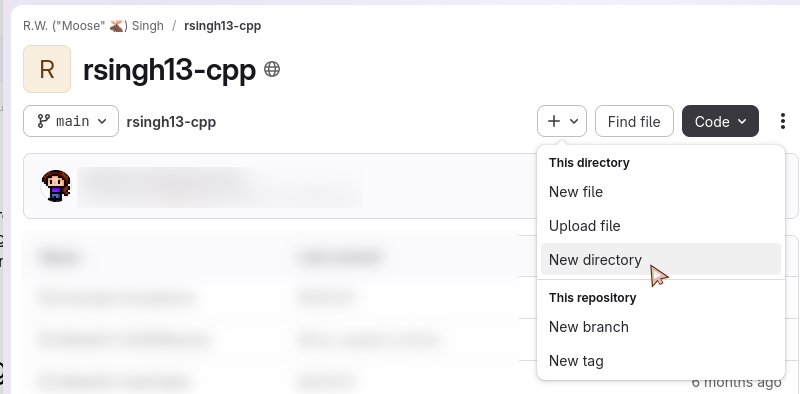
Figure 1: Screenshot of the 'new directory' button being highlighted.
Go to your repository webpage. Locate the “+” button, click it, and select “New directory”.
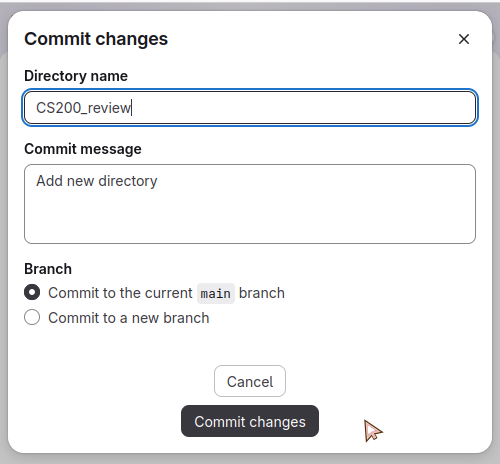
Figure 2: Screenshot of the directory name being set in GitLab.
Give the directory name something like “CS200review” - NO SPACES!
Click “Commit changes” after.
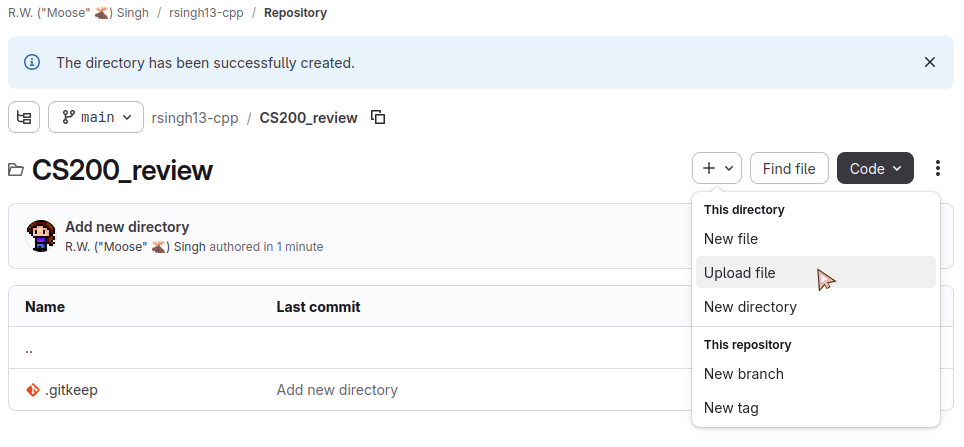
Figure 3: Screenshot of the 'CS200review' folder on the web interface, and selecting 'Upload file'.
It will enter that folder. Click on “+” again, then choose “Upload file”. (You will only need to upload the LAST version of the recipe.) Choose one of the files to upload, then click “Commit changes”.
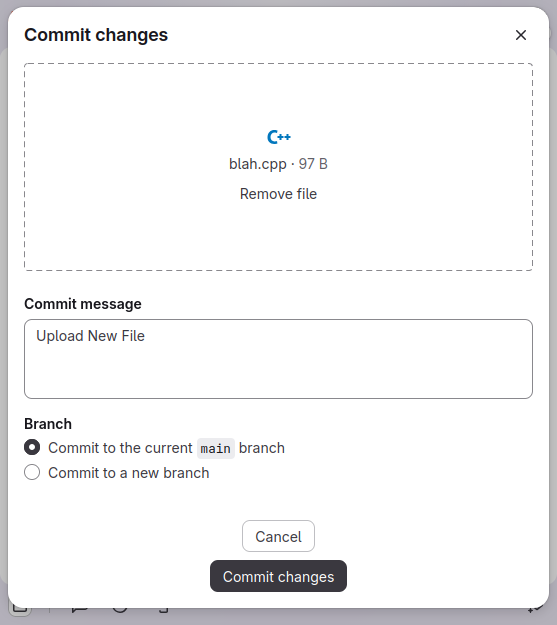
Figure 4: Screenshot of the commit changes pane in GitLab's webpage.
The file will get uploaded and you will see it in the web interface.
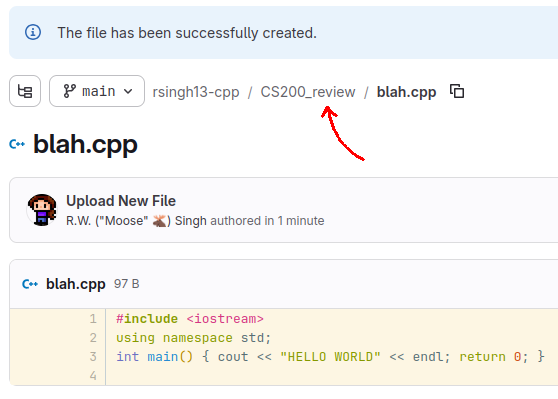
Figure 5: Screenshot the 'breadcrumb' links in GitLab, with an arrow pointing to the 'CS200review' folder to click on.
Click back on the previous folder link to go back to the project folder. This is the location from where you’ll copy the URL.
1.6.2. Turning in on Canvas
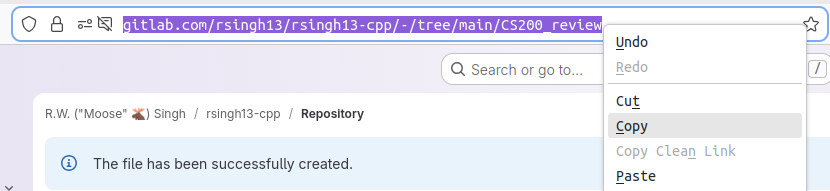
Figure 6: Screenshot of the address bar in the web browser highlighted with the 'Copy' option highlighted.
Copy the URL from your project folder on GitLab.

Figure 7: Screenshot of a Canvas assignment and the 'Start Assignment' button.
On the Canvas assignment, click “Start Assignment”.
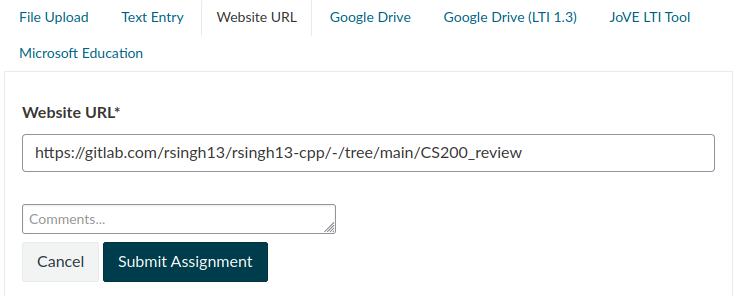
Figure 8: A screenshot of the 'Website URL' upload view in a Canvas assignment, with a GitLab URL pasted in.
Paste in the website URL then click “Submit Assignment”.