Table of Contents
1. Memory, storage, & data representation
1.1. Short-term processing: The CPU and RAM
When we're actively running a program and working with data they need to be loaded into a computer's working memory. RAM (Random Access Memory) is the short-term working memory that a computer uses. RAM is plugged into the computer's motherboard directly, while hard drives (long-term storage) are still usually hooked up with some kind of cable, which slows down its access (input/output) speed.
While we're creating our programs, any time we create a variable it will have a block of space set in RAM (well, the Operating System virtualizes it… we're not accessing the RAM directly, but we can think of it that way for now). Your little 1 byte variable has some place in RAM where its value is being stored.
While we don't have to worry about loading our program into RAM - the operating system handles that and a lot of other things for us - we will have a chance to look at memory addresses and how we can allocate memory for additional data. Memory management and allocating memory for variables is a big part of core computer science classes.
For now, know that when we declare a variable it's given an address in "RAM", with RAM storing 1's and 0's. Depending on how big our piece of data is, we'll have a different amount of memory "spaces", all 1's and 0's. For example, integers (whole numbers) on our 32- and modern 64-bit systems take up 4 bytes in memory.
While the RAM stores the program's data, the CPU (Central Processing Unit) handles doing the math operations. We're not going to go into how CPUs work, though if you take a Computer Architecture class you will learn about how they work and how they're designed. The main gist here is that the CPU takes in inputs, does computations, and returns outputs.
1.2. Long-term storage media
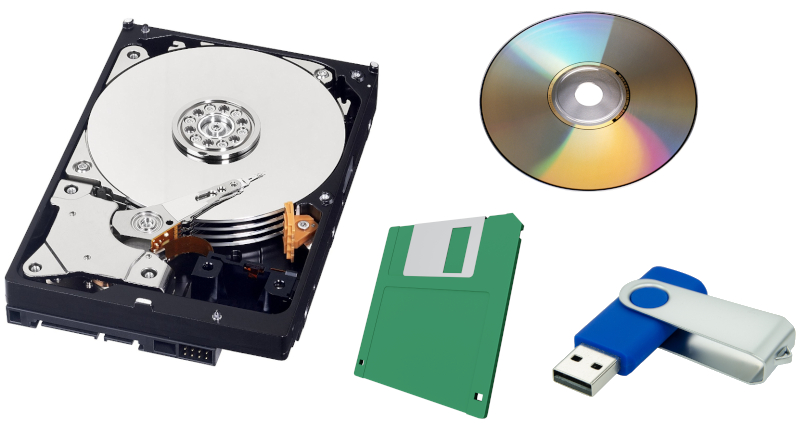
Figure 1: An image of a hard drive, a floppy disk, a USB stick, and a CD.
Once we close a program, or once we shut down the computer, we lose any memory in RAM allocated and any working memory is lost. In order to keep information long-term, we need long-term storage like a hard drive, or some kind of external item to store information on, like USB drives, floppy disks, CDs and DVD*s, or even an *external hard drive.
Writing data to long term storage is generally slower than reading and writing to RAM (though solid-state hard drives are much faster), so they're used when you're saving a document, a music file, or an image. Once you open the file, it is loaded into RAM where it can then be viewed and modified.
1.2.1. Long-term storage on the hard drive
Whether we're working on our phone, our computer, or a website that stores data in "the cloud" (aka someone else's computer), data that we want to preserve between runs of the program (or even after we shut off and turn on our computer again) goes in long-term storage. This includes information our program processes, but also the program itself - we install software, it is saved on the system's hard-drive, and we can use it when we want without re-installing it each time.
As we work on our programs this semester we will be storing our source code files on our computers (and on the GitLab servers :), and our programs will also work with reading in and writing out to files, like text files, HTML files, or CSV spreadsheets. Knowing how to navigate your system's filesystem is important.
- Files and Folders
Our computers organize things into Files and Folders. Folders (aka "directories") represent locations. Folders can contain other folders ("subfolders") or files. Files are all the rest - our text files, images, music, videos, and so on. The actual data the computer stores, that we can read and write.
Folders and files both have names, but files often also have extensions. This is the information after the "." that specifies what kind of file it is:
File name File type readme.txt Plain-text file photo10.jpg jpeg photo/image file song.mp3 mp3 audio file video.mp4 mp4 video file homework.docx Microsoft Word file unit01.zip Compressed (zipped) file In Windows it often turns off extensions by default. I would recommend turning on extensions to make differentiating your course project files more easy. Check the Reference portion of the textbook for steps (search for "Turning on viewing file extensions in Windows").
- Paths
Each Operating System might store their filesystems differently, but a lot of the concepts are the same. A filesystem is conceptually based on paper folders (like in a file cabinet) where you have a lot of folders labeled, and each folder can contain multiple files. If we didn't come up with some way to organize the data on our computers it would be difficult to find everything in the jumbled mess.
Our system has some sort of root directory (or folder), like the roots of a tree - the starting point. In Windows, it's often your
C:\drive. In Linux and Mac, it's usually just labeled/. Often there are system folders in the root directory, and then we have some kind of "home" or "my documents" folder set aside for us to store our files in.In a path, each folder is separated by a slash - in Windows, it's backslash (
\) and in Mac and Linux it's forwardslash (/).- Windows user directory:
C:\Users\USERNAME\Documents - Linux/Mac user directory:
/home/USERNAME/Documents
As we navigate a filesystem, going into a subfolder will build up the directory path you're currently in. There is an "up" button on most filesystem explorers as well, where the "up" command takes you out of your current folder and back into its parent folder.
- Absolute paths and relative paths
When we type out a full path, such as
C:\Users\Singh\Homework\CS200\Project1.cppthis is known as an absolute path. It gives the full path from the base
C:\drive to the file in question.While we're working within our programs, we can also use relative paths to locate nearby files. Let's say we are working with Project1.cpp inside the CS200 folder. That folder also contains a hello.txt file. In order to have Project1.cpp open hello.txt, we just use "hello.txt".
If hello.txt were inside a subfolder like "data/", then Project1.cpp would have to access it with
"data/hello.txt". If hello.txt were one directory UP, then Project1.cpp would have to access it with"../hello.txt". The "../" goes up (or back) one directory.
- Windows user directory:
1.3. The Operating System
All of our modern software runs on top of some Operating System, whether that's something like Android on a phone, Windows on a computer, or whatever kind of operating system your game console runs on top of. The Operating System is a special type of software that acts as an intermediary between your computer's hardware and its software. It helps us so that we don't have to know exactly how the wifi works, or exactly how to work with xyz brand of keyboard - the Operating System uses programs called drivers to work with those things itself.
Operating Systems you might have used are: Windows, Linux, Mac, iOS, Android. If you're older, you might have used DOS as well! (I used DOS in the 1990s to load some of my video games, mostly.)
The Software we run are the programs or apps themselves: Our web browser (Firefox, Chrome), the bank app we use, a document writer (MS Word, LibreOffice). Software is often built to be packaged and shared or sold to other people, though you can also write our own little software utilities for personal use once you have enough experience.
1.4. What is software?
A computer needs to be told how to do everything. If you were writing a program totally from scratch, you would have to tell it how to load a bitmap file, how to draw a rectangle, how to detect mouse clicks, how to animate a transition, and everything else. However, software has been evolving for decades now, and a lot of these features are already implemented in libraries. Libraries are sets of pre-written code meant for other programs to import and use.
With some of the first computers, the only commands you could program in directly mapped to the CPU on the machine. This type of code was called machine code or assembly. These are known as low-level languages. Low because they're "closer" to the hardware.
Later, developers such as Grace Hopper worked on ways to write code that lets you fit multiple machine-code-pieces into one command that was more human-readable, leading to early languages like COBOL.
Many of these "higher-level" languages (higher-level meaning further from the hardware; more abstracted) eventually will get turned into machine code through a process called compiling.
Example: Displaying "Hello, world!" output in C++, a high-level language:
#include <iostream>  // Load input/output library
using namespace std; // C++ standard libraries
int main()
{
  // Display message to screen
  cout << "Hello, world!" << endl;
  // Quit
  return 0;
}
(Note: Some would describe C++ as a mid-level language? Then something like Python is even higher-level, as in, further away from the hardware.)
Example: Displaying "Hello, world!" output in MIPS Assembly, a low-level language:
   .data
Hello:  .asciiz   "\n Hello, world!"
    .globl    main
    .text
main:
    # load syscall; address of string (set up for string output)
    li $v0, 4
    # load address of string into parameter $a0
    la $a0, Hello
    # display
    syscall
Compiled languages aren't the only variety - Java runs in a Java Virtual Machine, and Python is a scripting language that runs via a Python executable. But we're focusing on C++ here. – The point is, modern software is built on top of many layers: high-level languages that compile down to machine code, pre-written libraries of code that handle common features for the programmers so they don't have to reinvent the wheel.
1.4.1. Program building blocks
Since a computer needs to be told how to do everything, a computer program is a list of very specific instructions on how to execute some task (or tasks, for larger programs). The most basic building blocks of a program are:
- Variables
Our program may also use variables to store data during its execution. Variables are locations in memory (RAM) where we can store numbers, text, or more complex objects like an image. We give variables a name to reference it by, such as userName or cartTotal, and we can do math operations on it, as well as write it to the screen or read new values into it from the user.
- Branching
We can also change the instructions our program runs based on some condition we set. For example, if
bankBalance < 0then maybe we display an error message. Otherwise, we can withdraw someamountof money from thebankBalance. - Looping
We may also want to take advantage of looping to do a set of instructions repeatedly, possibly with some variables changing each time through the loop. An example for this could be to loop over all of a student's
assignmentGrades, adding up all the points so we can find an average.
1.5. Turning 1's and 0's into information
Our computers operate on binary, from the storage to the programming itself. Our programs and digital data boils down to 1's and 0's. So how is information represented in a computer? How do we get from 1's and 0's to something human readable like text? Images? Spreadsheets? Let's take a look at data representation - how we use 1's and 0's to represent different types of data.
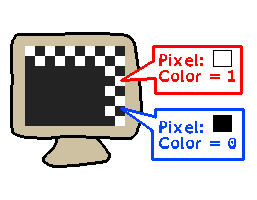
Figure 2: A drawing of a computer monitor that only displays black and white pixels. Color 1 is white, Color 0 is black.
If we only have one bit to store, say, color information about each pixel on our screen, that means we only have an option of "on" or "off". …
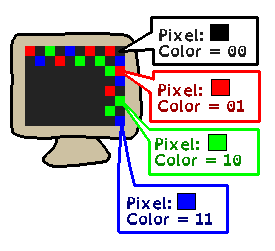
Figure 3: A drawing of a monitor that can show colorful pixels. Color 00 is black, color 01 is red, color 10 is green, and color 11 is blue.
If we have two bits, that means we can store four possible values: 00 (zero), 01 (one), 10 (two), or 11 (three). We could assign each of these codes a different color value, and then each pixel could render with one of these four choices. Note that we couldn't use different shades of these colors, we would be stuck with these specific versions of red, green, and blue.
1.5.1. ASCII
We could also use binary to represent letters in our alphabet. The English alphabet has 26 letters. 2 bits could maybe be assigned to A, B, C, D, but that'd be it! 3 bits would be 8 total values, so we could store A, B, C, D, E, F, G, H.
The amount of values we can store for a base-2 value will end up being 2n , given n amount of digits… So to get at least 26 digits 25 would give us 32… That would be enough for 26 letters and some extra symbols, like perhaps punctuation. However, this only accounts for just lower-case or just upper-case… we'd have to use a lot more bits to store these, plus numbers, and whatever other common symbols we need in our daily lives!
| Decimal | Char |
|---|---|
| 48 | 0 |
| 49 | 1 |
| 50 | 2 |
| 51 | 3 |
| 52 | 4 |
| 53 | 5 |
| 54 | 6 |
| 55 | 7 |
| 56 | 8 |
| 57 | 9 |
| 58 | : |
| 59 | ; |
| 60 | < |
| 61 | = |
| 62 | > |
| 63 | ? |
| 64 | @ |
| 65 | A |
| 66 | B |
| 67 | C |
| … | |
| 90 | Z |
| … | |
| 97 | a |
| 98 | b |
| 99 | c |
As computers were developing we in the U.S. built out computers suited for English speakers. We came up with an encoding scheme for our letters and numbers called ASCII. For places in other countries, they'd have to swap out the character set with what they needed - but not every language could fit in just 128 code points!
From the table, we can see representations of our letters, like capital “A” is represented by 65, and lower-case “a” is represented by “97”. There are also various numbers, symbols, and even “invisible” command symbols.
- Storing all the languages of the world
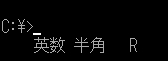
Figure 4: A screenshot of a Japanese computer terminal showing C:¥ instead of using a slash.
With early computers in other countries, people distributing the computers would have to figure out which symbols to replace from the original ASCII, and what with. This is why a command prompt in Japan still uses the Yen sign for pathing, instead of slash \ ; the Yen sign was needed more than a slash was, so it was replaced.
This swapping of codes for different symbols also made translation and internationalization of software a pain in the butt! The same codes used for different symbols, you would have to make sure your files were saving and loading with the right country-based encoding standard!
1.5.2. Unicode
Eventually Unicode became the standard for encoding all sorts of symbols, alphabets, other writing systems, math symbols, and even emojis! Instead of 128 symbols, Unicode defines 154,998! You'll often see different methods of Unicode representation written as UTF8 or UTF16.
| Symbol | Unicode |
|---|---|
| 𝛩 | 120553 |
| ข | 3586 |
| 🤔 | 55358 56596 |
1.5.3. Color and images

Figure 5: An image of 12 pixels: red, green, blue, yellow, magenta, cyan, black, white, then a darker red, darker green, darker blue, darker yellow.
Colors on computers can be represented with numbers, too. A common way to mark the color of a single pixel is with Red, Green, and Blue values. You'll often see it like this: (0, 255, 0), Or perhaps like this: #00FF00. Both of these mean 100% green, and 0% red and blue.
If you string a big list of colors together, you can create an image. Image files follow various formats, but an easy to read one (ppm) lists all the pixel colors in order from left-to-right, and top-to-bottom.
Each color can be represented as a set of 3 numbers each (red, green, blue):
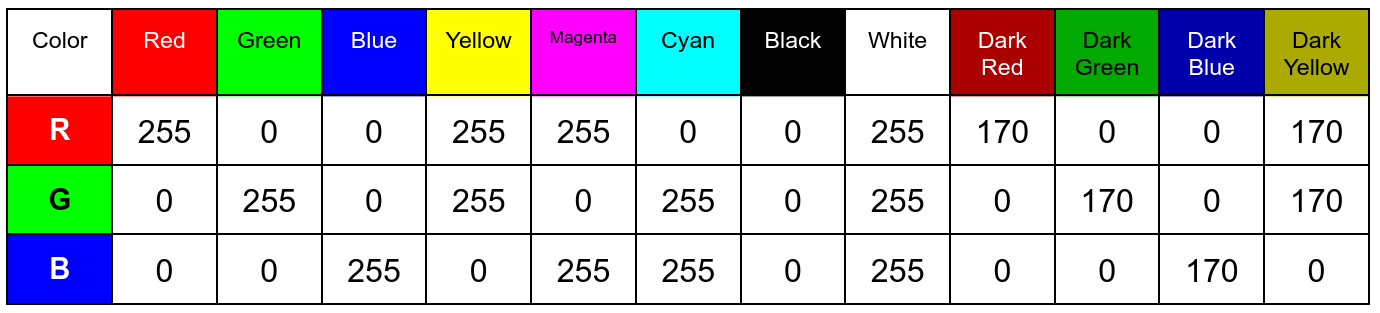
Figure 6: A table of colors showing Red, Green, and Blue values. Red, for instance, is 255 red, 0 green, 0 blue. Dark red is 170 red, 0 green, 0 blue.
And so on…
1.5.4. File formats
- HTML - Basic webpage structure
Now that we know how to represent text on a computer, we can create files that contain text. If we come up with rules on what different parts of the text file means, we can make a file type like HTML. An HTML file is just text, but different items mean different things:
<h1>My Homepage</h1>
<p>Welcome to my homepage!</p>
<hr>
<p><img src="web-assets/gifs/barraconstruction.gif"></p>
On its own, HTML doesn't mean anything, but programmers have created a program that reads HTML text and turns it into formatted text, graphics, and colors - a web browser (like Edge, Firefox, Chrome, or Safari) turns HTML into a usable web page.
You could make your own website building language and your own website viewing software if you wanted to, but at this point in history HTML and HTTP has pretty much won that war.
- CSV - Comma-separated value tables
Another filetype that's commonly used are CSV files (Comma separated values). The file's contents looks like this:
GAME,GENRE,YEAR
Super Mario Galaxy,Platformer,2007
Metroid Prime,First person puzzle/shooter,2002
Half-Life,First person shooter,1998
But can also be read by a spreadsheet editor:
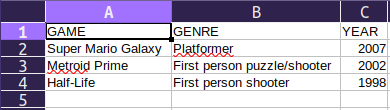
Figure 7: Screenshot of a spreadsheet with column headers Game, Genre, and Year, and a set of 3 rows beneath that of some different games.
- Source code
And, most importantly for us right now, a program's code is also just a big text document. We use a special program called a compiler to convert code into binary, and then the computer knows how to run it.
C++ source code:
#include <iostream>
using namespace std;

int main()
{
    cout << "Hello, world!" << endl;
    return 0;
}
Program running:
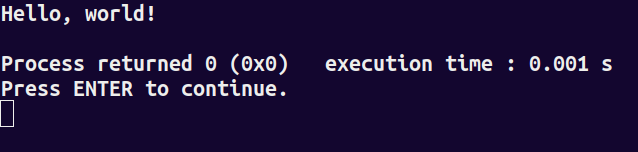
Figure 8: Screenshot of a C++ program running in the terminal. It shows the message 'Hello world!' and a return code of 0 (no errors).