Table of Contents
1. Navigating your system with the Terminal
1.1. What is a terminal? (aka Shell aka Bash)
A Terminal is another way to navigate your computer, but via a Command-Line Interface. We're used to working with Graphical User Interfaces (GUI) in our day-to-day lives, but the Terminal is still available, even on mobile devices, to navigate the system, create, move, copy, and remove folders and files, and to run files.
The word "Terminal" is generally interchangable with "Shell" or "Bash" these days, though historically a "Terminal" was not the computer itself but a way to remotely connect to one. But… Our machines usually just call the command line the "Terminal". (Windows uses Powershell or Command Line, Mac and Linux tend to use Terminal).
Some developer software will require the use of the command line, and some developers tools have a CLI (Command-Line-Interface) AND a GUI (Graphical-User-Interface) option. There can be advantages to a CLI over a GUI, even though it might take a little more time to get used to. For instance, you can automate tasks much more easily from the command line vs. the GUI - when I need to send the same code to every student's repository folder, I can write a small script or command to copy/paste to every folder, then do git add/commit/push, instead of having to do everything slowly with the mouse.
1.2. Using the terminal
1.2.1. Opening the terminal
- Windows: Go to the Start Menu and type in Bash. Open up Git Bash. (There is also Powershell available, which is Microsoft's default terminal, but there are differences in commands it accepts.)
- Mac: Click teh Launchpad icon in your Dock and type in Terminal to find the application.
- Linux: Location depends on your distro, usually it is under "System Tools" from the start menu.
1.2.2. pwd - Present Working Directory
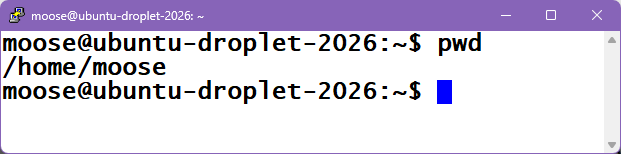
From the starting screen of your terminal, we'll start by entering in the
command pwd and hitting enter. pwd stands for "Present Working Directory",
and will return a path. On Linux and Mac,
this tends to be /home/YOURNAME/.
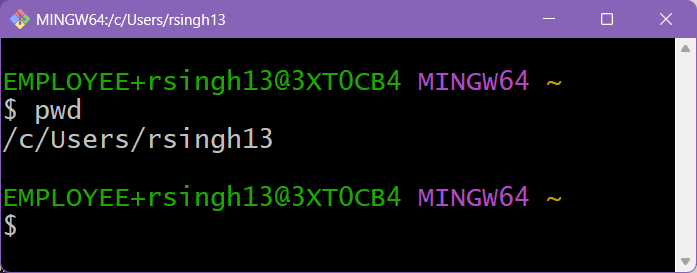
On Windows it will be something like /c/Users/YOURNAME:
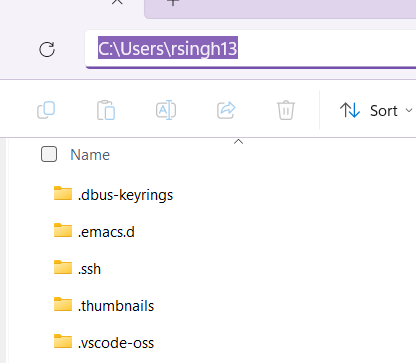
For Windows, if you wanted to find this path in your filesystem, just replace
"c" with C:. You can use the forward slashes or backslashes, but it will be
"auto-corrected" to C:\Users\YOURNAME in the file explorer.
1.2.3. ls - LiSt files/folders
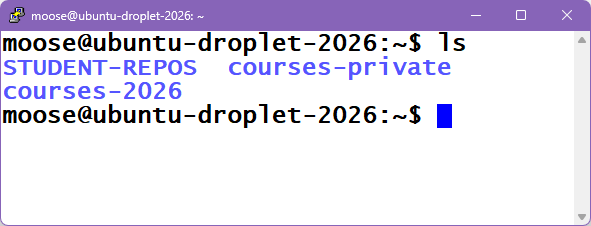
The ls (lowercase L and S) command can be used to view what files and folders
are in the current directory.
1.2.4. cd - Change Directory
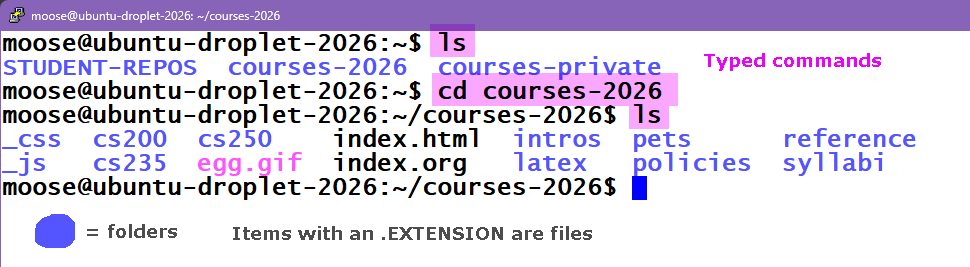
The cd command can be used to navigate into or out of a folder.
If you see a folder you want to navigate into, use cd FOLDERNAME. You can then
use ls to view the files in this new directory:
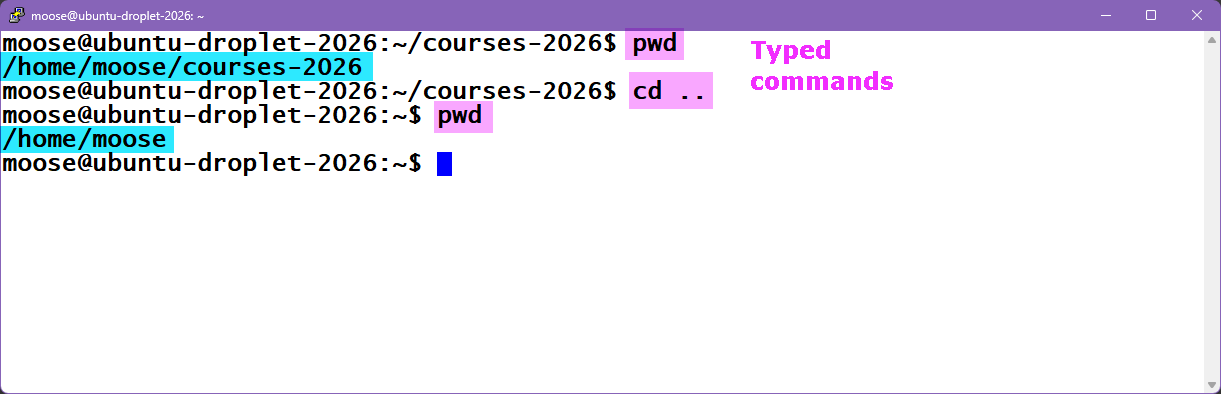
If you want to go back (or, "up") to the parent folder, you can use .. as
the path. The double period means the parent folder: