Table of Contents
Overview:
- Terms to know: Input file stream, output file stream, stream operator
- Concepts:
- To use file I/O you need to have
#include <fstream> - How to save files and load and parse them.
- To use file I/O you need to have
- New code:
- Declare an Input File variable:
ifstream VARIABLE; - Declare an Output File variable:
ofstream VARIABLE; - Open a file (either type of stream):
VARIABLE.open( "filename.txt" ); To check if there's an error opening the file:
ifstream infile( "filename.txt" );
if ( infile.fail() )
{
    cout << "Error! Could not find file!" << endl;
    return 1;
}
- Read a word from an input file infile to a variable:
infile >> VARIABLE; - Read a line of text from an input file infile to a variable::
getline( infile, VARIABLE ); - Write a string literal to an output file outfile:
outfile << "Hello!"; - Write a variable value to an output file outfile:
outfile << VARIABLE; - Write a newline into the output file outfile:
outfile << endl;= - And you can chain them together with
<<.
- Declare an Input File variable:
1. Output streams
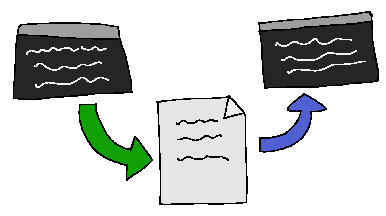
Saving data from our program and out to an external file is an important part of software. While we'll mostly be working with very simple data types like .txt, .csv, or maybe .html, tons of software everywhere extracts its data into all sorts of formats.
Saving out data can also be useful because the program can load that data in later on, so that each time you run the program all the data and changes made are saved.
In C++ we've been using cout to stream information to the console
window in our programs. Using cout requires including the iostream
library.
cout << "Hello, " << location << "!" << endl;
Writing out to a text file works in a very similar way. We will need
to include the fstream library in order to get access to the
ofstream (output-file-stream) object. Streaming out to a file works
in the same way as with cout, except that we need to declare a
ofstream variable and use it t open a text file.
#include <iostream>             // Console streams
#include <fstream>              // File streams
using namespace std;

int main()
{
  // Console output
  cout << "Hello, world!" << endl;

  // File output
  ofstream outputFile( "file.txt" );
  outputFile << "Hello, world!" << endl;
  outputFile.close();
}
You can use the output stream operator << to continue chaining
together different items - endl, string literals in double quotes,
variable values, etc. just like with your cout statements.
Once the file is closed, you will see the file on your computer, usually the same directory as your .cpp files.
Review 1. We have the variable hour, how would we output it to the
console screen?
- ○
cout << hour; - ○
cout >> hour; - ○
getline( cout, hour );
Review 2. What are some types of outputs a program might generate?
- □ A banana
- □ A spreadsheet of all the inventory a business has in stock
- □ A text file log of all chat history between two people.
2. Writing output to files
To write information to the screen first we need to include the file stream library:
#include <fstream>
Then, we declare a variable of type ofstream (output-file-stream). ofstream is the data type, and you can give it whatever variable name:
ofstream outputFile;
Sometimes, your program might read multiple files at once, so then you'd declare more than 1 ofstream variable. But for here, we're just working with the one.
We can then open a file name that we will be writing out to:
outputFile.open( "save.txt" );
Now we can output text to our file in the same way we use cout, except replacing cout with the outputFile variable…
outputFile << "Name: " << name << endl;
If you want to close the file manually, use the .close() function:
outputFile.close();
Otherwise, the ofstream object will close automatically when the program closes or when the function it's declared within exits.
Review 3. Match the lines of code with the descriptions of what they do.
CODE SNIPPETS:
- a.
ofstream output - b.
output.open( "save.txt" ); - c.
output << "Hello World!"; - d.
output.close();
DESCRIPTIONS: These are out of order, mark which code snippet it describes.
| ○ a / ○ b / ○ c / ○ d | Closes the file currently opened in the output file stream. |
| ○ a / ○ b / ○ c / ○ d | Declares an output file stream variable. |
| ○ a / ○ b / ○ c / ○ d | Writes text out to the file via the output file stream variable. |
| ○ a / ○ b / ○ c / ○ d | Opens a text file to be accessible via the output file stream variable. |
The path of the output file

Figure 1: A folder view of a directory where a text file is located.
When you've built a program with g++ and are running it as
./program.out or ./program.exe, the path of that exe file is
the working directory. This is the default directory where text
files will be saved, and the default directory it will look at
to try to open files to load.
You can adjust the path using ../ to go back/up one folder or,
if you have a subfolder like a "data" directory, you can use
the folder's name FOLDERNAME/file.txt as a path.

Figure 2: A plaintext editor open showing the contents of restaurants.txt, which contains restaurant names, addresses, and prices.
You can open the text file output with a text editor like notepad or a code editor like VS Code. It's just plaintext!
Review 4. What is the default read/write path for fstream objects?
- ○ C:\
- ○ My Documents
- ○ Same location as the .exe/.out file
Outputting different file types
Many file formats are just plain text files if you open them in Notepad. You can save your program's output to more than just .txt files as well - you could use .csv (comma separated value) files, or .html files, or other file types as well.
Just name your file a .csv or .html file when using the open function:
output.open( "data.html" );
And then output text that is formatted as the correct file type:
output << "<h1>Q1 Data</h1>" << endl;
output << "<p>This year we found that <strong>potatoes</strong>" << endl;
output << "solid well, outselling tomatoes.</p>" << endl;
Any file type that is a plaintext file can be built as well - .html files, .csv files, heck, even .cpp files. However, generally if you wanted to write a program to output a different file type, you'd use a library to properly convert the data.
Example: Outputting HTML data:
#include <fstream>
using namespace std;

int main()
{
  ofstream outputFile( "page.html" );
  outputFile << "<body>" << endl;
  outputFile << "<h1>This is a webpage</h1>" << endl;
  outputFile << "<p>Hello, world!</p>" << endl;
  outputFile << "</body>" << endl;
  outputFile.close();
}
Example: Outputting CSV data:
#include <fstream>
using namespace std;

int main()
{
  ofstream outputFile( "spreadsheet.csv" );
  outputFile << "COLUMN1,COLUMN2,COLUMN3" << endl;
  outputFile << "cell1,cell2,cell3" << endl; // row 1
  outputFile << "cell1,cell2,cell3" << endl; // row 2
  outputFile << "cell1,cell2,cell3" << endl; // row 3
  outputFile.close();
}
Review 5. A .csv file is a spreadsheet-like format with rows, columns, and cells of data. What types of data might be good to store as a .csv file, and what would be better as a simple .txt file?
| ○ txt / ○ csv | A course with its name, search code, and credit hours. |
| ○ txt / ○ csv | A game character's level, experience, and amount of gold. |
| ○ txt / ○ csv | A list of books with their titles, author names, and isbn. |
| ○ txt / ○ csv | A receipt for purchasing a product, including tax and final total price |
3. Reading documentation

Documentation is an important part of software development. People who write code that's used by others need to provide documentation so that others can know how to use the functionality without having to read the source code.
The C++ ofstream library docs are here:
https://www.cplusplus.com/reference/fstream/ofstream/
Under the "Public member functions" header is a list of functions that ofstream provides, and clicking on a function will give you some example code and more information.
Review 6. The ofstream::open documentation page has an example of the function's form, which looks like this:
void open (const char* filename,
    ios_base::openmode mode = ios_base::out);
This shows us what inputs the function can take. The filename is the filename we pass to it (e.g., myFile.open( "todo.txt" ); ), and there is an optional mode argument.
What is the data type of the filename argument?
- ○
const char* - ○
float - ○
std::string
Review 7. In the ofstream::open documentation, the first paragraph of text describes what this function does. What does it do?
- ○ Closes the file currently associated with the object, disassociating it from the stream.
- ○ Opens the file identified by argument filename, associating it with the stream object, so that input/output operations are performed on its content. Argument mode specifies the opening mode.
- ○ Returns whether the stream is currently associated to a file.
Review 8. In the ios::fail documentation, under Return Value, it describes the possible results of calling this function. What might this function return?
- ○ a '+' or '-' character
- ○ a true or false boolean value
- ○ a negative or positive integer
4. Input streams
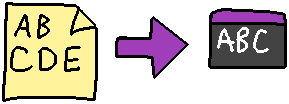
We can use the ofstream library to write text and data out to text files. In the same family of tools, the ifstream library ("input file stream") allows us to read in files for use in our programs.
We could save/load save data files, such as in a video game, so you don't lose your process. You could also load in a document to "process" in some way.
Writing code to read in text is a little harder than just writing something out, because we have to tell our program how to read. Ifstream will bring in words or lines of text for us, but we have to tell our program how to make sense of what it's loaded in. This process is known as parsing.
File input streams work just line console input streams. You will
need to create a ifstream (input-file-stream) object and open a
file, and then you can read in the contents of that file. Files to
be read should generally be placed in the same path as your .cpp
file, though the working directory on your system may vary.
Example:
#include <fstream>              // File streams
#include <string>               // Strings
using namespace std;

int main()
{
  string data1, data2;

  // File input
  ifstream inputFile( "file.txt" );
  inputFile >> data1;             // Read one word
  inputFile.ignore();             // Clear buffer
  getline( inputFile, data2 );    // Read one line
  inputFile.close();
}
Just like with using cin, you can use the input stream operator
(>>) and the getline() function with the file streams to get text.
You will also need one or more variable to store the text read in.
Review 9. What are some examples of input files a program might read? (Multiple selection)
- □ A banana
- □ A configuration file for program options
- □ Family ancestry data
- □ The text of an ebook
Reading input
We will use the same library to get access to both ofstream and ifstream. Remember "File Stream" is what "fstream" stands for.
#include <fstream>
Remember that ofstream was the data type of the variable we'd create to open a text file and write data out. For input, we use ifstream, but we still can open a file in the same way:
ifstream inputFile;
inputFile.open( "save.txt" );
We can read contents from our input file stream similarly to how we
would work with cin for the keyboard input. Reading in one word or
piece of data at a time will use the input stream operator >>:
// Read from text file, save to playerExperience variable.
inputFile >> playerExperience;
And reading a whole line of text at a time will use getline:
getline( inputFile, playerName );
We still need to use the ignore() function when moving from a >>
statement to a getline statement:
inputFile >> playerHp;
inputFile.ignore();
getline( inputFile, playerName );
And, we can close the file manually if we'd like:
inputFile.close();
The file itself is read from the left-to-right, top-to-bottom,
similar to how you might think of a typewriter working. If we use
>>, it will read the left word to the right word, and once it
hits the end of a line it will return all the way to the left but
one line down. If we use getline, it will start at the top line
and move down one line at a time as it reads.
Review 10. Let's say we saved a "save game" file in this order:
1. Player name
2. Player's experience points
3. Player's gold amount
What order do we load in the data from the file?
- ○ Gold then Experience then Name
- ○ Name then Experience then Gold
Review 11. Match the lines of code with the descriptions of what they do.
CODE SNIPPETS:
- a.
ifstream input - b.
input.open( "save.txt" ); - c.
getline( input, var2 ); - d.
input >> var1;
DESCRIPTIONS: These are out of order, mark which code snippet it describes.
| ○ a / ○ b / ○ c / ○ d | Read a line of text from the input file into a variable. |
| ○ a / ○ b / ○ c / ○ d | Declares an inputfile stream variable. |
| ○ a / ○ b / ○ c / ○ d | Reads a word of text from the input file into a variable. |
| ○ a / ○ b / ○ c / ○ d | Opens a text file to be accessible via the input file stream variable. |
What if the file isn't found?
When we're saving an file with ofstream we don't really have to worry about if the file already exists or not - if it doesn't exist, a new one will be created.
For reading a file with ifstream, however, if no file exists to read, then what? Well, we should check to see if opening the file failed, and if it did, perhaps we use some default values instead, or give an error and exit the program.
To check if the open process failed, we use an if statement:
ifstream input;
input.open( "userdata.txt" );
if ( input.fail() )
{
  cout << "ERROR: Could not find file!" << endl;
  return 2;
}
Review 12. When opening an (○ ifstream / ○ ofstream) file
for (○ loading / ○ saving) we should check to see if the
open was successful via the fail() function.
Reading an entire file
- Reading chunks of data:
- Let's say you have a file full of data to read in. For this example, the file will be a list of numbers that we want to add together. The file might look something like….
File: Data.txt
9 15 16 0 10 13 5 16 1 9 2 17 3 3 8
In our program, we want to read all the numbers, but to do this, we
need to use a loop and read in one number at a time. We can keep
a running total variable to keep adding data to the sum as we go. We
can use a loop to continue reading while it is successful, using this
as the condition: input >> readNumber. This will stop the loop once
there's nothing else to read, and it updates the readNumber variable
with the input each cycle.
Example:
ifstream input( "data.txt" );

int sum = 0;    // Sum variable
int readNumber; // Buffer to store what we read in

// Keep reading while it's possible
while ( input >> readNumber )
  {
    sum += readNumber;  // Add on to the sum

    // Output what we did
    cout << "Read number " << readNumber
         << ",\t sum is now " << sum << endl;
  }

cout << "FINAL SUM: " << sum << endl;
File output:
Read number 9,   sum is now 9
Read number 15,  sum is now 24
(... etc ...)
Read number 3,   sum is now 119
Read number 8,   sum is now 127
FINAL SUM: 127
Reading lines of data:
In other cases, maybe you're reading in text data from a file
and want to read in a full line at a time. We can use a while
loop with the getline() function as well to make sure we read
each line of a text file:
Example:
ifstream input( "story.txt" );

string line;

while ( getline( input, line ) )
{
  cout << line << endl;
}
File output:
CHAPTER I.
Down the Rabbit-Hole

Alice was beginning to get very tired of sitting by her
sister on the bank, and of having nothing to do: once or
twice she had peeped into the book her sister was
reading, but it had no pictures or conversations in it,
"and what is the use of a book," thought Alice "without
pictures or conversations?"
Parsing plaintext files
There are different ways you can design a text file's save format so that you can more easily read it in later on. Let's go over some common techniques. You might also want to take note of these for use in our class projects.
A plaintext file is a file that just contains text, which can be opened in a program like notepad.
5. Saving and loading data

Parsing files
Reading in data from a file is one thing, but making sense of what was read in is another. Are you storing saved data from the last session of the program? Are you trying to parse data to crunch? How do you read that data in logically?
First, if your program is going to be saving output that will need to be read in and made sense of later on, how do you organize the data that's output? It's up to you to make sure to structure the output save data in a consistent and readable way.
Let's say two developers come up with different formats to store a video game save file:
File: Output save game file (FORMAT 1)
RachelsGame
5
1000
RegnierCenter
File: Output save game file (FORMAT 2)
SAVEGAME        RachelsGame
LEVEL           5
GOLD            1000
LOCATION        RegnierCenter
- For FORMAT 1, we would have to make sure to write our program so that it always saves and loads in the specific order: GAME-NAME, LEVEL, GOLD, LOCATION.
- For FORMAT 2, since labels are added, we could read in a label, then decide whether the next thing to load in is the GAME-NAME, LEVEL, GOLD, or LOCATION. However, the extra information ("SAVEGAME", "LEVEL", "GOLD", "LOCATION") adds extra storage space to savegame file, and that information is mostly just useful to the humans reading it.
If every save file from the program is formatted in the same way (FORMAT 1), then when reading the file we can make assumptions…
- First word: Save game name - store in
gameFileName. - Second word: Player's level - store in
level. - Third word: Player's gold - store in
gold. - Fourth word: Player's location - store in
location.
…And so on. This could work, but we could also take advantage of those human-readable labels that were added into the file (FORMAT 2):
- Read
firstWord. - If
firstWordis "SAVEGAME", then read the next word intogameFileName.- Else if
firstWordis "LEVEL", then read the next word intolevel. - Else if
firstWordis "GOLD", then read the next word intogold. - Else if
firstWordis "LOCATION", then read the next word intolocation.
- Else if
So, let's say we have our four variables for a save game:
| Name | Data type |
|---|---|
gameFileName |
string |
level |
int |
gold |
int |
location |
string |
When we go to save our game file, here is what both formats' save process would look like:
Example: Saving for FORMAT 1
// Save the game
ofstream output( "save.txt" );
output << gameFileName << endl;
output << level << endl;
output << gold << endl;
output << location << endl;
File output: Saved game file:
SAVEGAME MyGame
LEVEL    1
GOLD     10
LOCATION OCB
Example: Saving for FORMAT 2
// Save the game
ofstream output( "save.txt" );
output << "SAVEGAME " << gameFileName << endl;
output << "LEVEL    " << level << endl;
output << "GOLD     " << gold << endl;
output << "LOCATION " << location << endl;
File output: Saved game file:
SAVEGAME MyGame
LEVEL    1
GOLD     10
LOCATION OCB
Now, to load in each format, we would have to take a couple of different approaches.
Example: Loading for FORMAT 1
For this format, the savegame data would have to always be in the same order, so we know we also load the data in the same order.
// Load the game
string buffer;
ifstream input( "save.txt" );
input >> gameFileName;
input >> level;
input >> gold;
input >> location;
Example: Loading for FORMAT 2
This one has the helper labels so we read in the first word, investigate what it says, and based on that decide which variable we're loading into next.
string buffer;
ifstream input( "save.txt" );

while ( input >> buffer )
{
  if ( buffer == "SAVEGAME" )
    input >> gameFileName;

  else if ( buffer == "LEVEL" )
    input >> level;

  else if ( buffer == "GOLD" )
    input >> gold;

  else if ( buffer == "LOCATION" )
    input >> location;
}
If we stepped through this, buffer is always going to store one of
the data labels, because after buffer is read, we immediately read
the second item in the line of text. Once the second item is read,
the next thing to be read will be the next label.
Review 13. Which format would this snippet of code write out?
// Save the game
ofstream output( "save.txt" );
output << gameFileName << endl;
output << level << endl;
output << gold << endl;
output << location << endl;
Review 14. Which format would this snippet of code write out?
// Save the game
ofstream output( "save.txt" );
output << "SAVEGAME " << gameFileName << endl;
output << "LEVEL    " << level << endl;
output << "GOLD     " << gold << endl;
output << "LOCATION " << location << endl;
Review 15. Which format would this snippet of code load in?
string buffer;
ifstream input( "save.txt" );

while ( input >> buffer )
{
  if ( buffer == "SAVEGAME" )
    input >> gameFileName;

  else if ( buffer == "LEVEL" )
    input >> level;

  else if ( buffer == "GOLD" )
    input >> gold;

  else if ( buffer == "LOCATION" )
    input >> location;
}
Review 16. Which format would this snippet of code load in?
// Load the game
string buffer;
ifstream input( "save.txt" );
input >> gameFileName;
input >> level;
input >> gold;
input >> location;
6. Working with files in the Real World
Usually you would be working with some kind of library that handles serializing data between its file format to models in the program code, or at least handles reading and parsing the data file and provides a format that's easier for you to use to fill in that data model in the program.
JSON (JavaScript Object Notation) is widely used on the web, especially to transmit data between client (your web browser) and server (a web host).
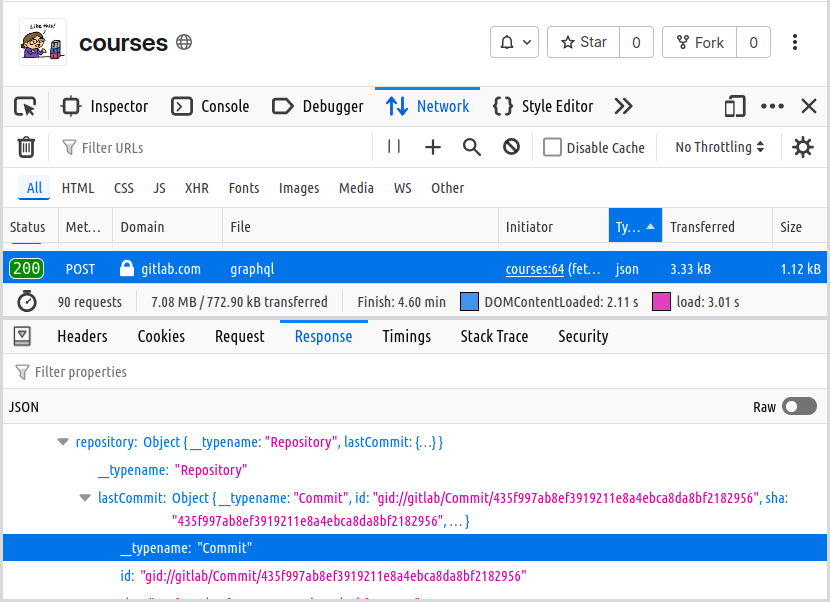
Figure 3: The Firefox network inspector showing a JSON response from GitLab
Other common formats are XML, CSV, or even Binary files.
There are also databases, but those work differently from just storing a plaintext file on your system.
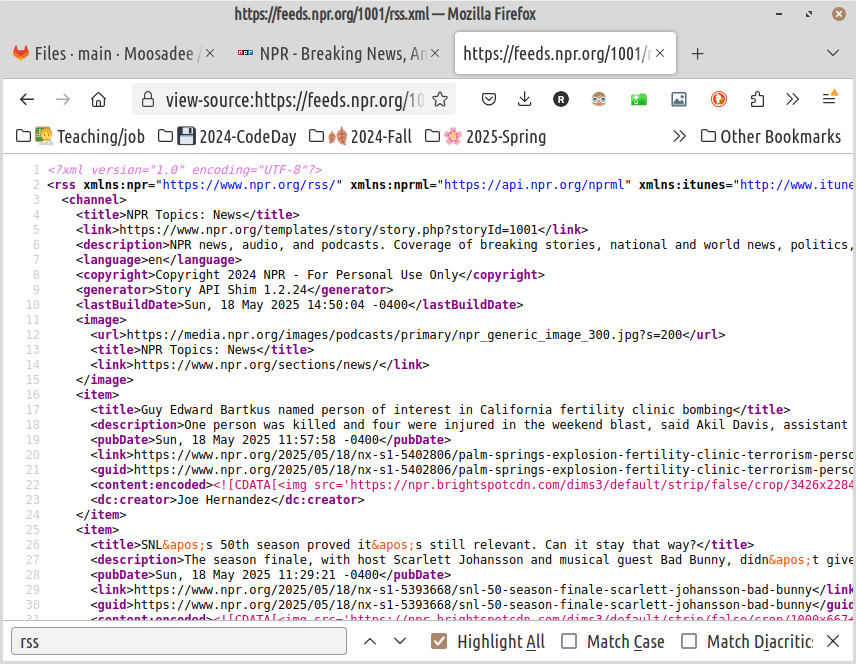
Figure 4: An XML view of the NPR RSS feed.