Table of Contents
Overview:
- Terms to know: output stream operator, escape sequences, tab, endl, cout,
- New code:
- Write a string literal to the screen:
cout << "Hello!"; - Write a newline to the screen:
cout << endl; - Write a variable's value to the screen:
cout << VARNAME; - Chain together multiple items:
cout << "Price: " << VARNAME << endl;
- Write a string literal to the screen:
1. The iostream library

A library is a set of prewritten code that we can use in our
programs. C++ has a set of libraries that come with it, and third
parties can also create libraries. But anyway, in order to be able
to display output to the screen we will need to include one of the
built-in C++ libraries - iostream.
At the top of our source code file, we will have to add an #include
statement to add this library to our program:
#include <iostream>
This will allow us to use the cout and endl commands from the std
(STandarD) library:
std::cout << "HI!" << std::endl;
But we can also simplify our code by adding in using namespace std;
beneath our library includes, so that we don't have to prefix std::
on all of our iostream commands:
#include <iostream>
using namespace std;
int main()
{
    cout << "HI!" << endl;
    return 0;
}
Review 1. If our file begins with just this:
#include <iostream>
then our outputs will be written like…
○ cout << "Hello!";
○ std::cout << "Hello!";
Review 2. If our file begins with this:
#include <iostream>
using namespace std;
then our outputs will be written like…
○ cout << "Hello!";
○ std::cout << "Hello!";
2. Outputting Information with cout

In order to display text to the screen with our program, we need to include a library. A library is a set of pre-written code that can be used across multiple programs. C++ contains a standard library of pre-written code we can use. To gain access to the cout (character-output) statement, we need to add this at the top of our C++ program file:
#include <iostream>
After that, we can use the cout command to display text like this:
std::cout << "Hello!";
The std:: prefix stands for "STandarD", as in the C++ standard
library. This command will display "Hello!" to the screen when the
program is built and run.
You can also add empty lines to the program using the endl (end-line) command:
std::cout << std::endl;
And these commands can be chained together:
std::cout << "Hello!" << std::endl << "World!" << std::endl;
The << sign is known as the output stream operator.
Review 7. A library is…
2.1. Using namespace std
You can put using namespace std; at the top of the C++ program to state that
this code file will be using commands out of the std (standard) library.
With this, you can remove the std:: prefixes from iostream commands
like cout and endl.
2.2. Chaining outputs
The cout command (pronounced as "c-out" for "character-out") is
used to write information to the screen. This can include outputting
a string literal:
cout << "Hello, world!" << endl;
or a variable's value:
cout << yourName << endl;
or stringing multiple things together:
cout << "Hello, " << yourName << "!" << endl;
In C++, we use the output stream operator << to string together
multiple items for our output.
2.3. Newlines with endl
The endl command stands for "end-line" and ensures there is a vertical
space between that cout statement and the next one. For example, if we write
two cout statements without endl like this:
cout << "Hello";
cout << "World";
Program output:
HelloWorld
If we want to separate them on two different lines, we can write:
cout << "Hello" << endl;
cout << "World";
Program output:
Hello
World
Remember that in C++, a statement ends with a semicolon ;, so you
can split your cout statement across multiple lines, as long as
you're chaining items together with << and only adding a ; on
the last line:
cout << "Name:   " << name
     << "Age:    " << age
     << "State:  " << state << endl;
Review 8. Match the terms to the code…
| 1. Character output | A. endl |
|
| 2. End line | B. << |
|
| 3. Output stream operator | C. cout |
Review 3. A string literal is…
○ Any string variables being declared
○ Any text written inside of double quotes
○ Any << statements
○ The cout command
Review 4. cout is pronounced "Kowt".
○ true
○ false
Review 5. The output stream operator is:
○ cout
○ endl
○ <<
Review 6. We want to display the message "ERROR: File not found!" to the screen. How do we do this?
○ cout << "ERROR: " File not found!;
○ cout << ERROR: File not found!;
○ cout << "ERROR: File not found!";
○ cout << 'Error: File not found!';
Review 7. A variable has been declared: int year = 1999;.
How do we display the variable's value to the screen?
○ cout << "year";
○ cout << 'year';
○ cout << year;
3. Good user interfaces
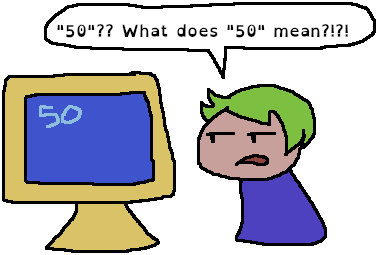
One of the important parts of writing software is making sure users know how to navigate and use your program. While writing your programs, assume that the person running it knows nothing about this program. Make sure everything they need to know about the program is given to them as instructions, and make sure menus are easy to read.
3.1. Drawing a line of characters across the screen
We can use the string library to create a line of characters with
some width, without having to type out all those characters ourselves.
Its form looks like this:
cout << string( AMOUNT, CHAR ) << endl;
An example of it being used is:
cout << "MAIN MENU" << endl << string( 20, '-' ) << endl;
Program output:
MAIN MENU
--------------------
3.2. Escape Sequences
There are special characters, called escape sequences, that you can
use in your cout statements:
| Character | Description |
|---|---|
\n |
newline (equivalent to endl) |
\t |
tab |
\" |
double quote |
cout << "\"hello\nworld\"" << endl;
Program output:
"hello
world"
C++ source: Using the tab character in outputs
cout << "A\tB\tC" << endl;
cout << "1\t2\t3" << endl;
Program output:
A       B       C
1       2       3
C++ source: Displaying text with double quotes in it
cout << "He said \"Hi!\" to me!" << endl;
Program output:
He said "Hi!" to me!
3.3. Formatting currency
By default, the following code:
float price = 10.90;
cout << "Price: $" << price << endl;
Will give us output like this:
Price: $10.9
To get our program to always display two numbers to the right of the decimal place, we need to include the iomanip (input/output manipulation) library:
#include <iomanip>
And then add this command to our program somewhere:
cout << fixed << setprecision( 2 );
Then, our program's output will look like this:
Price: $10.90
3.3.1. Tables and columns
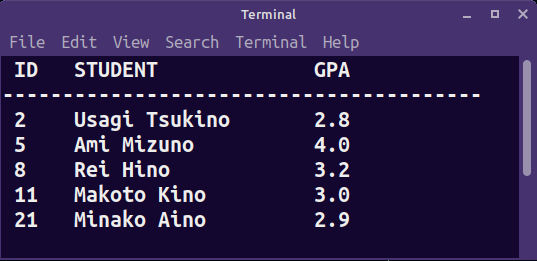
Figure 1: A simple table in a command line C++ program. There are three columns: ID, Student, and GPA, with the column headers shown on top.
If we want to make a table in our program, we need to use columns with fixed widths. We will need to #include <iomanip> again.
We can specify the width of a column for the following item being displayed with the setw command, like this:
cout << setw( 5 ) << "ID";
This will give the following column a width of 5. The text "ID" takes up 2 spaces, so then there are 3 empty spaces left over. cout statements afterwards will start at the end of this column.
For a table header, I usually write it like this:
cout << left
  << setw( 5 ) << "ID"
  << setw( 20 ) << "STUDENT"
  << setw( 6 ) << "GPA"
  << endl << string( 40, '-' ) << endl;
This sets the text alignment to left-aligned (default is right-aligned), then creates three columns: ID, Student, and GPA.
Then, further down in the table, I can use the same setw values for the data:
cout
  << setw( 5 ) << "2"
  << setw( 20 ) << "Usagi Tsukino"
  << setw( 6 ) << "2.8"
  << endl;
This will create a nice table that is easy for the user to read.
Review 8. Let's say we have a variable named currentBalance, which
stores a user's bank account balance. What would be a good user
interface for displaying the balance to the user?
○ cout << Balance: $ << currentBalance << endl;
○ cout << currentBalance << endl;
○ cout << "Balance: $" << currentBalance << endl;
○ cout << "Balance: $" << endl;
Review 9. Before getting input from the user, you should…
○ Display the current value of the variable.
○ Display a message using cout to tell the user what kind of input
the program is expecting.
○ Not display any messages with cout.
Review 10. To draw a horizontal bar 80 characters wide, you would use…
○ cout << string( 80, '-' ) << endl;
○ cout << string( '-', 80 ) << endl;
○ cout << string( 80, "--" ) << endl;
○ cout << string( "--", 80 ) << endl;
Review 11. Given the program output:
Hello world!
Goodbye world!
Which line of code contains the tab character \t?
○ The line with "Hello world" contains the tab character.
○ The line with "Goodbye world" contains the tab character.
Review 12. Given the program output…
a
b
c
Which cout statement would match this format?
○ cout << "a\tb\tc" << endl;
○ cout << "a\nb\nc" << endl;
○ cout << "a b c" << endl;
Review 13. If we had the variable pi = 3.14159 and we wanted to
display three digits after the decimal point, we would set…
cout << fixed << setprecision( _ _ _ _ );
Review 14. If we want to make the next column take up 10 spaces
and display the value of the variable price, we would write…:
cout << setw( _ _ _ _ ) << price << endl;