Navigating R.W.'s courses
Table of Contents
1. Course webpage navigation
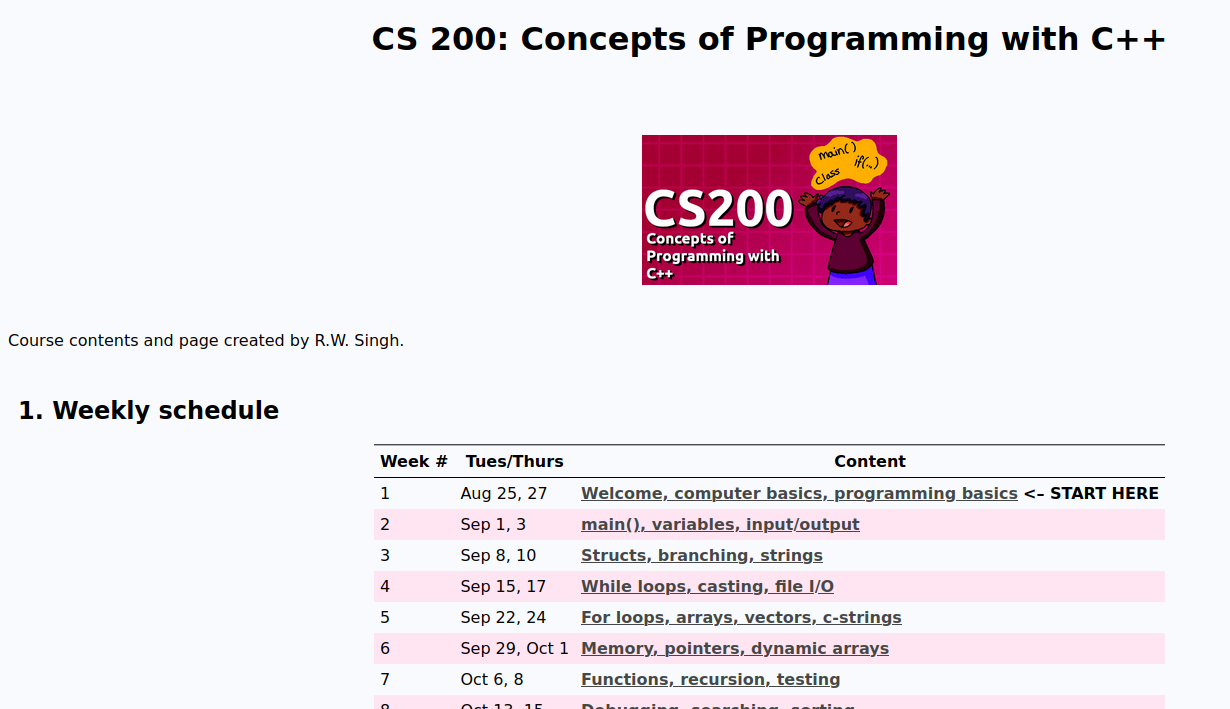
Figure 1: A screenshot of the homepage of a course, with a table of the weeks and topics for the semester.
Course content such as readings, lab documentation, and the schedule will be posted on this page. From the homepage, scroll to the "Weekly schedule" and click on a week to view that week's content.
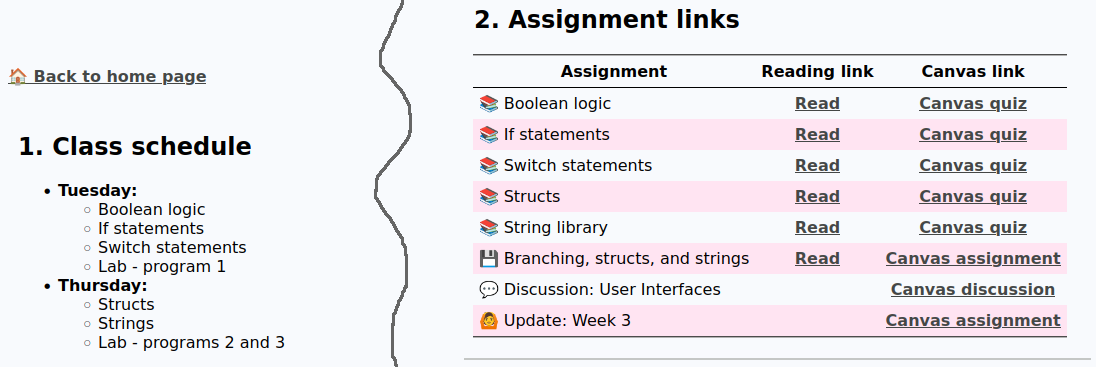
Figure 2: A screenshot of a class' schedule for Tuesday and Thursday in-class, and the assignment links for reading and Canvas links.
From within a week's page you will see the in-class plan (if applicable) and a list of assignments. The "Read" links will take you to reading material, lab documentation, etc., and then "Canvas" links will take you to the assignment on Canvas directly.
If the Canvas link column is empty for an assignment, that means that there is no turn-in.
2. Canvas page navigation
From Canvas, you can view assignments either by:
- Selecting the Assignments link, and viewing either By Date or By Type.
- Selecting the Modules link, and viewing the assignments for that week.