Setup (Mac) - GitLab (CS 200)
Table of Contents
1. Program installation
2. Creating a test program
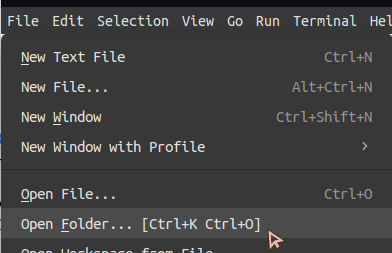
Figure 1: Screenshot of the File dropdown menu with the Open Folder option being selected.
In VS Code/codium, go to File > Open Folder… and create and open a folder for this test program.
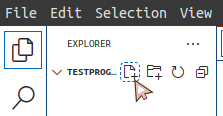
Figure 2: Screenshot of the 'new file' button in the Explorer in VS Code.
In the Explorer pane click on the New File icon. Name it something like "test.cpp".
Copy paste this code in:
#include <iostream>
using namespace std;

int main()
{
    cout << "HELLO!" << endl;
    return 0;
}
Save the file (File > Save or CTRL+S).
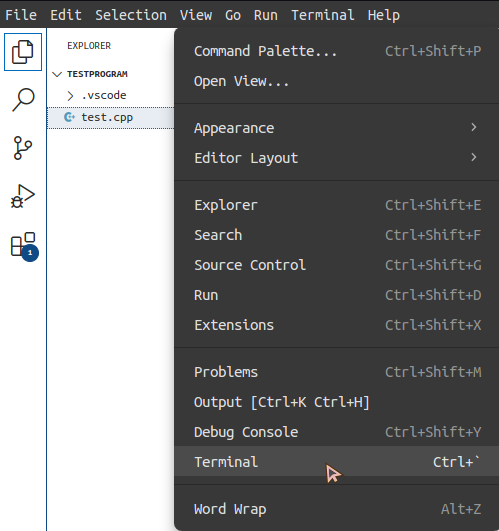
Figure 3: Screenshot of the View dropdown menu and the View Terminal option selected.
Next, go to the View dropdown menu and select Terminal.
In this bottom window, build the program with:
g++ test.cpp
Hit ENTER.
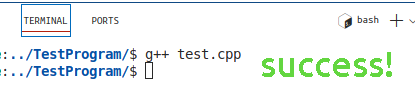
Figure 4: Screenshot of the VS Code terminal and the g++ command executed and returned control back to the user.
If no error messages pop up and it returns us to the prompt, that means the build was successful.
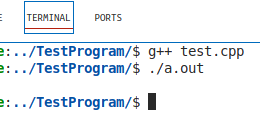
Figure 5: Screenshot of the VS Code terminal, a successful build and run.
Run the program with ./a.out. It should display the HELLO message.
3. Making sure all the programs got installed
Run each of these commands and check the output so we know if these got installed properly or not.
3.1. Checking make
Type in make in the terminal and hit ENTER. You should get this error:
rachelwil@compute:~$ make
make: *** No targets specified and no makefile found.  Stop.
✅ Success: It should give an error "make: * No targets specified and no makefile found. Stop."
This shows that the make program works but it's just complaining that we don't have a project to make.
❌ Failure: If it gives this error - "make : The term 'make' is not recognized as the name of a cmdlet, function, script file, or operable program. Check the spelling of the name, or if a path was included, verify that the path is correct and try again."
This means it can't find the make program. Make sure you’ve installed XCode!
3.2. Checking lldb
Type lldb a.out (the program is all lowercase LLDB). This should launch the debugging program.
rachelwil@compute:~$ lldb a.out
Traceback (most recent call last):
  File "<string>", line 1, in <module>
ModuleNotFoundError: No module named 'lldb.embedded_interpreter'
(lldb) target create "a.out"
Current executable set to '/home/rachelwil/a.out' (x86_64).
- ✅ Success: The gdb program will start and it may have a bunch of information; once you see a (gdb) prompt waiting for your input, type "exit" or "quit" to leave.
- ❌ Failure: If it gives an error that it cannot find the program “lldb”.
3.3. Checking git
Type git status. It will show this error, but we're just checking that git is installed.
rachelwil@compute:~$ git status
fatal: not a git repository (or any of the parent directories): .git
- ✅ Success: An error about not having a git repository.
- ❌ Failure: There usually aren't any errors at this point, but if you find one let me know and I'll update these docs! :)
4. Assignment turn-in
Let me know how setup went in the Canvas assignment.
- Which Operating System are you on?
- Did everything install OK?
- Which code editor did you set up? (geany / emacs / vscodium)
- Any issues with testing out the programs?