Setup (Windows) - GitLab (CS 200)
Table of Contents
1. Downloading the setup files
I tried to make it easy by putting all the setup files in one place:
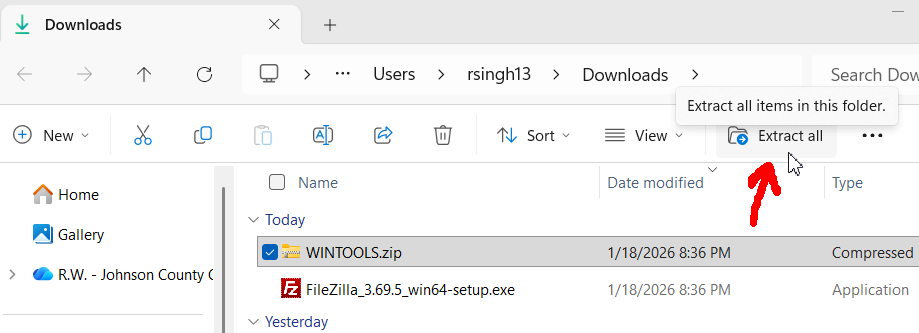
Figure 1: Screenshot of the Windows File Explorer and the 'Extract All' button being pointed to.
Once downloaded, Extract All to any directory.
(You can also right-click the file and go to "Extract All", or something similar in older versions of Windows.)
2. MinGW compiler setup
2.1. Move the mingw folder
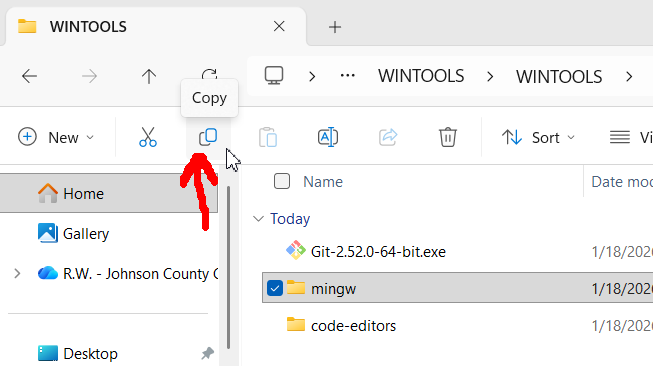
Figure 2: Screenshot of Windows File Explorer, the Copy icon being highlighted.
Keep your extracted zip folder open. Locate the mingw folder and copy it. (You can select the copy button in the file explorer bar, or right-click the file and select the Copy icon.)
Figure 3: Screenshot of Windows File Explorer, the Paste button being highlighted.
Also open up File Explorer (from the Start menu) and go to This PC then the C:\ drive. Paste the folder here. (You can also right-click in an empty space and click the Paste icon.)
2.2. Telling Windows where the MinGW files are
This step will allow the programs we installed to be run from anywhere on the computer.
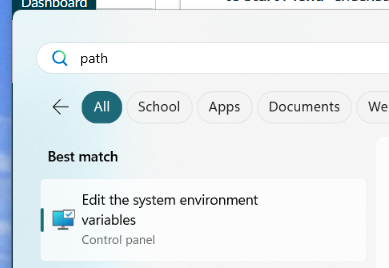
Figure 4: Screenshot of the Windows Start menu with the 'Edit the system environment variables' option selected.
Click the Start Menu (the Windows icon on the bottom bar) and type in "Path". Select the "Edit the system environment variables" option.
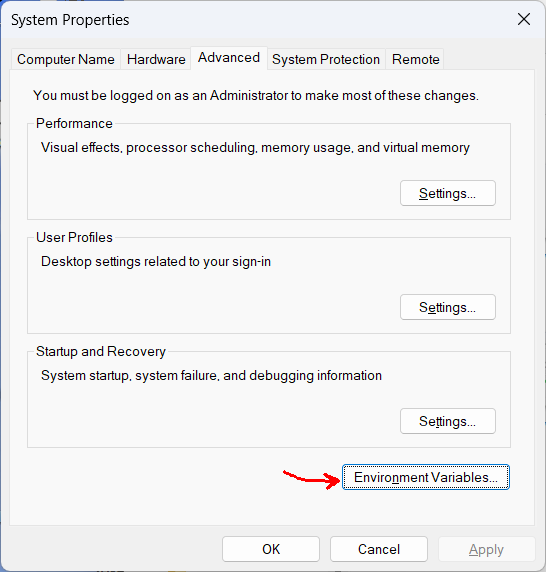
Figure 5: Screenshot of Windows System Properties window with the 'Environment Variables' button highlighted.
From the "System Properties" window, click the "Environment Variables…" button at the bottom.
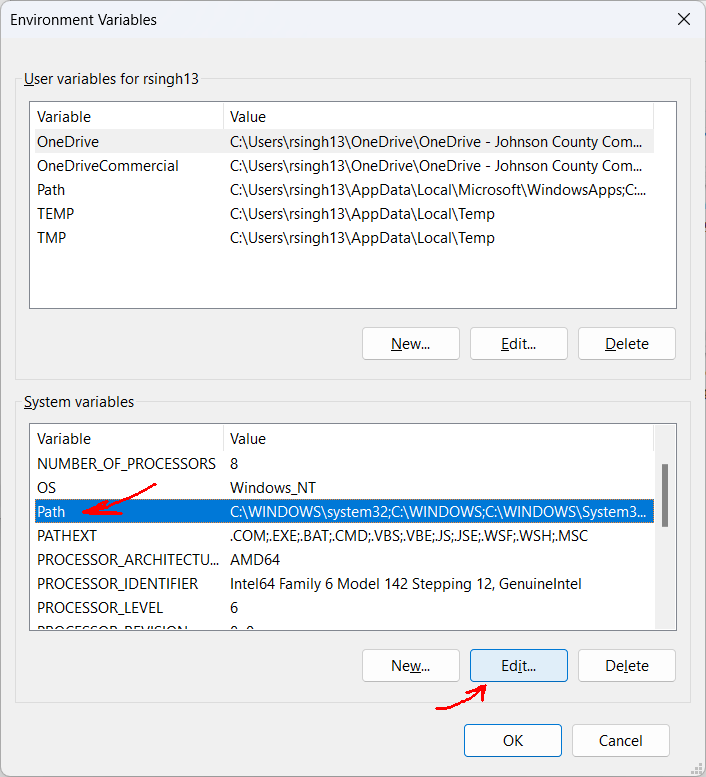
Figure 6: Screenshot of Environment Variables window, with the Path field highlighted and the Edit button selected.
In the "Environment Variables" window, under the bottom list ("System variables"), locate the Variable named Path. Click it, then select "Edit…".
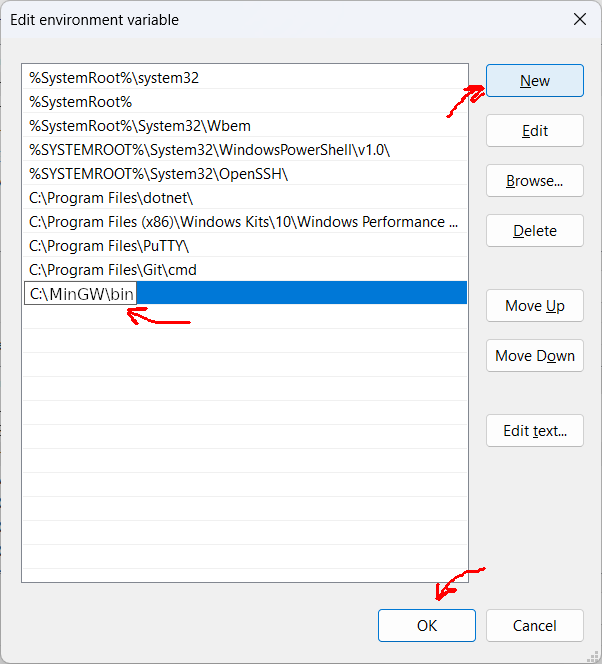
Figure 7: Screenshot of the Edit environment variable window, with the New button highlighted, the MinGW path pasted in, and the OK button highlighted.
In the "Edit Environment Variables" window, click "New" and type in the following path:
C:\mingw\bin
Click "OK" when done, and click "OK" on the rest of these windows to close them.
NOTES!
- Make sure the upper/lower case matches the folder on your computer. (mingw is different than MinGW)
- If you installed to a different directory than the default you will have to use that here.
3. Installing Git desktop software
Git is used for source control, where we can track changes to code over time, back it up to a server, and even collaborate with others.
In the unzipped WINTOOLS folder, run the Git-2.52.0-64-bit.exe file.
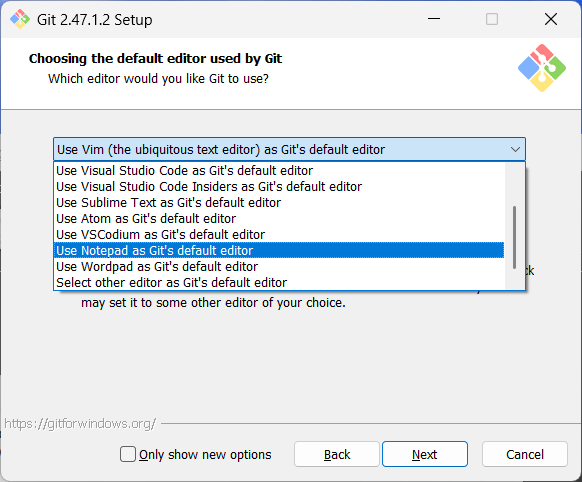
Figure 8: Screenshot of Git installer, 'Choosing the default editor used by Git' screen. The 'Use Notepad as Git's default editor' is selected.
Go through the steps, most of the defaults are fine, just look out for the Choosing the default editor used by Git screen! Make sure to select something other than vim.
4. Installing a code editor
To edit source code we need any plaintext file editor, though something intended for code has more features that make working with code easier.
I will probably be hopping between editors throughout the semester just to show that you can work from anywhere. I've included installers for three editors.
- emacs: This is my preferred editor but it has a bit of a learning curve, but I'll be happy to answer any questions about it.
- geany: A simple and lightweight code editor I like for small edits.
- vscodium: A version of VS Code with some Microsoft-related stuff ripped out of it. Has a bunch of features and can be customized, but we'll mostly just use it for code editing. I have this as an option because it's cross-platform on Win/Linux/Mac.
Feel free to install one or all of them to check out. If you already have a preferred editor you can use that, though I would suggest not Visual Studio (VS Code is OK).
5. Verify that everything was installed correctly
Follow these steps to verify that everything got installed!
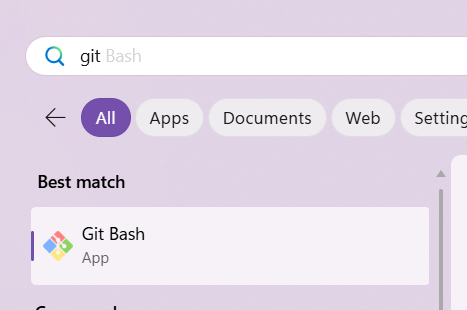
Figure 9: Screenshot of the Git Bash program being selected in the Windows start menu.
Go to the start menu and type in "Bash". Open up Git Bash.
5.1. Checking g++
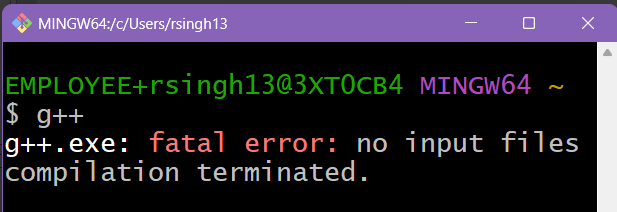
Figure 10: Screenshot of g++ being run in the terminal.
In GitBash, type: g++, then hit ENTER.
✅ Success: It should give an error "g++: fatal error: no input files. compilation terminated."
This is fine, because it means the g++ program works but it's complaining that we didn't tell it a C++ source file. But we're just testing to make sure g++ got set up properly.
- ❌ Failure: If it gives this error - "g++ : The term 'g++' is not recognized as the name of a cmdlet, function, script file, or operable program. Check the spelling of the name, or if a path was included, verify that the path is correct and try again."
- Fix: This means it can't find the g++ program. Make sure to review your Environment Variables step and make sure
C:\mingw\bin\is added to the PATH variable. - ❌ Failure: Error “fatal error: cannot execute 'cc1plus': CreateProcess: No such file or directory. Compilation terminated.”
- Wrong processor type, need to download the installer and set up from scratch.
- Delete C:\mingw because we’re going to do a fresh install.
- Download the MinGW setup from Sourceforge.
- Watch this video to install MinGW.
- Wrong processor type, need to download the installer and set up from scratch.
- Fix: This means it can't find the g++ program. Make sure to review your Environment Variables step and make sure
5.2. Checking make
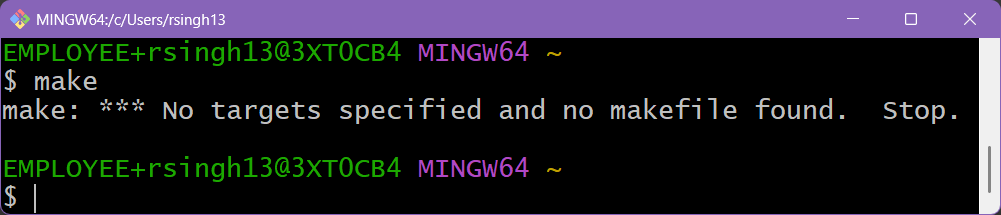
Figure 11: Screenshot of make being run in the terminal.
In GitBash, type: make , then hit ENTER.
✅ Success: It should give an error "make: * No targets specified and no makefile found. Stop."
This shows that the make program works but it's just complaining that we don't have a project to make.
- ❌ Failure: If it gives this error - "make : The term 'make' is not recognized as the name of a cmdlet, function, script file, or operable program. Check the spelling of the name, or if a path was included, verify that the path is correct and try again."
- This means it can't find the make program. Make sure to review your Environment Variables step and make sure C:\mingw\bin\ is added to the PATH variable.
5.3. Checking gdb
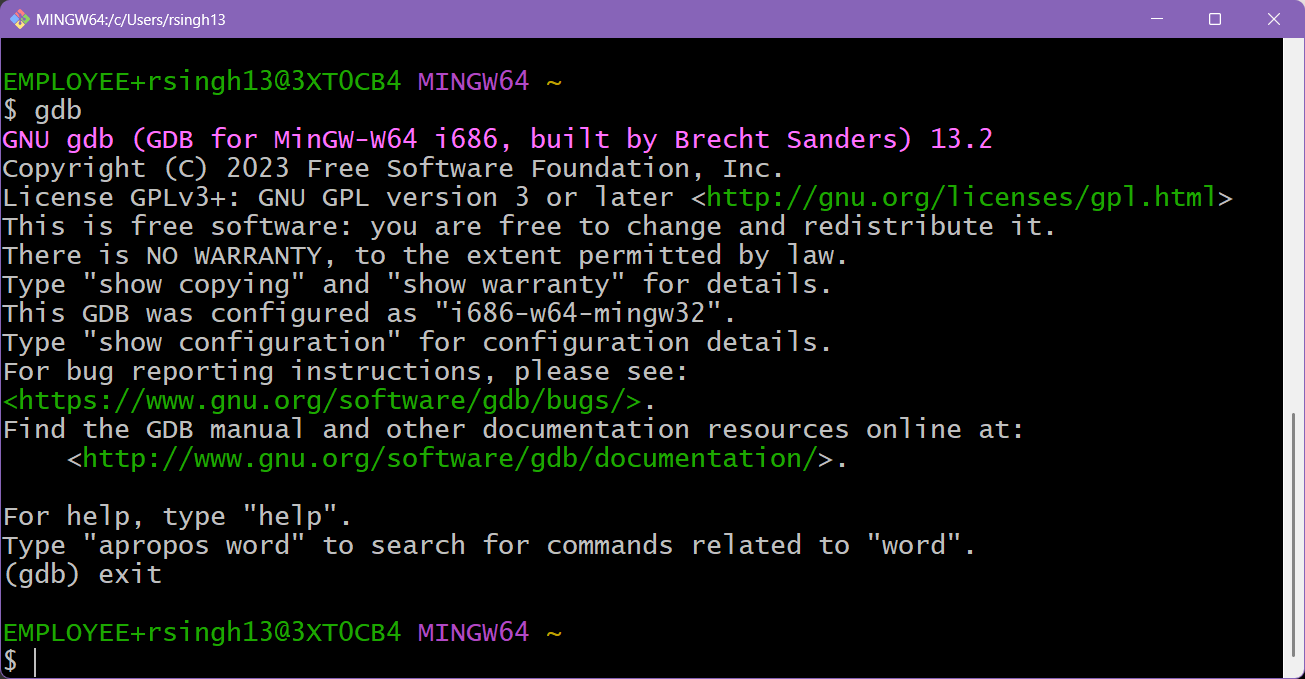
Figure 12: Screenshot of gdb being run in the terminal.
In GitBash, type: gdb , then hit ENTER.
- ✅ Success: The gdb program will start and it may have a bunch of information; once you see a (gdb) prompt waiting for your input, type "exit" or "quit" to leave.
- ❌ Failure: If it gives this error - "gdb : The term 'gdb' is not recognized as the name of a cmdlet, function, script file, or operable program. Check the spelling of the name, or if a path was included, verify that the path is correct and try again."
- This means it can't find the gdb program. Make sure to review your Environment Variables step and make sure C:\mingw\bin\ is added to the PATH variable.
5.4. Creating, building, and running a test file
In GitBash type:
notepad test.cppand hit ENTER.Notepad will launch and ask if you want to create a new file. Press "Yes".
Copy/paste the following code into Notepad:
#include <iostream>
using namespace std;
int main()
{
    cout << "Hello!" << endl;
    return 0;
}
- Save the file and close Notepad.
Back in GitBash, build the program with:
g++ test.cpp -o TestProgram.exeAfter hitting ENTER, if it doesn't show an error message then the build was successful.
Run the program with:
./TestProgram.exeIt should show the "Hello!" message.
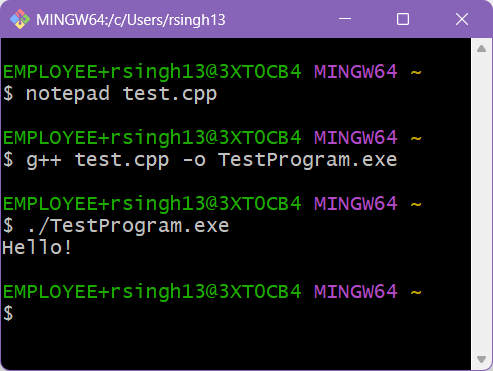
Figure 13: Screenshot of a program being built and run in the terminal.
6. Assignment turn-in
Let me know how setup went in the Canvas assignment.
- Which Operating System are you on?
- Did everything install OK?
- Which code editor did you set up? (geany / emacs / vscodium)
- Any issues with testing out the programs?