Table of Contents
1. Files, directories, and the filesystem
On your computers, tablets, and phones, there is a filesystem structure that organizes all the files on your system - Programs, images, videos, documents, and so on. Being able to navigate your system's files is an important part of computer literacy, and will help with locating your source code and built programs. The filesystem is a representation of items on your device's hard-drive.
1.1. Files
Files on your computer can be text documents, images, videos, audio, or even executable programs (apps). Each file has a name and usually has an extension. The extension is a short-cut for you to tell what type of file the item is. Some common file types are:
| Document extension | File type |
|---|---|
| FILENAME.docx | MS Word document |
| FILENAME.xlsx | MS Excel document |
| FILENAME.mp4 | Video file |
| FILENAME.mp3 | Audio file |
| FILENAME.jpg | Image file |
| FILENAME.png | Image file |
| FILENAME.zip | Compressed file |
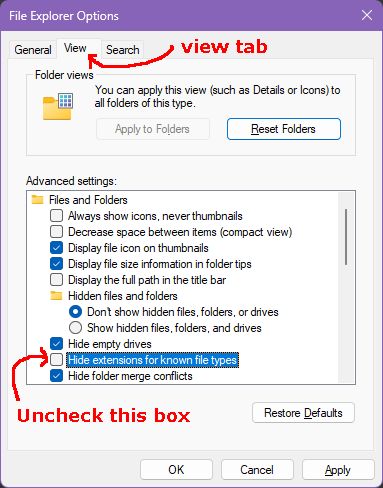
If you're on Windows, I would recommend turning on file extension view so you can see what kind of files are what.
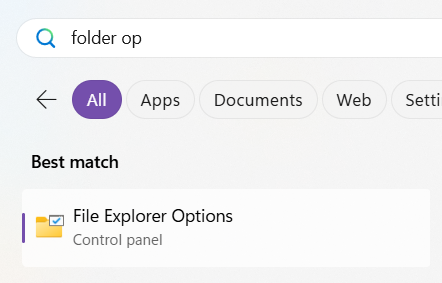
Go to the Start Menu and type "Folder options" and select the "File Explorer Options".
Open the "View" tab, then UNCHECK the "Hide extensions for known file types" box. Click "OK" afterwards.
1.2. Folders/directories
Besides files, the filesystem is also split up into folders (also known as directories). Folders have a name but no file extension - they're not files. They are just locations that store files and other folders. A folder inside of another folder is known as a subfolder.
For instance, in your Photos directory on your computer, you might keep separate folders for different dates ("2025", "2026"), or different projects ("Landscapes") or anything else. On your tablets and phones, you can make "Albums", and behind-the-scenes these become Folders on your device.
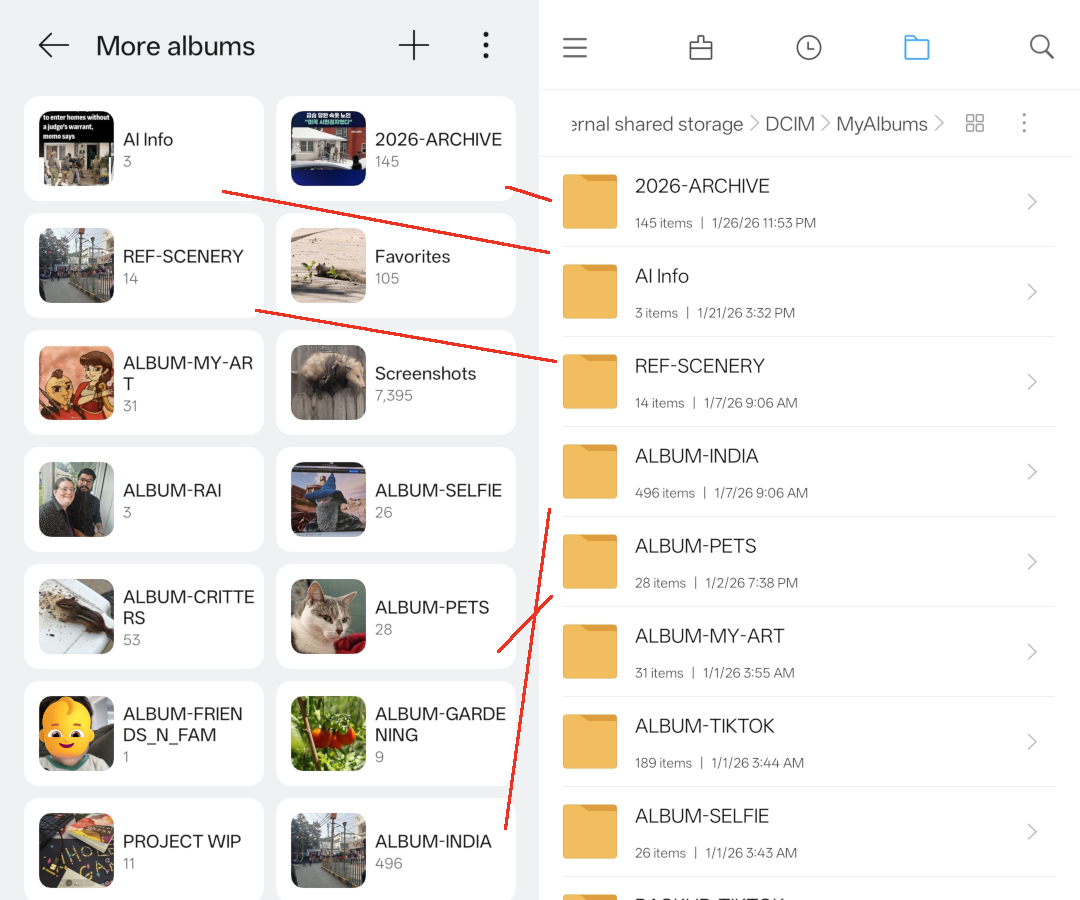
Figure 1: Side-by-side screenshots from my Android device: The view of Albums from my Photos app, and then the actual folders on the Filesystem.
The filesystem on our devices are structured like a tree (though usually drawn like an up-side-down tree), where we have one root location (the base) and it expands into various folders and sub-folders.
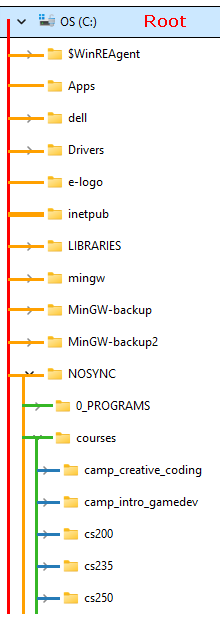
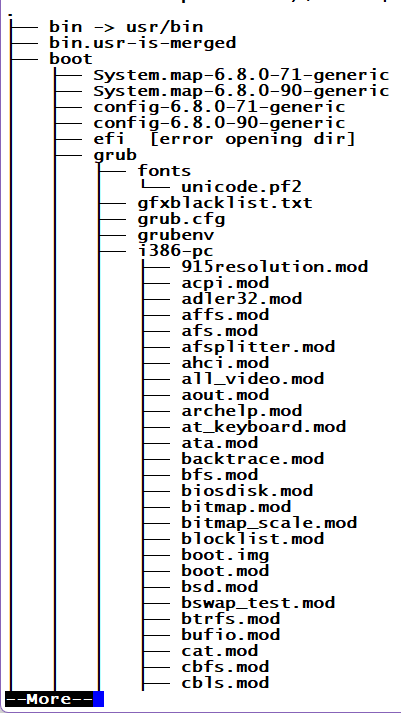
On Windows your primary hard-drive is usually put as the C:\ drive. (If your
computer has multiple hard-drives, you might also have D:\, E:\, etc. - CD
drives also will get a letter drive as well!)
On Linux and Mac, the root directory is written as just a forward slash /,
though you usually won't access the root directory because it's full of system
files.
When you open up the File Explorer in Windows it starts you at a "Home" directory, which usually has folders for "Pictures", "Documents", and more.
With Mac/Linux, usually you'll also start at a home folder. The path for this is
usually at /home/YOURNAME/, and this directory also usually has a "Photos",
"Documents", and other similar folders.
1.3. Paths
As we organize our files on our system within folders and subfolders, our files
will have a filepath that corresponds to their locations. The filepath is the
instructions for how to get to your folder or file, starting from the root
directory (C:\ or /) and through every folder on its way.
For example, on Windows, many programs are stored in C:\Program Files, such
as Firefox (C:\Program Files\Mozilla Firefox), Zoom (C:\Program
Files\Zoom\bin) and more.
For Windows, the separator between folders is usually a backslash \, though
it will also accept forward-slashes /.
On Mac and Linux, we use forward-slashes ONLY for the folder separator. Your
home folder is at /home/YOURNAME/, and getting elseware builds on top of
that. Let's say you have a "homework.txt" file on your Desktop, the path would
be /home/YOURNAME/Desktop/homework.txt.
Knowing the path of your files is important so you can locate them later, or find them when you need to upload them to the web.
On Windows when you're in the File Explorer, the address bar at the top will show the path. If you click in that area, it will turn to text, and you can copy this text, or just see the full path.
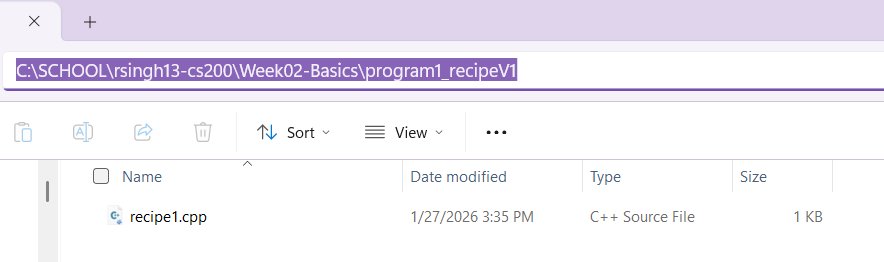
Figure 2: A screenshot of the Windows File Explorer, at location C:\SCHOOL\rsingh13-cs200\Week02-Basics\program1_recipeV1, which contains the recipe1.cpp file.
You can paste the copied path into an "Open File…" dialog box or in another File Explorer window address bar, and after hitting ENTER it will take you to that path quickly.