Table of Contents
1. Lesson 12: Object collisions
1.1. Continuing on from Lesson 11
We are going to build on top of the Lesson 11 code, but you still might want to save it as a new program:
> save NEWNAME.lua
cart NEWNAME.lua saved!
1.2. Editing the code
In the SETUP portion let's add two variables: a player score and a shark score. We are going to set them to 0 to begin with.
pscore = 0            -- Player score
sscore = 0            -- Shark  score
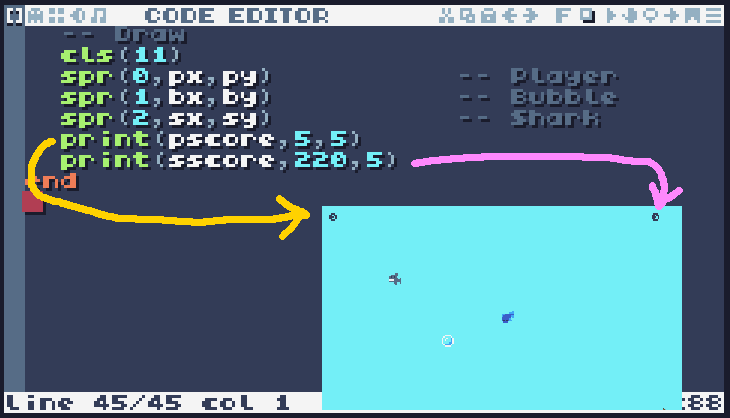
Let's also print the scores to the screen. We could either keep it at a fixed location like at the top of the screen…:
-- Draw
cls(11)
spr(0,px,py)          -- Player
spr(1,bx,by)          -- Bubble
spr(2,sx,sy)          -- Shark
print(pscore,5,5)
print(sscore,220,5)
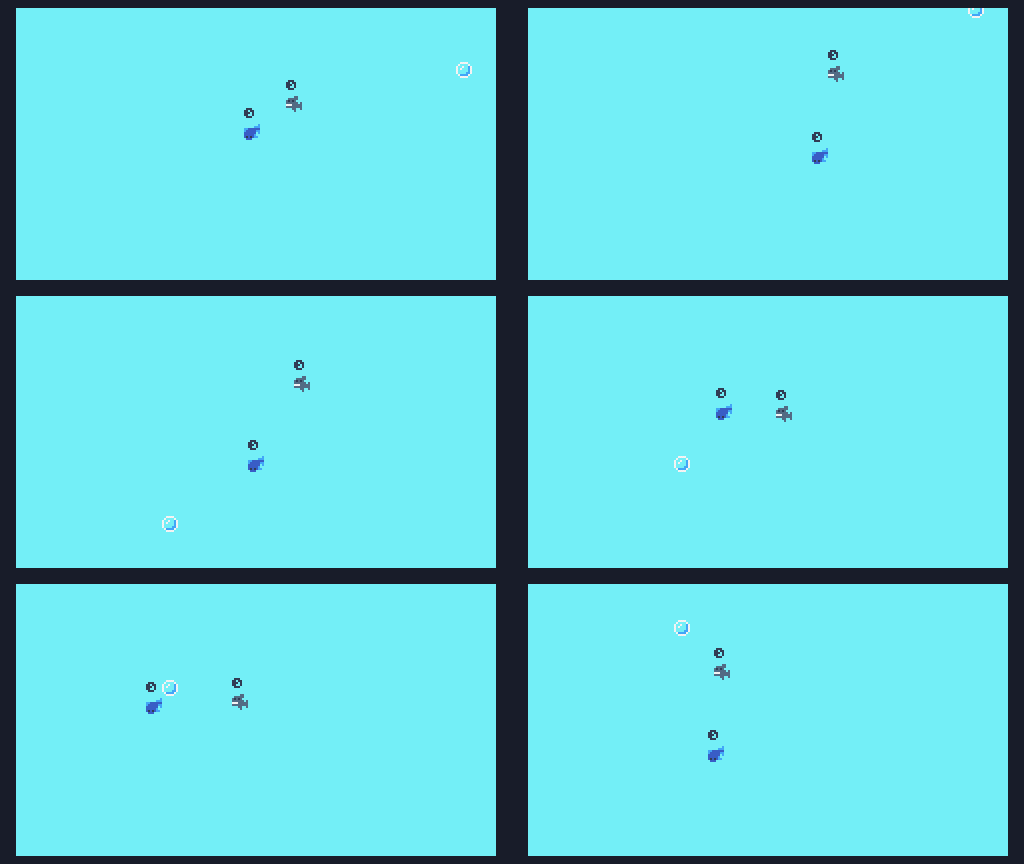
Or put the score above the player and shark, so it follows them around as they move:
-- Draw
cls(11)
spr(0,px,py)          -- Player
spr(1,bx,by)          -- Bubble
spr(2,sx,sy)          -- Shark
print(pscore,px,py-8)
print(sscore,sx,sy-8)
1.3. Distance formula
Now let's bring in the Distance function again. Remember that this has to go at the very top of the program before everything else!
function getDistance( x1, y1, x2, y2 )
  return math.sqrt( ( x2 - x1 )^2 + ( y2 - y1 )^2 )
end
The 0.5 is the speed of the shark. Use a larger number to make it faster, or a smaller number to make it go slower.
1.4. Testing
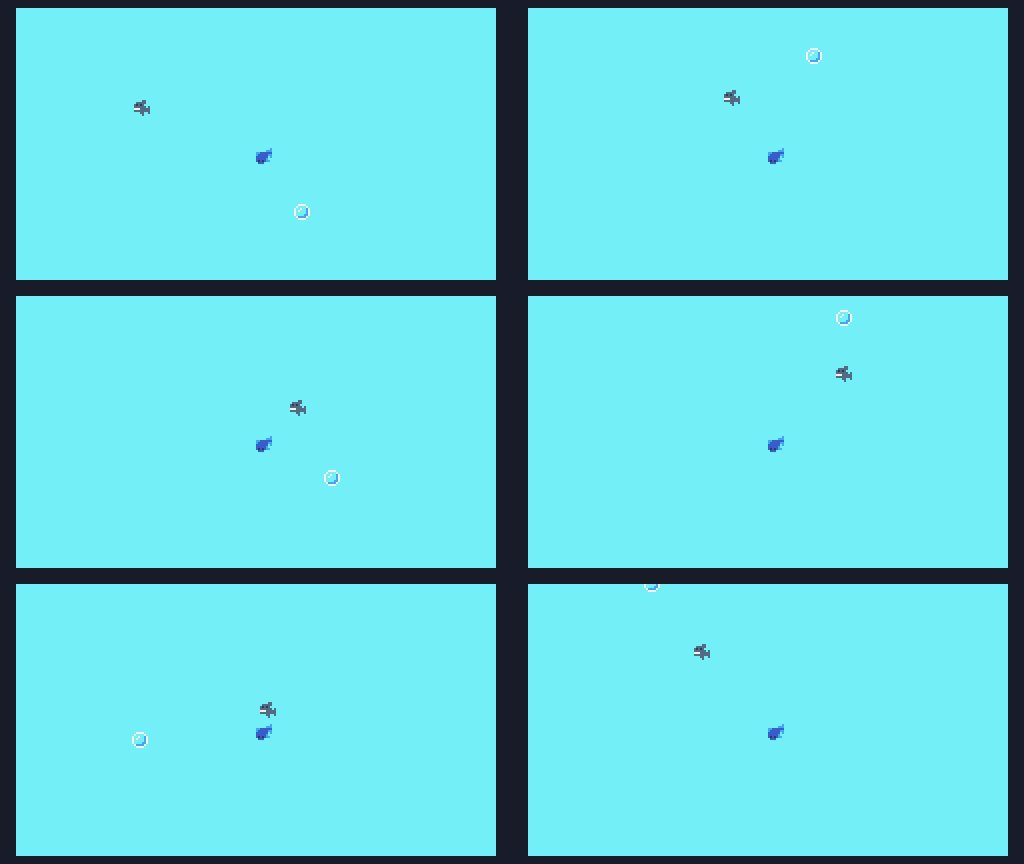
Now the shark moves around on its own chasing the bubble. Perhaps we could make a game where both objects are chasing the bubble…? Hmmm…….
1.5. Save your work
Make sure to press the CTRL+S key, or press ESC to go to the
prompt and type save to save your work! If you want to access the
folder with your code, type folder.
If you have a USB flash drive, make sure to copy your file over so you don't lose it when the computer resets!