Table of Contents
1. Lesson 00: Thinking about Computer Graphics
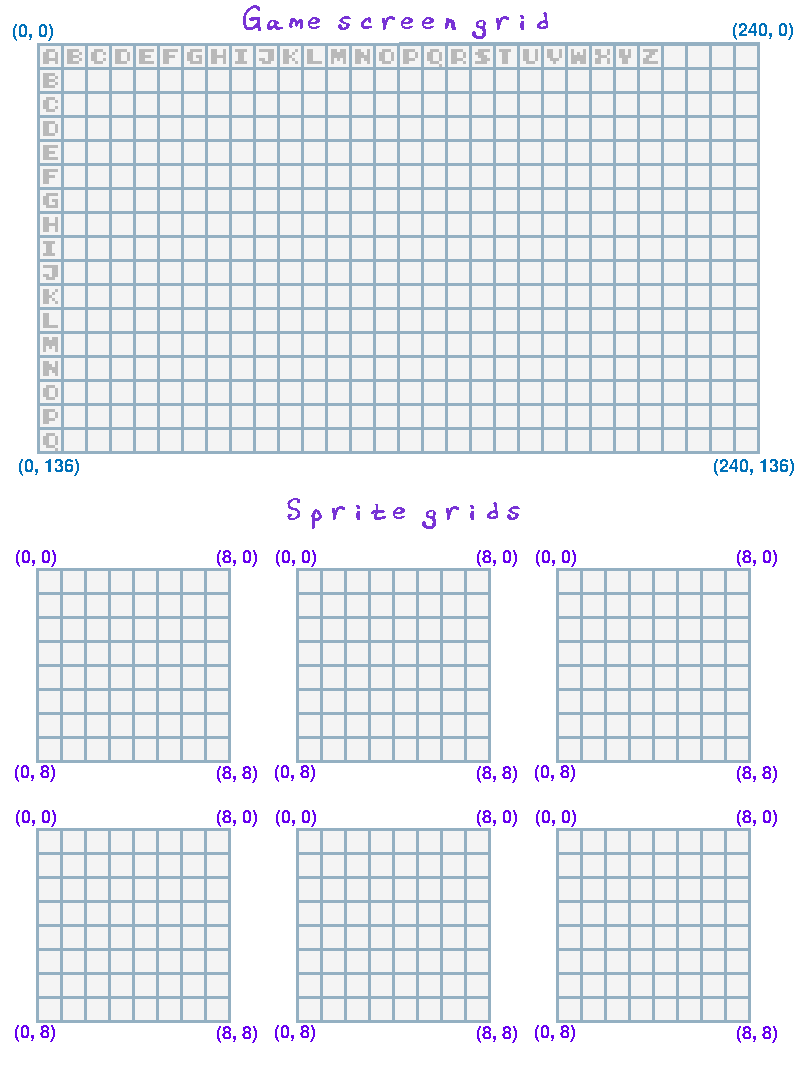
You should get a Handout with the gamescreen grid and the sprite grid on it for this lesson!
1.1. How do we know where things are?
We have to tell a computer how to do everything. A lot of software has been written over the years that make things more graphical, but if you boil it all down, the computer really only understands numbers. Luckily, we have a way to represent location with numbers…!
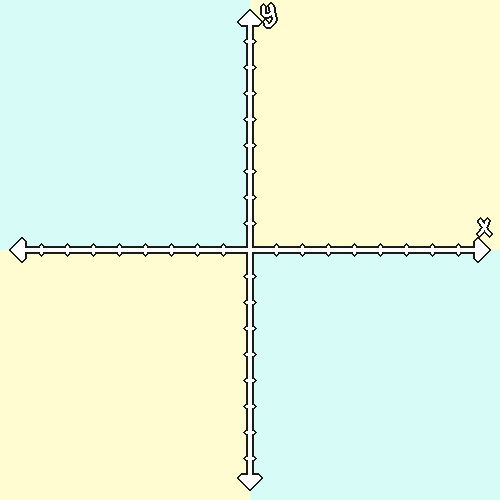
If you've covered coordinates in your math class, you might already be familiar with this! However, the computer doesn't use the algebra coordinate plane - why would we need negative locations on a computer screen?
Instead, the computer's coordinate plane for the screen looks like this:
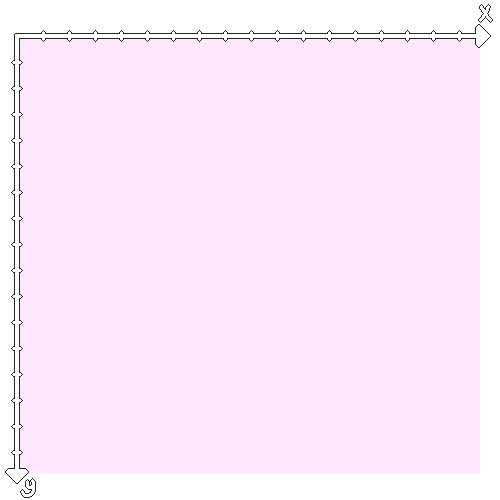
With the computer's screen space, we begin at the very top-left of the screen. This is our origin - (0, 0). Think of it like typing on a typewriter - it starts at the top-left of the paper!
We use x to represent the horizontal position of something - that's left or right. We use y to represent the vertical position of something - that's up or down.
1.2. What are the locations on the Tic-80 screen?
In Tic-80 games, we have our screen layout like this:
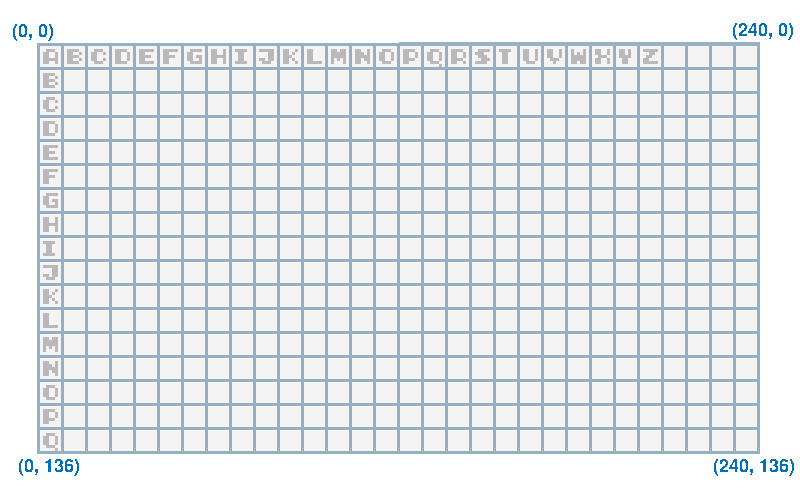
The top-left is (0, 0), and as we move to the right the x increases. As we move downward the y increases. If we go all the way to the opposite bottom-right corner, that is position (240, 136). So, you can make your x values anywhere from 0 to 240, and your y values anywhere from 0 to 136.
1.3. What else is this useful for?
When we draw art for our game, we have a similar layout for the canvas we draw on, except the canvas is much smaller. In Tic-80, each "image" (or "sprite") is 8 pixels wide by 8 pixels tall…
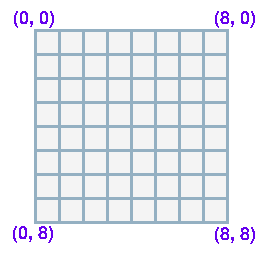
… so we draw very simple art, like this:
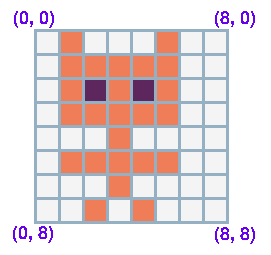
Each pixel we can choose a color and fill in that block.
1.4. Practice with the handout!
With the printable Handout you can do a little planning for your games before we get into the editor itself.
STUDENTS!
In our next lesson we'll start with writing text to the screen to write out a story!
On the big screen grid, look at the size of the letters, and then plan out what text you want to put in your story and how to make it fit on the screen!
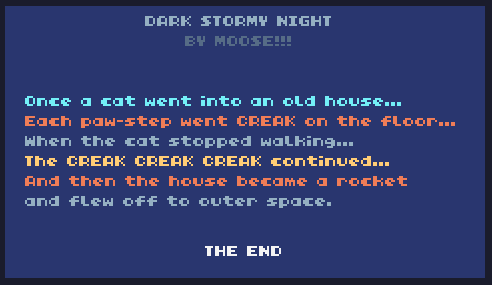
It should be a short story, like this example!
You will be able to choose your text, the position of the text,
and the color of each line of text!
What will you make?